You can subscribe to email notifications by opting in through either your in-app widget or a standalone page.
Here’s how it works:
Your users will see a “Subscribe” option viewable at the top of your in-app widget and in the top-right corner of your standalone page. Now your users must click on this to start the subscription process.
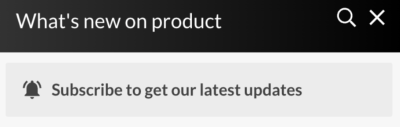

The first time a user subscribes, a verification email is sent to their inbox. They must open this email and click the verification link to confirm their subscription. Email notifications are strictly opt-in—only verified users will receive updates.
After verifying their email, your users will now receive notifications about your latest updates on the latest posts if the email notification type is selected when publishing.
You can also track your email subscriber count by heading over to Analytics > Email Subscriptions in your dashboard. To view if emails have been successfully landed, check the “Email Events” tab for detailed insights into delivery success, check the Email Events tab to view whether emails have been successfully sent and opened. This helps users opt-in correctly and you have full visibility into email notification activity
and subscription status.
Resubscribing after unsubscribing
Once a user unsubscribes, Beamer stops sending them emails. Clicking Subscribe in your widget or standalone page again won't restart them, and no new verification email is sent.
To get emails again, the user can either:
Open the last Beamer email they received and click the unsubscribe link in its footer. That page gives them the option to resubscribe.
Ask you to contact our support team, and we'll resubscribe them.
You can check whether a user is subscribed, and when, in Analytics > Email Subscriptions.