You can customise the position of your widget icon in two ways to enhance its placement within your application. Here are two primary methods to achieve this:
1. Using the Widget Settings Menu
Navigate to the widget settings in your dashboard.
In the settings, find the option to select the widget’s position.
Click on the dropdown menu to view available position options such as top, bottom, left, and right.
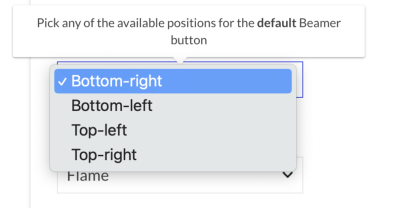
Choose your desired position, and the widget will automatically adjust to the selected placement.
2. Adjusting the Notification Bubble Offset
Customise the widget’s position further through the notification bubble offset settings.
Specify precise positioning by entering pixel (PX) values for the widget’s placement.

Modify the top, right, bottom, and left values to position the widget exactly where you want it on the screen.
This method allows for fine-tuning, ensuring the widget does not interfere with other elements of your application’s UI.
3. Using Custom CSS
Local CSS Customization: You can also customize the widget’s position using your local CSS styles.
Target Widget Elements: Use CSS selectors to target the widget’s elements and apply styles like position, top, left, right, and bottom to adjust its placement according to your design needs.
Why isn't my position change taking effect?
If you've set a position in Settings > Widget but it's not showing up on your site, check these in order:
Script parameter overrides the dashboard setting. If your embed script passes a
button_positionvalue (top-left,top-right,bottom-right, orbottom-left), it takes priority over whatever you've set in the dashboard. Check with whoever manages your embed script for abutton_positionvalue and update it there instead.Clear your browser cache. Some browsers cache the widget's styling, so a dashboard change can look like it didn't save even when it did. Clear your cache and reload.
Confirm you're using the selector-based button. If your site uses a custom element via the
selectorparameter (rather than Beamer's default button), the dashboard position andbutton_positionsettings don't apply — position is controlled by your own CSS for that element instead.
Still not positioned where you expect? Contact our support team with your current embed script snippet and a screenshot of what you're seeing.