Overview
Setting up a custom sender domain from which to send your email notifications and NPS surveys reinforces your brand’s identity and ensures consistent communication with your users. This guide walks you through the steps to configure your domain for a more seamless and integrated communication experience.
Who can configure this?
Please note that only users with Manager or Administrator access can configure the custom sender domain. If you do not have the required access level, please contact your Administrator to assist with this setup.
Step 1: Access the custom sender domain settings
To begin, navigate to the Custom Sender Domain section of your settings:
Log in to : Use your credentials to access your Beamer account.
Go to settings: On the left-hand menu, click on Settings (settings) and navigate to the General section.
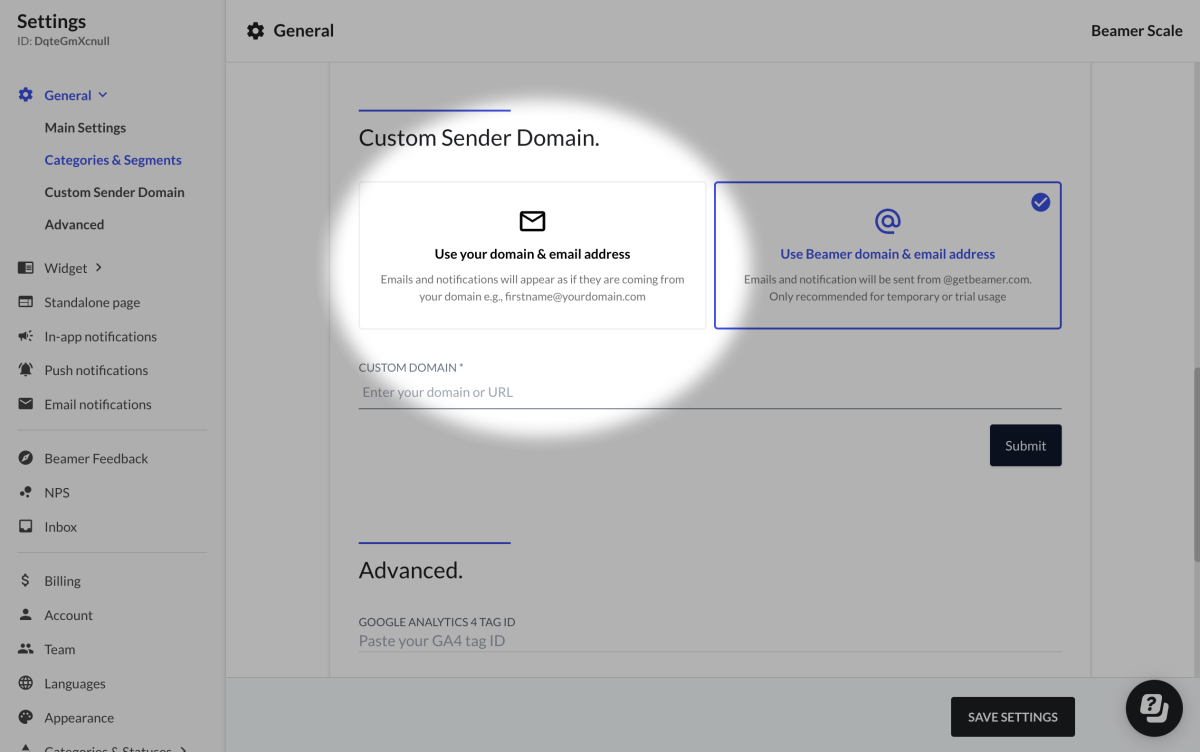
Click on “Custom Sender Domain”: Under the General Section, click the Custom Sender Domain tab and click on the Use your own domain & address option.
Step 2: Add and verify your domain
Next, you’ll need to add your domain and verify it to ensure it’s correctly configured.
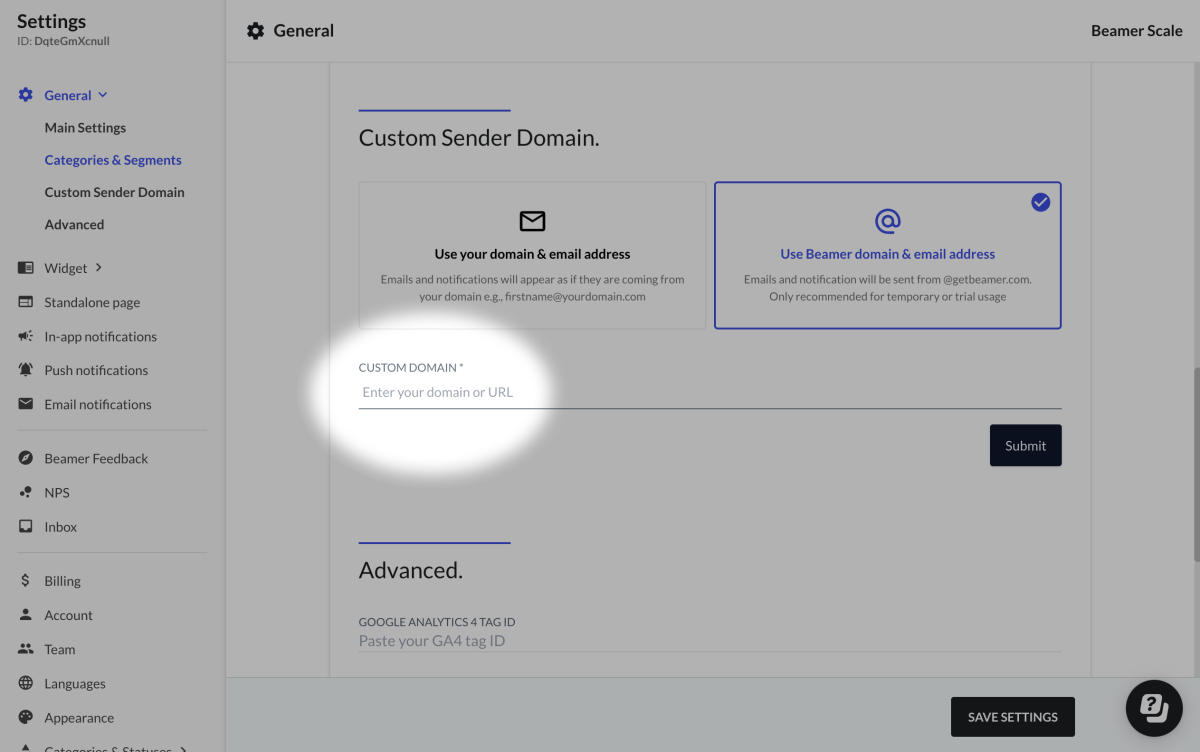
Enter your domain: Enter your domain (e.g.,
yourdomain.com) into the provided field under the Custom Domain field and click on Submit.Note: Please note, you will be able to send emails from your custom domain once your DNS records are updated and your domain has been successfully verified.
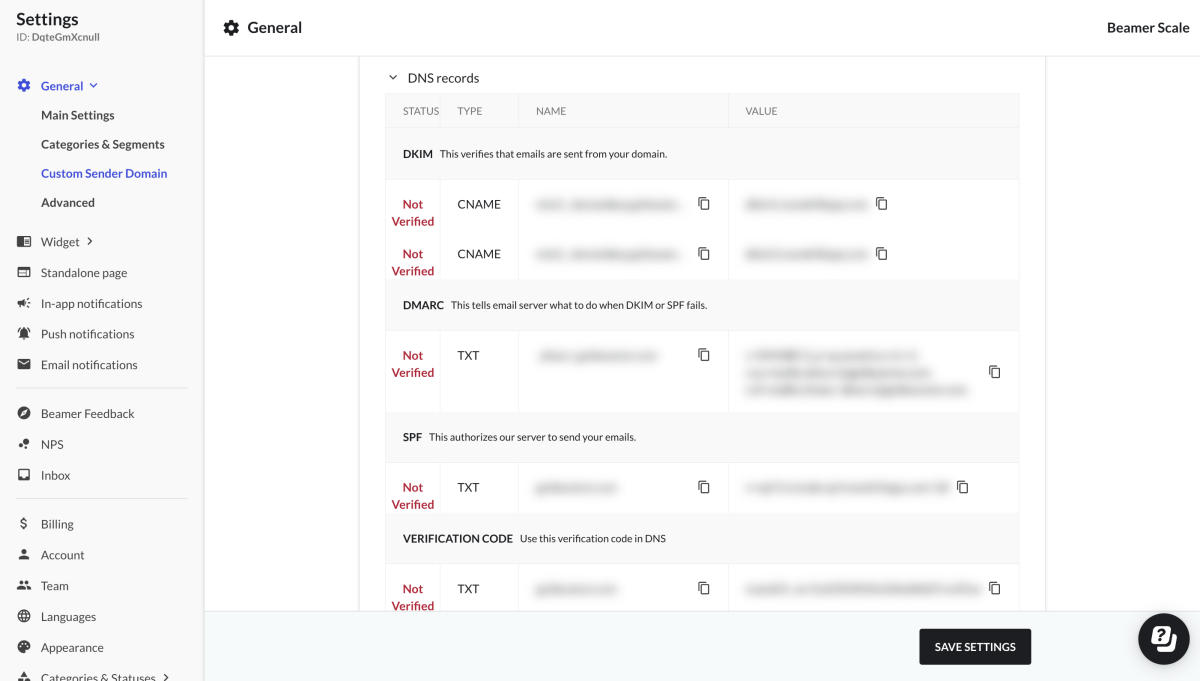
DNS records generation: Beamer will automatically generate the DNS records required to verify your domain. These include:
SPF (Sender Policy Framework): Helps prevent email spoofing.
DKIM (DomainKeys Identified Mail): Ensures email content hasn’t been altered during transit.
DMARC (Domain-based Message Authentication, Reporting & Conformance): Helps protect your domain from unauthorized use.
Step 3: Update your DNS settings
Once the DNS records are generated, update your DNS settings with your domain provider.
Access your DNS provider: Log in to your DNS provider’s dashboard (e.g., GoDaddy, Cloudflare, etc.).
Add the DNS records: Use the information provided by Beamer to add the SPF, DKIM, and DMARC records to your DNS settings
SPF record: Add this as a TXT record.
DKIM record: Add this as a CNAME record.
Note: If your proxy status is enabled (e.g., on Cloudflare), make sure to disable it and set it to DNS only.DMARC record: Add this as a TXT record.
Verification code: Add the provided verification code as a TXT record in your DNS settings. This code is required to complete the domain verification process.
Save your changes: Ensure that all changes are saved in your DNS provider’s dashboard.
Step 4: Verify your domain
After updating your DNS settings, you’ll need to verify your domain in Beamer.
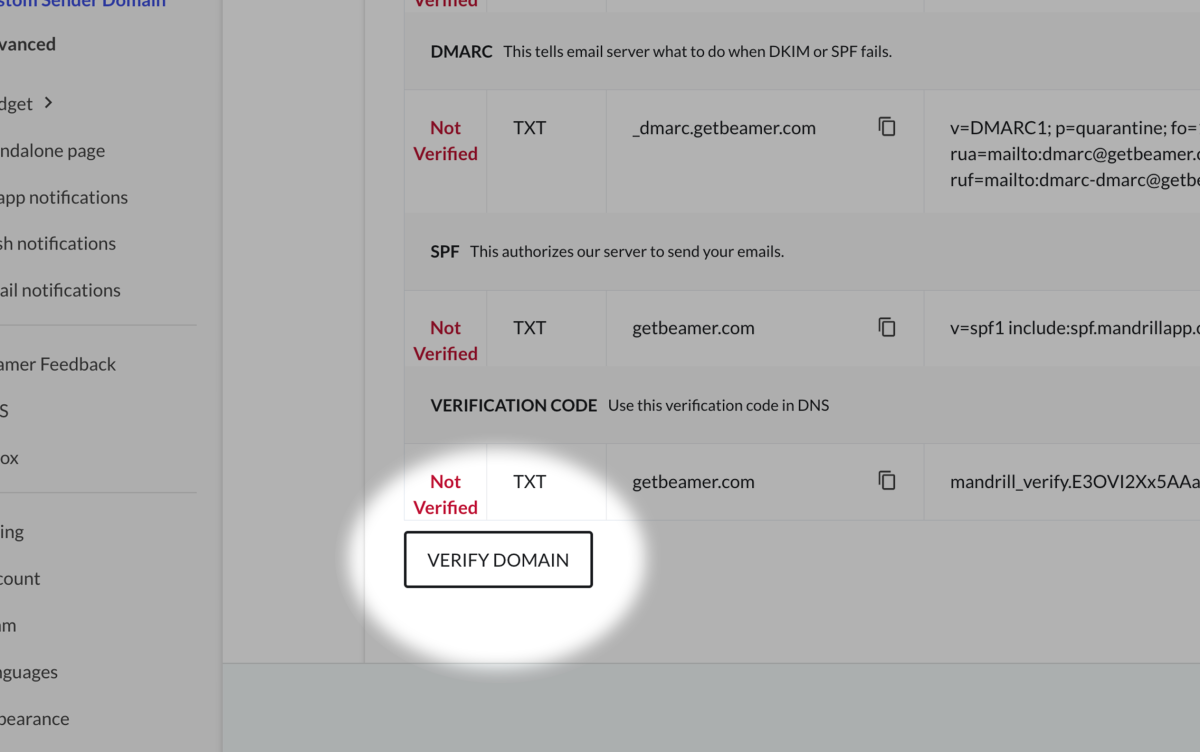
Click “Verify Domain”: Return to the custom email domain settings in Beamer and click Verify Domain.
Automatic verification: Beamer will automatically check the DNS records you’ve added.
Real-time status: The status of your domain will be displayed in real-time:
Pending: DNS records are still propagating.
Verified: Your domain has been successfully verified.
Failed: There’s an issue with the DNS records.
Tip: If verification fails, check for any typos in your DNS records or wait a few hours for DNS propagation. It usually takes up few minutes to a few hours after verifying, so please wait for the verification to complete.
Step 5: Confirm and activate your domain
Confirmation: Once your domain is verified, it’ll automatically get selected as the chosen option to deliver your communications.
Set as default: Your custom domain will automatically be set as the default sender domain for all email communications.
Fallback option: If needed, you can switch back to Beamer’s default domain at any time. Simply toggle the domain option in the settings.
Step 6: Test and customize your setup
After your domain is verified, finalize your settings and test the setup to ensure everything is working correctly.
Customize your sending address for email notifications:Once your domain is verified, you can set the default sending address for email notifications.
Email notifications: Click on the pencil icon next to Email Notifications and enter your preferred sending address (e.g.,
support@yourdomain.com).NPS surveys: Please note that NPS surveys will automatically be sent from
noreply@yourdomain.comand cannot be customized. This ensures consistency and compliance with best practices.
Send a test email: Use the email notifications feature in the changelog to send a test email from your new domain.
Check the Email: Verify that the email appears in your inbox with the correct sender address (e.g.,
support@yourdomain.com).Monitor delivery: Ensure that any emails are delivered to your recipients without any issues.
Troubleshooting
The domain won't submit
If clicking Submit returns "An Error Occured, Please try again." and you never reach the DNS step, this is not a DNS problem. DNS records are only generated after Submit succeeds, so there is nothing on your side to check yet.
Some domains need to be enabled by us before they can be submitted. Contact our support team with the exact domain you are trying to add, including the subdomain if you are using one, and a Jam recording of the error. We ask for the recording every time, so sending it up front saves a round trip. We will confirm once the domain is available to submit.
You already have SPF and DMARC records
If your domain already sends email through another provider, you do not need to replace what you have.
Keep your existing SPF record. Do not add ours as a second SPF record. Two SPF records on the same domain break SPF for everything you send, not just Beamer. If your existing SPF already includes your sending provider, it works with us as it stands.
Keep your existing DMARC record. A stricter policy than we suggest, such as
p=reject, is fine. Leave it alone.Add the two DKIM CNAME records and the verification TXT record. Where your SPF and DMARC already pass on their own, those three records are all you need and Verify Domain will succeed.
Verification checks that your SPF, DKIM and DMARC are valid. It does not check that they match the values shown in the dashboard word for word. Those values are a starting point for customers who have no records yet.
An external DMARC reporting warning
DMARC checkers such as MXToolbox may report that getbeamer.com does not publish external DMARC reporting authorization for your domain.
This warning is expected and you can ignore it. It has no effect on email delivery or authentication. Your emails send and authenticate normally either way. The only thing it affects is whether DMARC aggregate reports about your domain are delivered to us, which is a reporting function, not a sending one. Nothing in your Beamer setup is broken, and there is no action for you to take.
Other common problems
DNS records not found: Double-check that the DNS records were added correctly. DNS changes can take up to 48 hours to propagate.
Verification failed: Ensure there are no typos in the records and that they are correctly formatted.
Emails not sending: Make sure your domain is verified and set as the default sender domain.