---
title: "How to translate my posts in different languages?"
slug: "how-to-translate-my-posts-in-different-languages"
updated: 2026-10-05T22:08:48Z
published: 2026-10-05T22:08:48Z
canonical: "help.userflow.com/how-to-translate-my-posts-in-different-languages"
---
> ## Documentation Index
> Fetch the complete documentation index at: https://help.userflow.com/llms.txt
> Use this file to discover all available pages before exploring further.
# How to translate my posts in different languages?
### How language tabs decide who sees a post
Beamer shows each reader the translation for their language. Their language is the `language` value your site sends Beamer, or their browser language if you don't send one.
- **Their language is in your list in Settings > Languages.** They see the post in that language. If the post has no translation in that language, the post is hidden from them.
- **Their language isn't in your list.** They see the post in your default language.
So leaving a language tab empty hides the post from readers of that language. Always fill in your default language tab, because that's what readers outside your list see.
To show a post to one language group only, use a segment as well. Language tabs alone don't do it, because readers whose language isn't in your list still get the default-language version.
1. Create a segment for the audience you want, based on the language attribute you send to Beamer or on any other attribute that identifies that group.
2. Apply that segment to the post.
3. Fill in the language tab for that audience so they read it in their own language.
See the [Advanced Segmentation Guide](/beamer/docs/advanced-segmentation-guide) for how to build the segment.
### How to enable multiple languages in .
1. In your Beamer Dashboard go to [Settings > Languages](https://app.getbeamer.com/settings#languages).
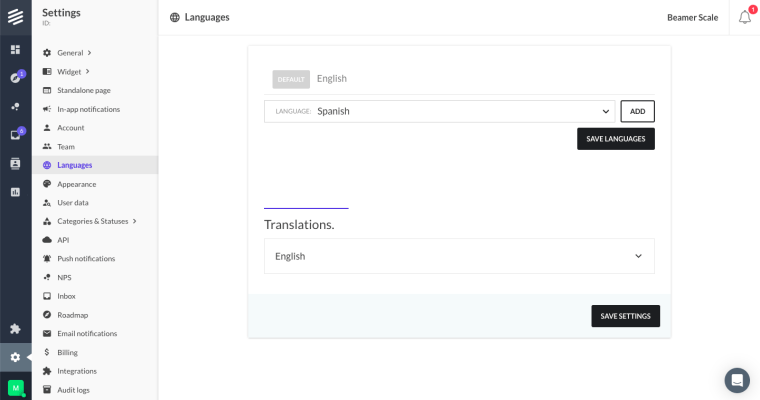
2. In **Languages** you can click on the select box to pick a language you would like to enable. Then click on **Add** to include it in the list.
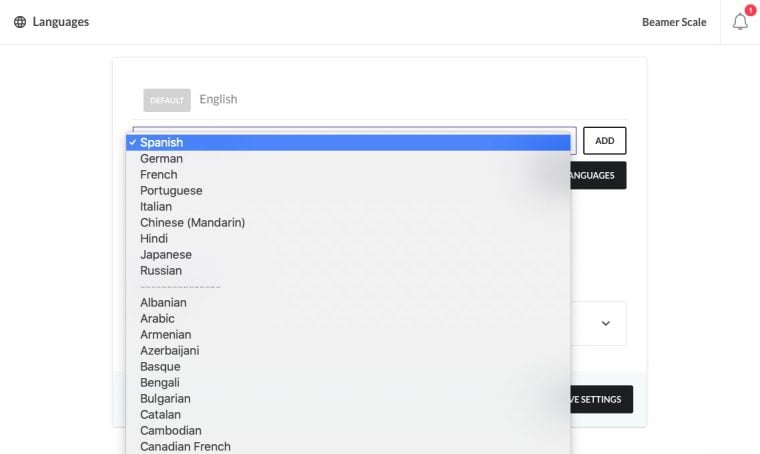
3. You can add as many different languages as you like.
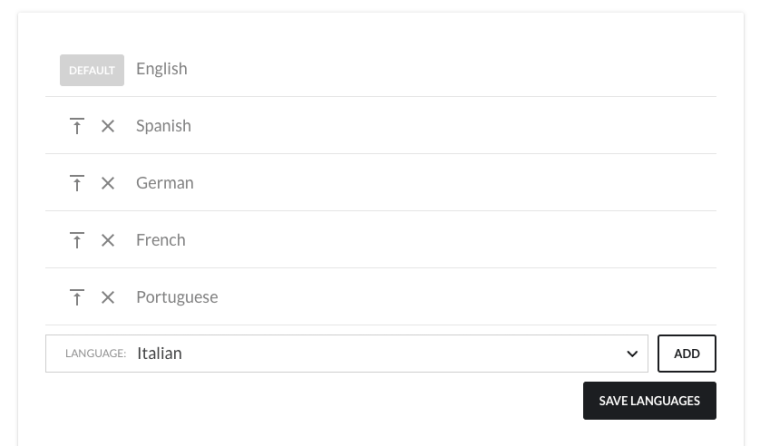
4. Remember to **save your languages** by clicking on the save button on the right.
5. This list will enable the multiple languages for your Beamer feed and for your individual posts!
#### How to remove a language?
1. In the **Languages** screen, go to the language you want to remove.
2. Click on the **remove icon**.
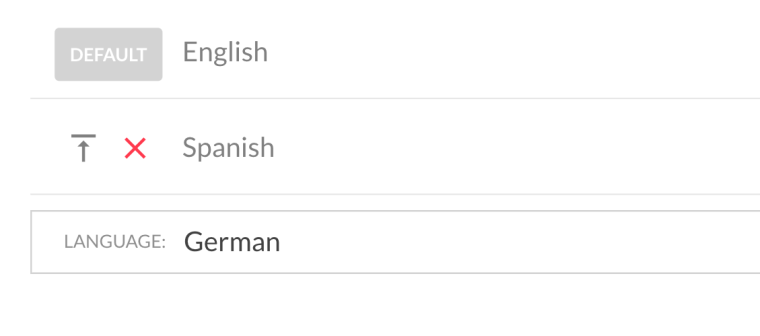
3. Don't forget to **save** your changes.
#### How to pick a default language?
1. In the **Languages** screen, go to the language you want to make the default language.
2. Click on the **make default**.
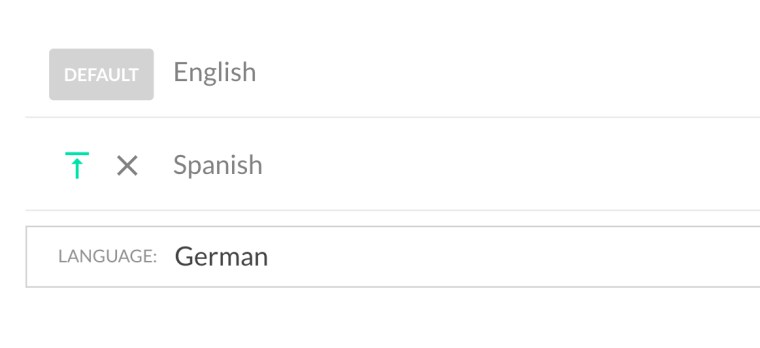
3. Don't forget to **save** your changes.
4. Your default language will appear at the top and will have a **default tag** like so:
#### How to change the text to right to left?
There are many languages that are written and read from *right to left* (RTL) instead of *left to right* (LTR). When you use those languages, you may want to mirror your UI to make it fit better with those languages. To do so:
1. In the **Languages** screen, go to the language you want to make RTL.
2. If the option is available, the language will have a switch at the right labeled **right to left**.
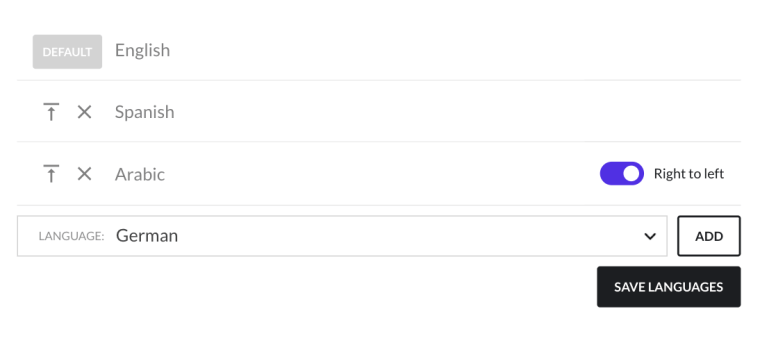
3. Click on the **switch** to activate. If the switch is green and at the right position then the option is enabled.
4. Don't forget to **save** your changes.
### How to translate your Beamer feed
1. Go to [Settings > Language.](https://app.getbeamer.com/settings#languages) Scroll down to find a general list of available **translations** for each of the enabled languages. This translations will include phrases, call to actions and other translatable text.
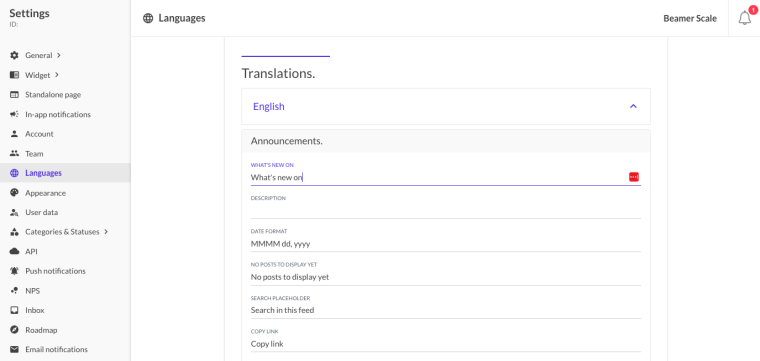
2. Sart translating!
3. Remember that this will be different for each of the languages you included (as explained in the first section of this guide).
4. When you are ready to launch don’t forget to press **save translations.**
### How to translate individual posts
1. Once you have enabled different languages (as explained [in the first section of this guide](/beamer/docs/how-to-translate-my-posts-in-different-languages#how-to-translate-individual-posts)) you'll be able to **translate individual posts.**
2. Each time you **create or edit a post** you'll see a list of the available languages in the top of the editor.
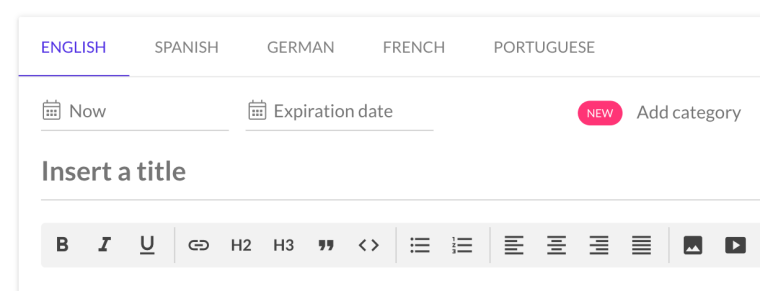
3. To add a translation to that post just **click on the language** you want to include and add content. You can translate directly from the other languages or even add specifically localized content that will be only accessible for that language.
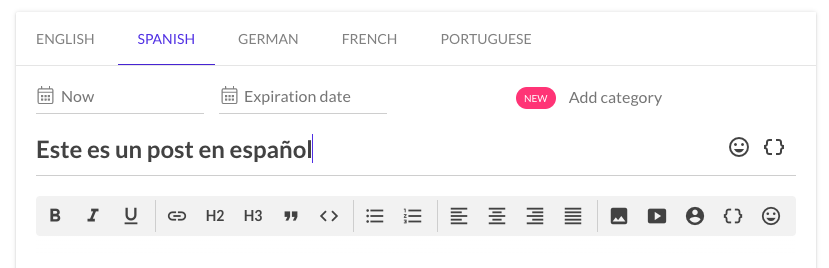
4. If a user's language is set in their browser, or passed in the `language` parameter, they'll get your translated feed and hence your translated post. Remember that if you don't include a translation for a particular language that post will not be displayed in that language feed.
5. If the language a user uses in their browser is not included in your list, the feed will display the language **marked as default.** You can learn to [change your default language here.](/beamer/docs/how-to-translate-my-posts-in-different-languages#how-to-translate-individual-posts)
#### Display translated posts.
As mentioned before, translated posts will be shown according to the language that a user has set on their browser. If you want call a specific language for your widget you can do so using the Beamer Embed Code. Like this:
```plaintext
```
In the previous code example the parameter [code]language[/code] includes the **two letter code of the language to display.**
#### Language code list.
Beamer uses two letter codes for languages. For the most common languages the codes are: **EN** for *English*, **ES** for *Spanish*, **DE** for *German*, **FR** for *French*, **PT** for Portuguese, **IT** for *Italian*, **ZH** for *Mandarin Chinese*, **HI** for *Hindi*, **JA** for *Japanese* and **RU** for *Russian*.The following are all the two letter codes for languages in alphabetical order:SQ – Albanian AR – Arabic HY – Armenian AZ – Azerbaijani EU – Basque BN – Bengali BG – Bulgarian CA – Catalan KM – Cambodian CF – Canadian French ZH – Chinese (Mandarin) HR – Croatian CS – Czech DA – Danish NL – Dutch NB – Dutch (Belgium) EN – English CE – English (Canada) NZ – English (Australia / New Zealand) UK – English (UK) ET – Estonian FJ – Fiji FI – Finnish FR – French FB – French (Belgium) KA – Georgian DE – German EL – Greek GU – Gujarati HE – Hebrew HI – Hindi HU – Hungarian IS – Icelandic ID – Indonesian GA – Irish IT – Italian JA – Japanese JW – Javanese KO – Korean LA – Latin LV – Latvian LT – Lithuanian MK – Macedonian MS – Malay ML – Malayalam MT – Maltese MI – Maori MR – Marathi MN – Mongolian NE – Nepali NO – Norwegian FA – Persian PL – Polish PT – Portuguese BR – Portuguese (Brazil) PA – Punjabi QU – Quechua RO – Romanian RU – Russian SM – Samoan SR – Serbian SK – Slovak SL – Slovenian ES – Spanish CO – Spanish (Colombia) MX – Spanish (Mexico) SW – Swahili SV – Swedish TL – Tagalog TA – Tamil TT – Tatar TE – Telugu TH – Thai BO – Tibetan TO – Tonga TR – Turkish UK – Ukrainian UR – Urdu UZ – Uzbek VI – Vietnamese CY – Welsh XH – Xhosa
### Tell Beamer which language each user reads
Pass the `language` parameter in your embed code for every user, using the two-letter code from the list above. If you don't, Beamer uses the reader's browser language, which may not match the language they use in your app.
- Send it for your default-language users too. If English is your default and you add Chinese, send `language: "ZH"` for your Chinese users and `language: "EN"` for everyone else.
- Beamer stores the language on each user. You can see it on the user's record in Users.
### Text in my own app doesn't change after I translate it
Settings > Languages translates text inside the Beamer widget. If you use a custom embed, any text you show in your own app, such as your own "What's new" label, comes from your code. Change or translate it in your code. Clearing your cache won't change it.
### Emails arrive in the wrong language
Beamer sends email notifications in the language stored for that user, which comes from the `language` parameter. If no language is passed, emails use your default language. A user only receives emails for posts that have a translation in their language.
To fix it:
1. Check the user's language on their record in Users.
2. Send the correct `language` value for that user from your site.
3. Publish a new post to test it. Editing a post that's already published doesn't send the email again.
### How to use localization tools.
Instead of spending time and effort on manual copy & pasting or implementing automated solutions by yourself, you can always rely on translation tools like [Crowdin](https://crowdin.com/?utm_source=getbeamer.com&utm_medium=referral&utm_campaign=beamer-crowdin-app).[Crwodin](https://crowdin.com/?utm_source=getbeamer.com&utm_medium=referral&utm_campaign=beamer-crowdin-app) allows you to automate your Beamer content translation. Use translation memory, contextual translation, machine translation engines, and one-click translation orders to get your content translated quickly, accurately and consistently.You can learn more about [how to use localization for your changelog, release notes and in-app notifications in this post](https://www.getbeamer.com/blog/how-to-use-localization-for-your-changelog-release-notes-and-in-app-notifications) from our blog, Product 101.
#### How to change translate Beamer with Crowdin?
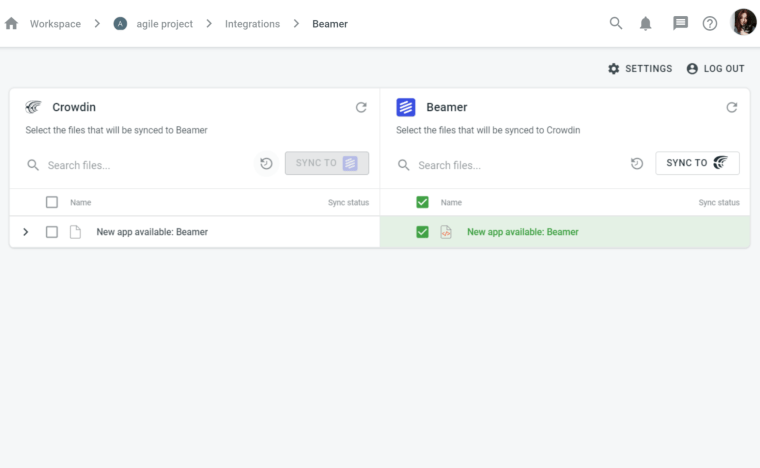
1. Create your first localization project at [Crowdin.](https://crowdin.com/?utm_source=getbeamer.com&utm_medium=referral&utm_campaign=beamer-crowdin-app)
2. And install the Beamer app.
3. Choose the sync schedule, so the app will automatically upload all new content from Beamer to Crowdin and vice versa every hour, day, or week.
4. You can also synchronize content manually in one click.