---
title: "How to use single user notifications?"
slug: "how-to-use-single-user-notifications"
updated: 2025-10-08T16:41:19Z
published: 2025-10-08T16:41:19Z
canonical: "help.userflow.com/how-to-use-single-user-notifications"
---
> ## Documentation Index
> Fetch the complete documentation index at: https://help.userflow.com/llms.txt
> Use this file to discover all available pages before exploring further.
# How to use single user notifications?
More often than not, notifications that are custom crafted for each one of your users will get a much higher engagement. So whether you are sending out custom crafted offers to your users, or you want to build your own user notification center without hassle, **single user notifications** will be your best bet.So, how can you use to send out **single user notifications**? It’s actually pretty simple:
### **Step 1:** Fill in the **user_id** parameter in your embed script.
While the rest of the parameters containing your user’s personal information (such as **user_firstname** and **user_lastname**) remain optional, the only parameter that’s **required** for single user notifications to work is the **user_id**.This is simply a string meant to represent **your own user’s unique ID**. This parameter can have any format whatsoever, as long as you make sure it is an unique identifier for each of your users.Here’s an example of how the **embed script** could look for a user that’s logged into your platform:
```plaintext
```
Great! Now your user will be correctly identified by Beamer. All the user info (it’s ID and all the other fields, if completed) will now show up in your Analytics section so you can see which posts your user has viewed or clicked on, and any of it’s feedbacks and reactions.Let’s now send a notification that will be visible only to this user.
### **Step 2:** Make use of the API to create the notification.
To create notifications in Beamer, you can make use of the **/posts** endpoint in our [API](//docs/). A **POST** request to this endpoint will create a notification in the account you are authenticating the request with.
First, we’ll create a JSON object with some example content and an image for the notification:
```plaintext
{
"publish": true,
"title": [
"This is the title" ],
"content": [
"This is the post content! It includes an image: https://i.imgut.com/wXWQQAK.png" ],
"category": "new",
"filterUserId": "1234"}
```
In this step, it’s crucial to make use of **filterUserId** as described in the [API docs](//docs/). This parameter is matched against the **user_id** parameter of the embed script. As you would expect, this will create a notification visible only to the user with id ‘1234’.Now, we’ll send this JSON to the **/posts** endpoint of the API (we’ll use **curl** in this example):
```plaintext
curl --header "Content-Type: application/json" \
--header "Beamer-Api-Key: YOUR-BEAMER-API-KEY" \
--request POST \
--data '{"filterUserId": "1234",
"publish:" true,
"title":["This is the title!"],
"content":["This is the post content! It includes an image: https://i.imgut.com/wXWQQAK.png"]' https://api.getbeamer.com/v0/posts
```
*It*’s important that all requests to the API include your [**API key**](https://app.getbeamer.com/settings#api) in the **Beamer-Api-Key** header, as unauthenticated requests will be rejected.Since we didn’t schedule this post to be published in a future date, it should be published immediately! If **push notifications** are enabled in the account, the example user should receive one now.
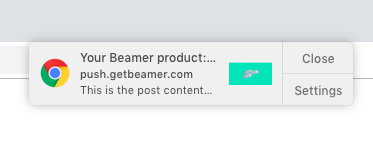
When opening Beamer in your site, that post should now be visible as well:
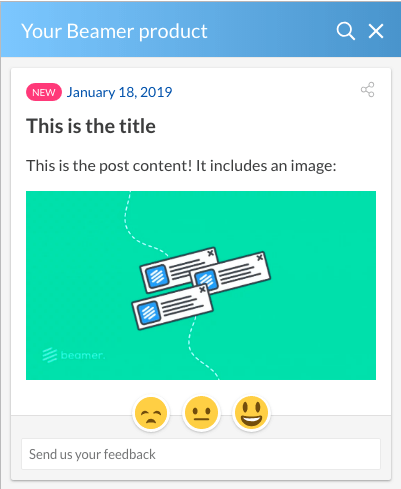
So that’s it! You’ve just sent a **single user notification**.**Quick recap**: Make sure you pass in the **user_id** parameter to the embed script in your site, and then the **filterUserId** parameter when creating a post through the API. What’s inside the notification is up to you!