If you have a nested menu that expands when the user hovers over it, and you want to guide the user to click an option nested within the menu, it can be challenging to select it when using a Tooltip. Use the instructions below to anchor a Tooltip to a nested menu element.
Solution
Use a tooltip step for each menu item (3 in total). Using the menu above as the example:
Each step (except the last) has a trigger that advances to the next step when the next step’s menu item appears. Example: In Step 1, a trigger fires when “Create new” is present, directing the user to Step 2.
But what if a user sees Step 2 and accidentally hovers out of the menu, causing “Create new” to disappear? Then we want to return to Step 1 and ask the user to hover over “Sales” again.
Each step except the first also has a trigger that goes back to the previous step when the current step’s menu item disappears. Example: Step 2 has a trigger that fires when “Create new” is not present, which takes the user back to Step 1.
Finally, Step 3 links to Step 4 when the “Create invoice” menu item is clicked.
Here’s what it looks like in the flow builder:
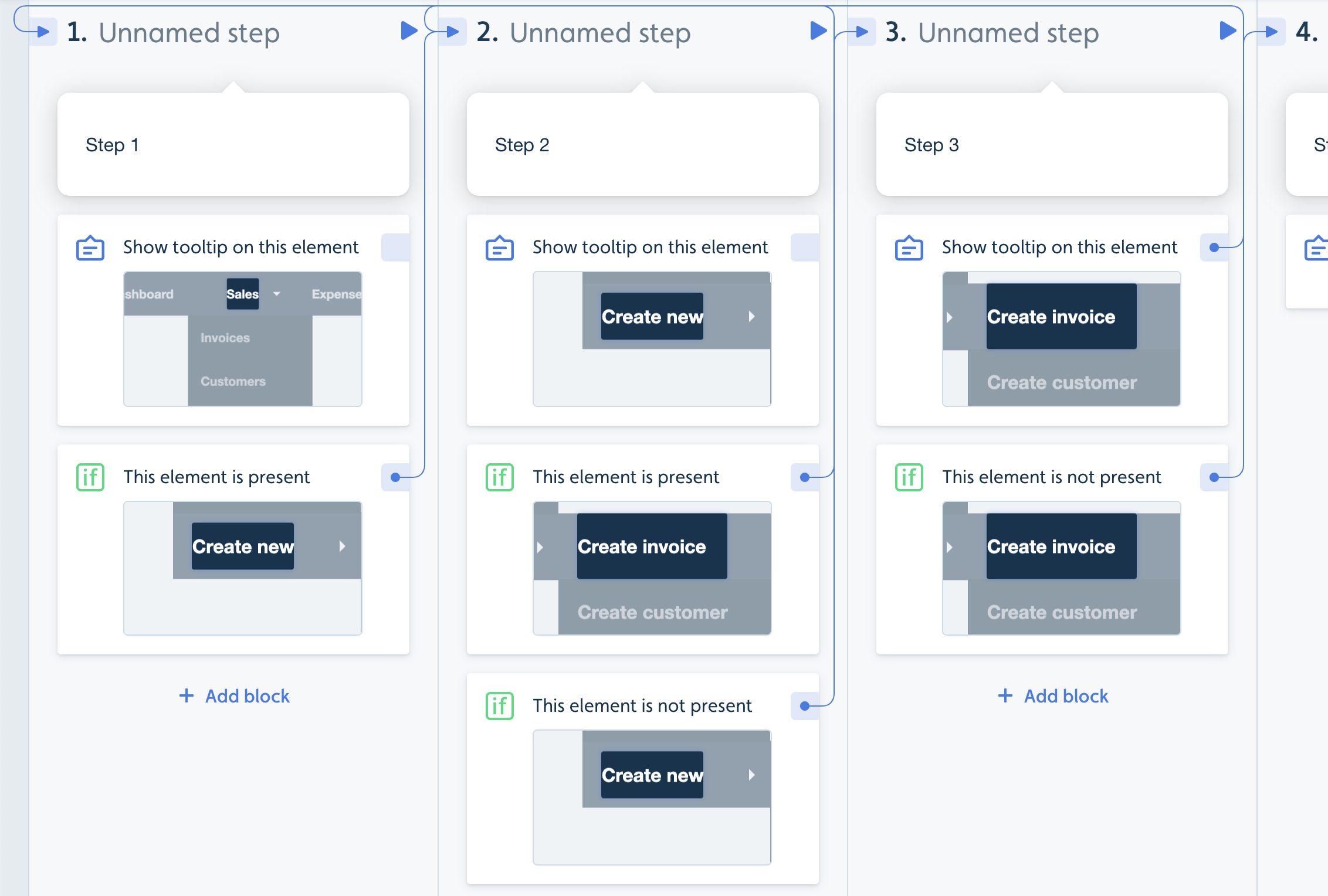
In text format:
Step 1: a tooltip pointing to “Sales”
Trigger: If “Create new” is present => Go to Step 2
Step 2: a tooltip pointing to “Create new”
Trigger: If “Create invoice” is present => Go to Step 3
Trigger: If “Create new” is not present, => Go back to Step 1
Step 3: a tooltip pointing to “Create invoice”
When the tooltip target is clicked, => Go to step 4
Trigger: If “Create invoice” is not present => Go back to Step 2
The same pattern can be used for menus with 2 or more than 3 levels. Say we wanted the user to click Sales -> Customers:
Step 1: a tooltip pointing to “Sales”
Trigger: If “Customers” is present => Go to Step 2
Step 2: a tooltip pointing to “Customers”
When the tooltip target is clicked, => Go to step 3
Trigger: If “Customers” is not present => Go back to Step 1