Userflow allows you to manage multiple products in two different ways:
Managed via a single Userflow account
Managed via multiple Userflow accounts
Note that having multiple Userflow accounts still only requires one user login, as you can easily switch between accounts in the UI:
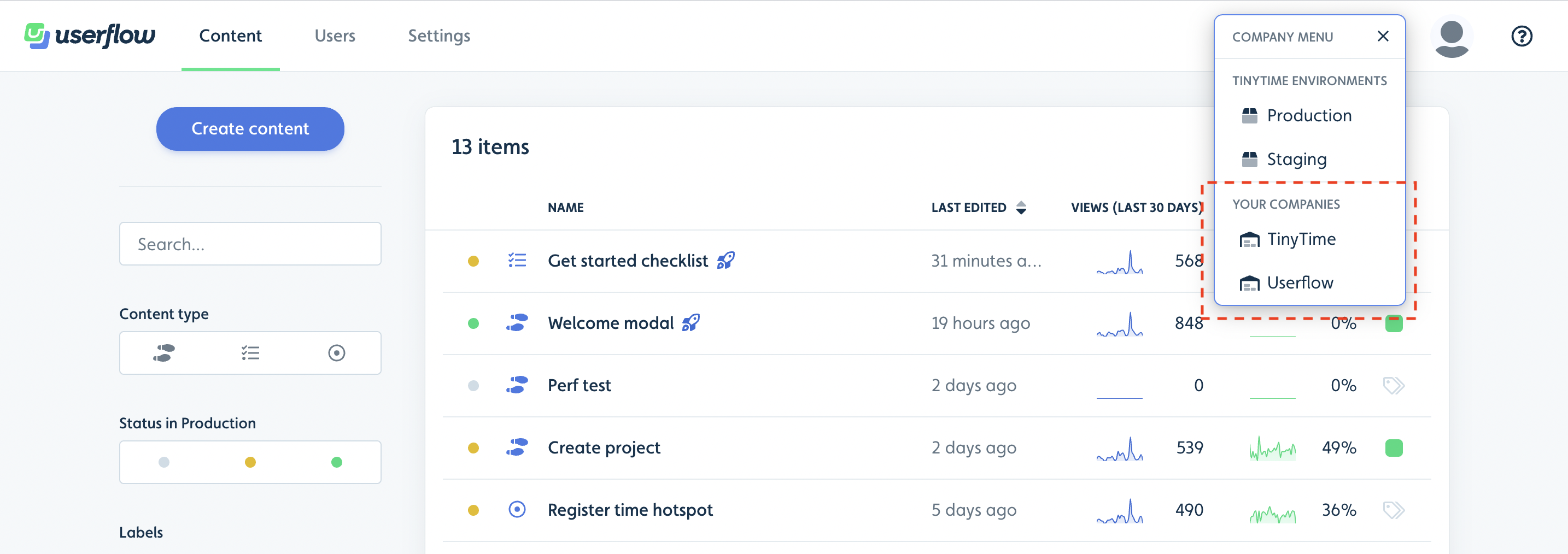
Multiple products via a single Userflow account
The most common case for managing multiple products in a single account, is when your product is the same, but just deployed on multiple subdomains and is all based on the same user database.
Pros
Lower cost
Cons
Team members who don’t need access to all flows have this access
Harder to segment users and related data for analytics
Auto-start conditions might be harder to manage
How to manage multiple products on a single account
To manage multiple products on a single account, ensure that you include the domain in your auto-start conditions to prevent flows from starting on the wrong product.
Another aspect to be cautious about is checklists. Once initiated, checklists remain active. This means that to conceal the Checklist for product A when viewing product B, you must apply a temporary hide condition stating that the current page is not within the product B domain, and similarly for the product B checklist.
Multiple products via separate Userflow accounts
This setup is useful if you have completely separated products, where there’s no shared user base.
Pros
Team members only have access to their specific product’s data
Users are segmented by product, making it easier to analyze data
Auto-start conditions are easier to manage - it’s impossible to accidentally show the wrong flow in the wrong product
Cons
Higher cost.
How to buy an extra Userflow account
Reach out to support@userflow.com to purchase an additional account for your extra product.
Extra accounts are billed as an add-on to your subscription. The additional account shares limits for MAUs, AI messages, and team members with your base Userflow account. For current add-on pricing, see your billing settings or contact support@userflow.com.