This guide walks you through getting Userflow running in your React Native app: installing the SDK, verifying it, building your first mobile flow, and previewing it on a device and publishing it on your app.
Before you start
A React Native app on React Native 0.76 or later, or Expo SDK 53–57. Expo SDK 58 isn't supported yet.
An Expo development build or a bare React Native build. Support for Expo Go isn't available yet.
Access to the builder (for creating mobile flows) in Userflow.
For previewing: your app running on any one of these:
A real device (for example, installed through TestFlight or a physical phone)
An iOS simulator
An Android emulator
1. Install the SDK
Everything you need to install the SDK lives in Userflow, under Settings → Installation.
Open Settings (the gear icon at the bottom of the left sidebar) in Userflow, then select Installation.
Under Userflow installation, pick the environment you want to install from the dropdown (for example, Production). Then, in the install box below, switch from the NPM tab to the React Native tab. The steps for your app show up right underneath.
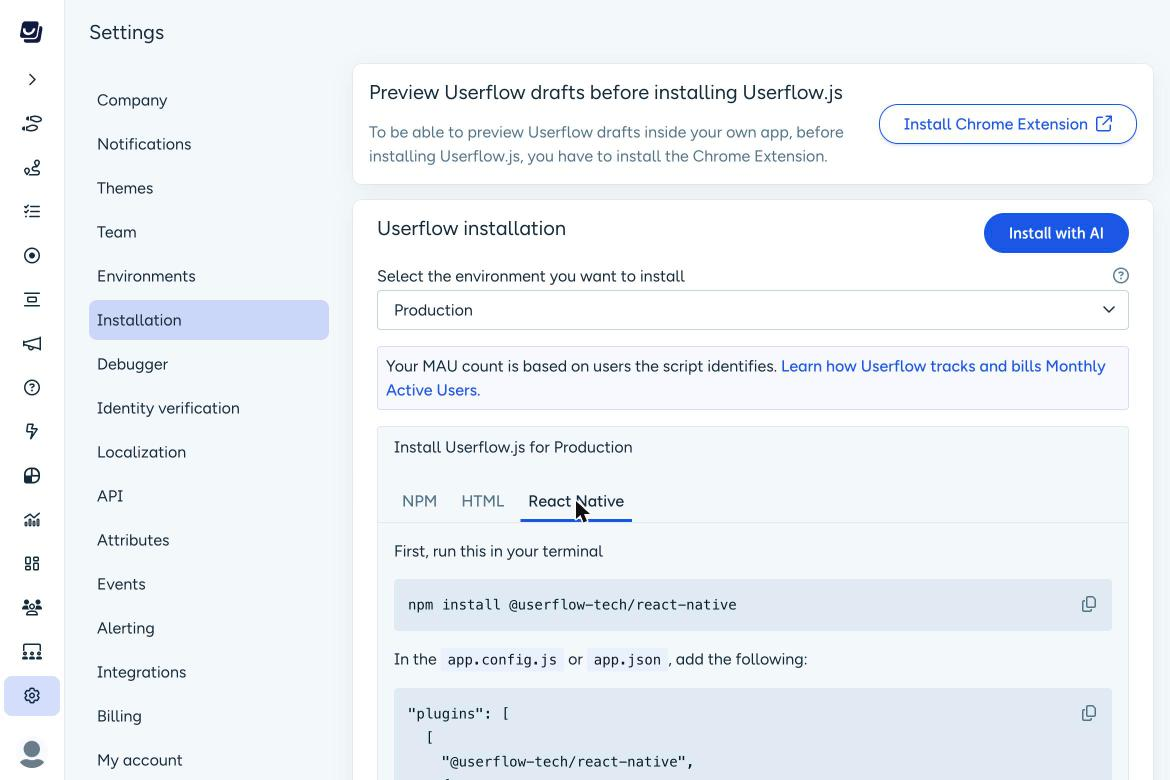
Follow the steps on the page. You'll find the install command, your environment's scheme ID (so the builder can open your app when you pair a device), and the snippets to set up
UserflowProvider,Userflow.initandUserflow.identify.Rebuild your app. The SDK includes native modules, so a Metro reload isn't enough.
Not the one writing the code? Click Copy all instructions (to send to a developer) and share them with your team.
For everything else — supported versions, every package and version range, Expo and bare React Native setup, screen tracking and troubleshooting — we've covered it in depth on the npm package page.
Install with AI
Prefer to let an AI coding agent do the setup?
Agents like Claude Code, Cursor, GitHub Copilot and Codex can install the SDK in your Expo or bare React Native app for you. They set up initialization, user identification and screen tracking. See Install Userflow React Native SDK with AI for the steps.
2. Verify your installation
Once the SDK is set up, check that Userflow is receiving data from your app.
Rebuild and run your app on a device or simulator.
Sign in to your app, so
Userflow.initandUserflow.identifyboth run.In Userflow, go to Settings → Installation → React Native and click Verify installation.
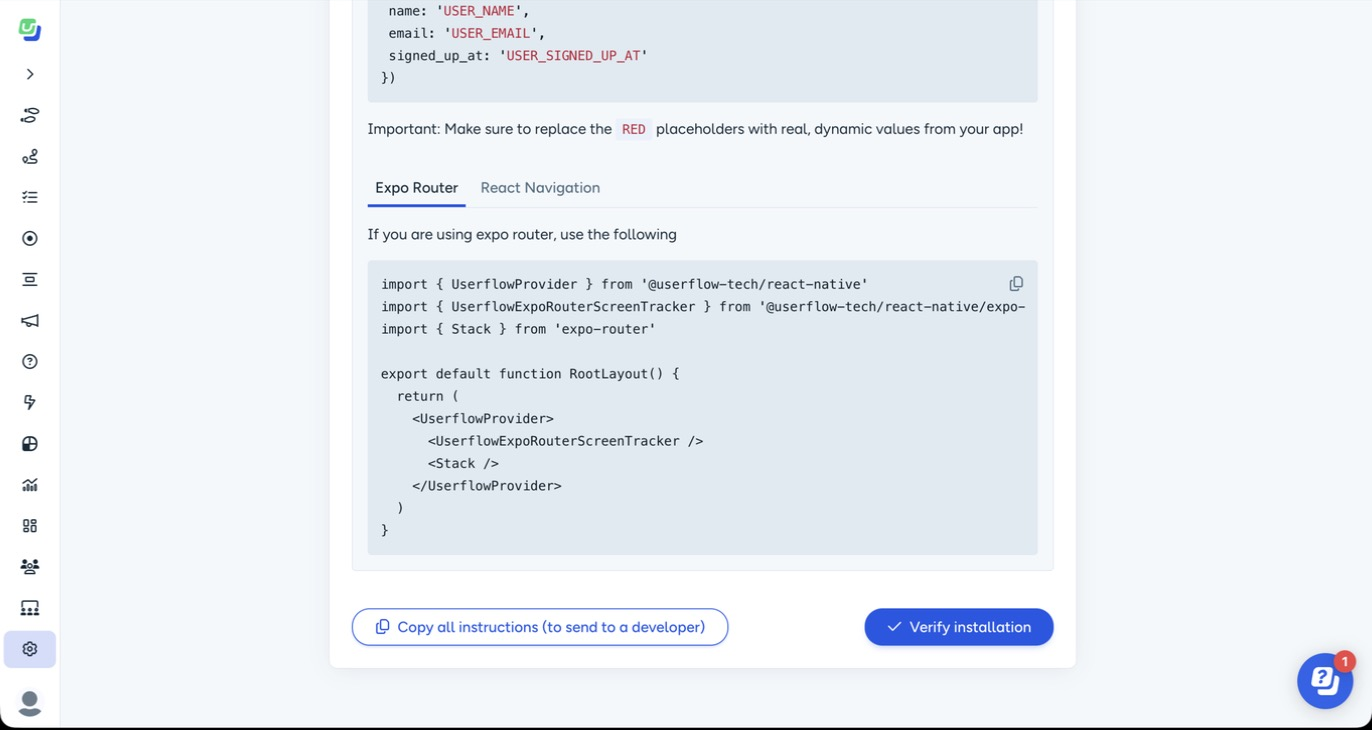
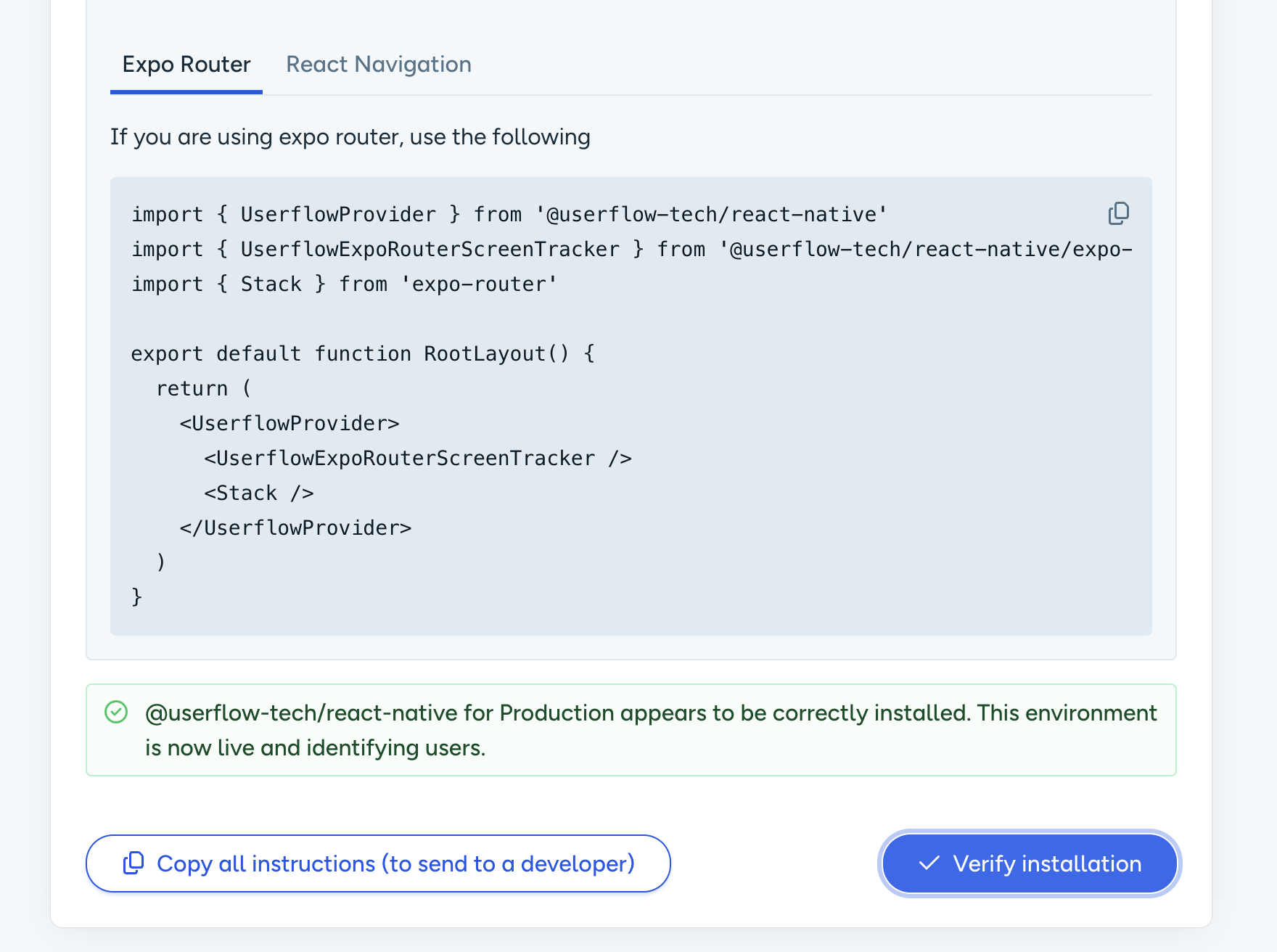
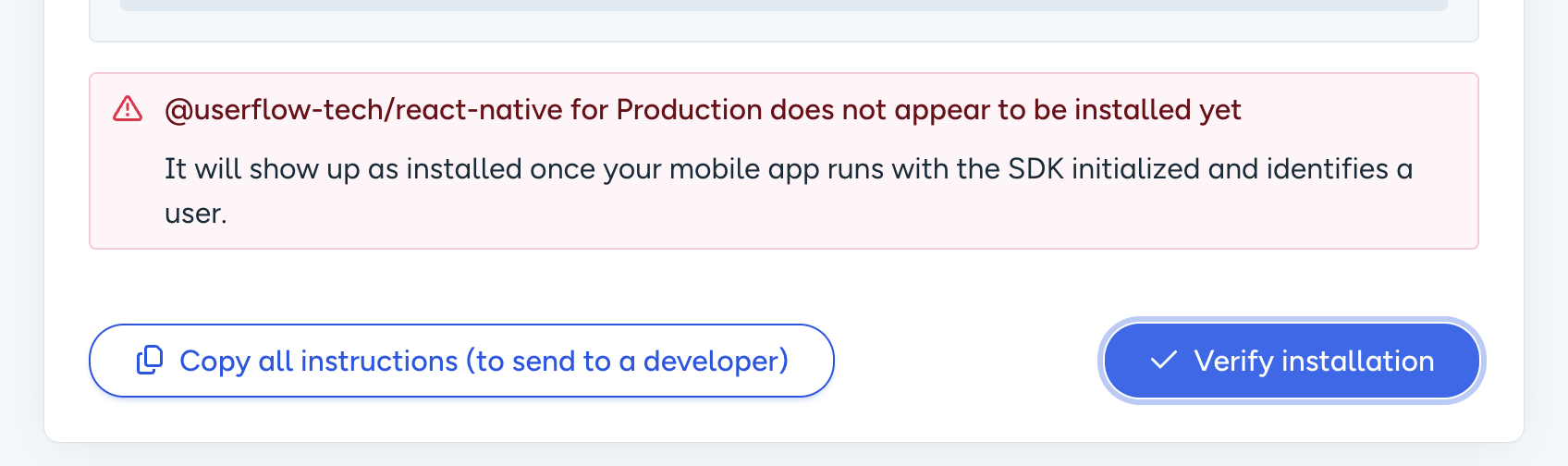
Check the message above the button:
Installed: @userflow-tech/react-native for [environment] appears to be correctly installed. You're all set.
Not installed: @userflow-tech/react-native for [environment] does not appear to be installed yet. Run your app with the SDK initialized, identify a user, then click Verify installation again. Still stuck? Check your app's logs for
[Userflow]messages.
Tip: don't hide errors from Userflow.init. If your app swallows a failed init, pairing and preview won't work and nothing will tell you why:
Userflow.init({ clientToken: 'ct_...' }).catch((error) => {
  console.warn('[app] Userflow init failed', error);
});
3. Create a mobile flow
Go to Flows and click Create flow.
Choose Start from scratch and give your flow a name.
Under Platform, select Mobile (React Native).
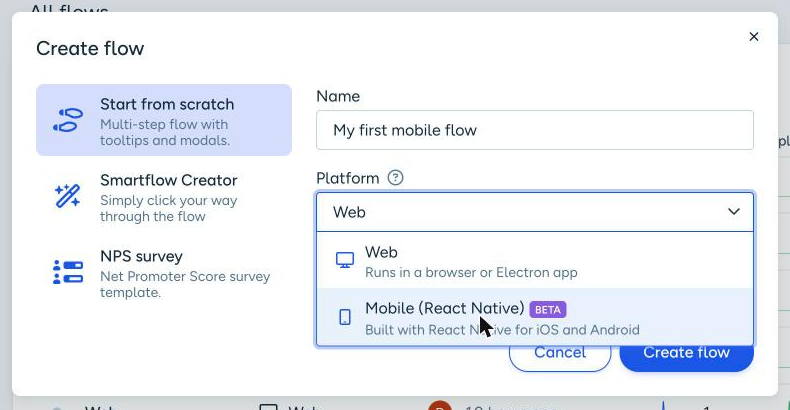
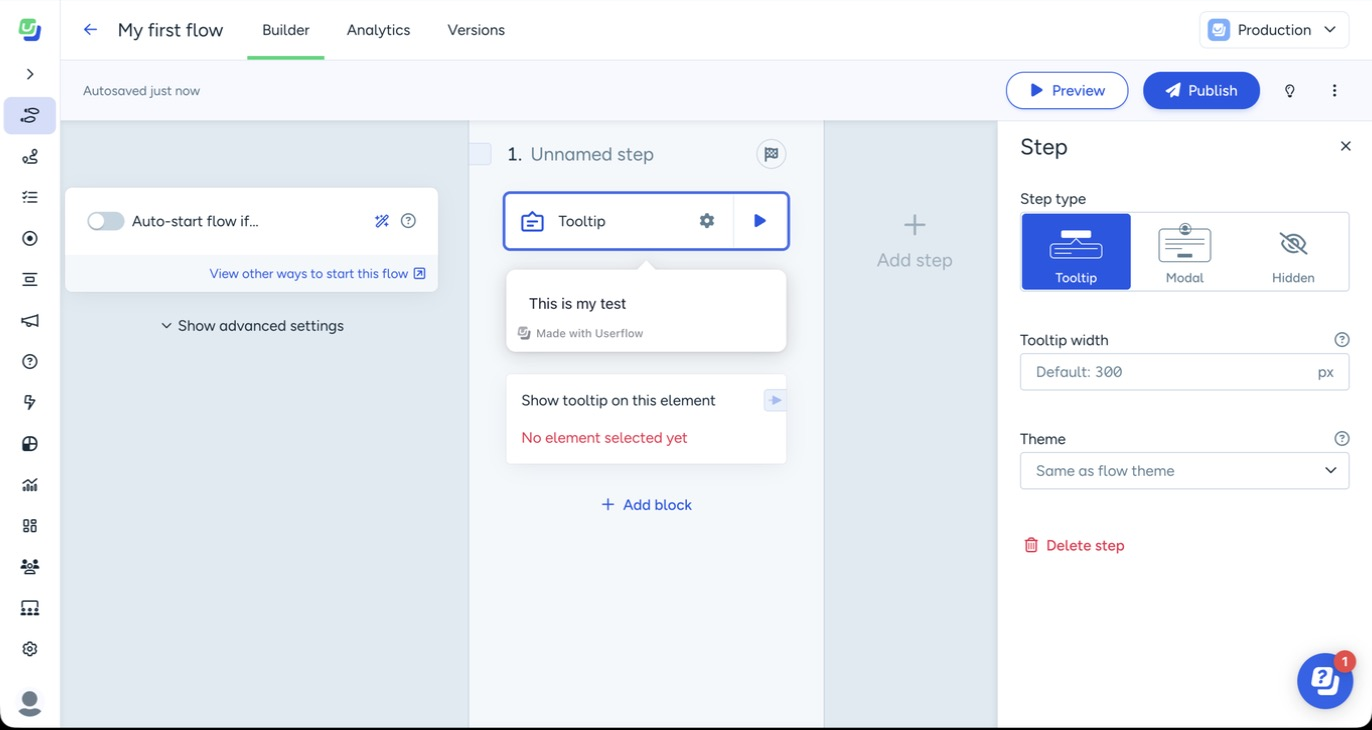
Click Create flow. The builder opens with your first step.
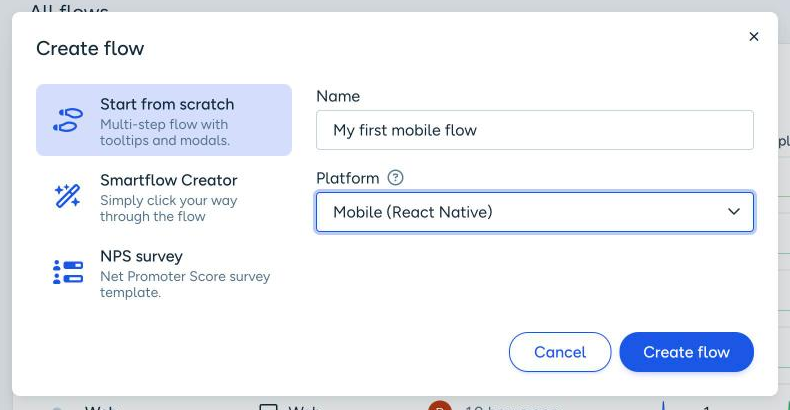
Note: a flow's platform is set when you create it and can't be changed later. Mobile flows only show in your React Native app, and web flows only show on web.
Add steps
Each step can be one of three types. Pick one under Step type in the right-hand panel.
Step type | Use it for |
|---|---|
Modal | A card in the middle of the screen — welcomes, announcements, explaining a new feature |
Tooltip | A callout pointing at a specific element, like a button or field. You'll need to select the element (see step 5) |
Hidden | A step with no UI, for running actions or waiting on conditions |
Add your content with the block editor, then set width and theme for each step. To start the flow automatically, turn on Auto-start flow and add conditions (attributes, events, segments, flows seen or completed, current time and more).
4. Preview your flow
On web, you preview with the Userflow Chrome extension. On mobile, you pair your device with the builder instead — a bit like pairing a Bluetooth device. Once paired, every preview you start lands straight in your app.
You can preview a flow in three ways:
On a real device through TestFlight
On an iOS simulator
On an Android emulator
Only one device can be paired at a time.
4.1 Preview on TestFlight
Install the latest build of your app from TestFlight and sign in. Make sure this build has the SDK installed and verified (see steps 1 and 2).
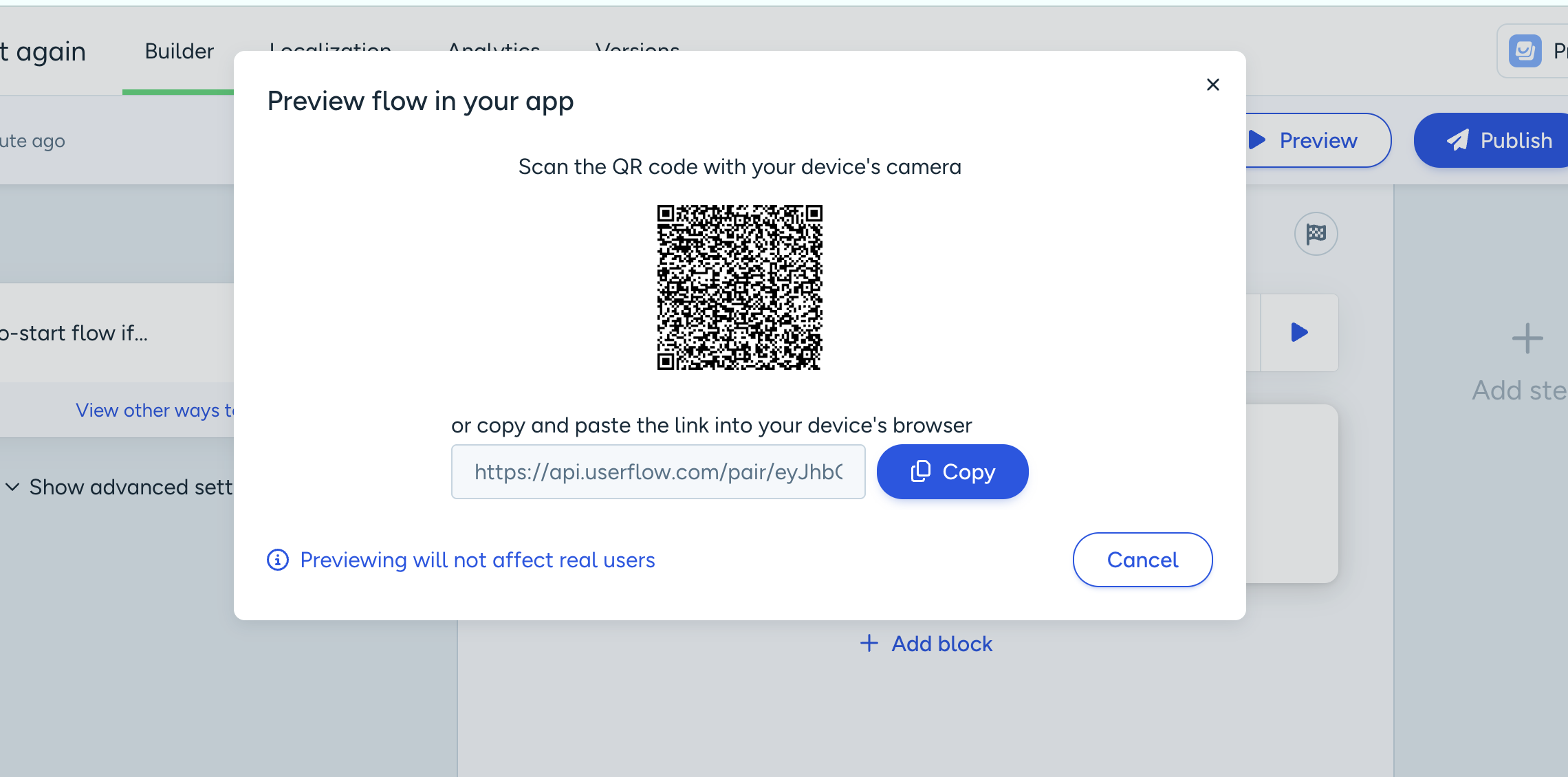
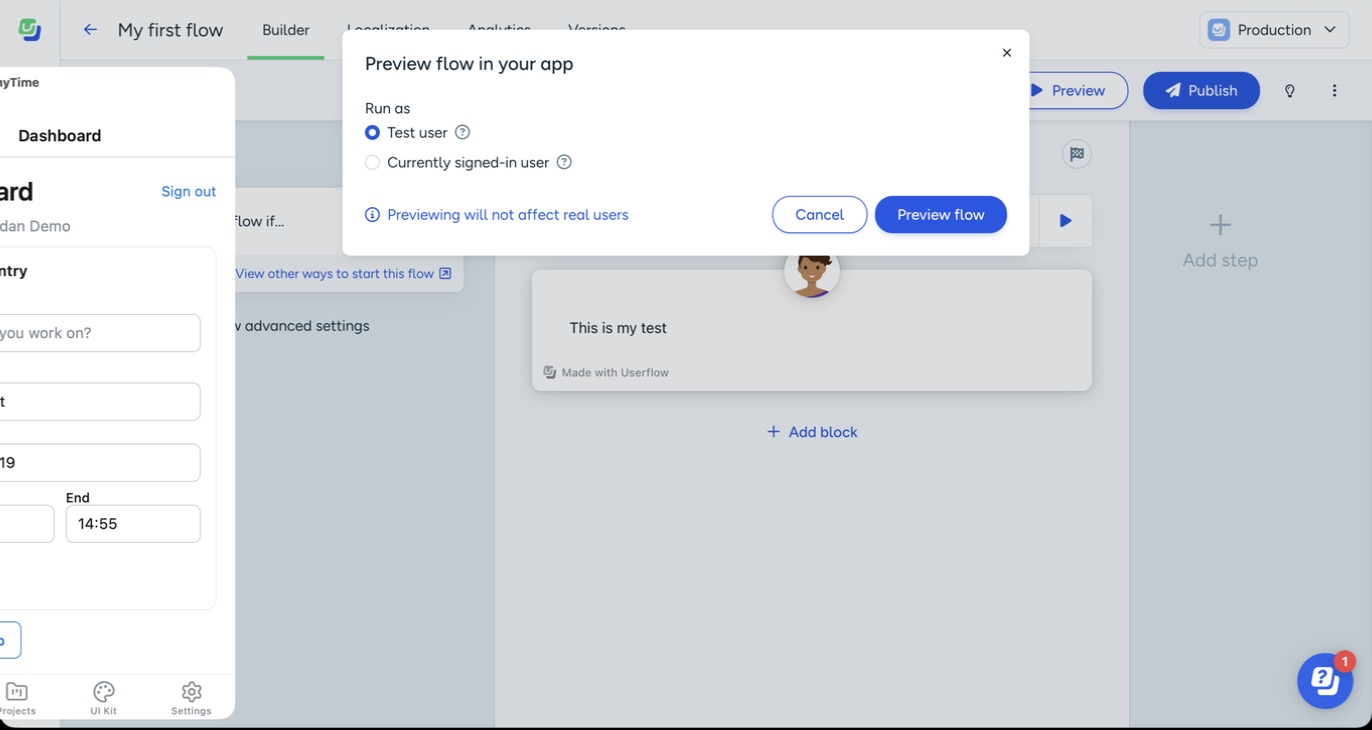
In the builder, click Preview (top right). In the Preview flow in your app dialog, choose who to run the flow as: Test user to see it as a brand-new user, or Currently signed-in user to run it as whoever is signed in to your app. If no device is paired yet, click Pair a device.
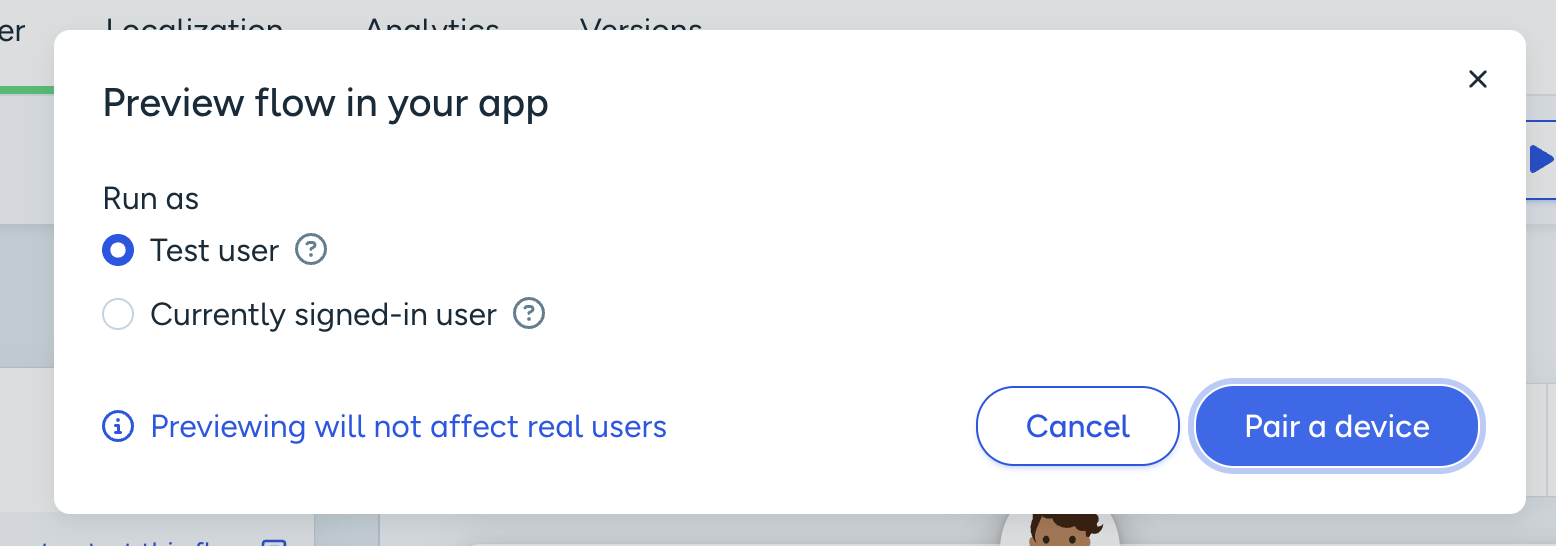
Scan the QR code with your device's camera, or click Copy and paste the link into your device's browser.
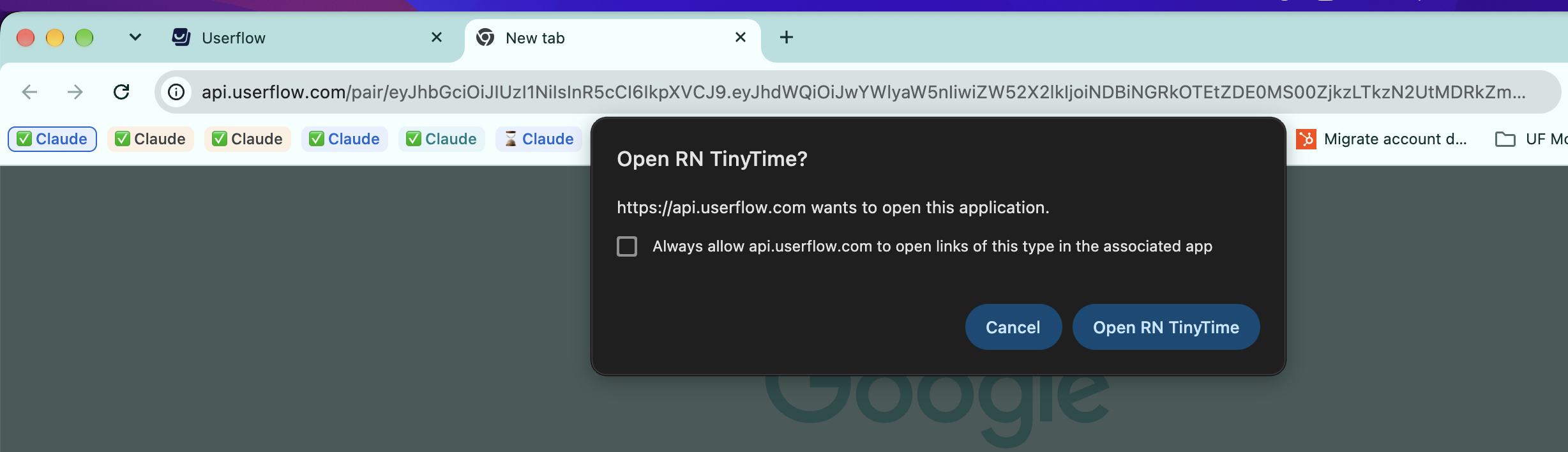
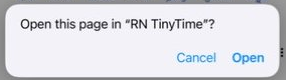
If you're running the TestFlight build on a Mac, paste the link into a new browser tab. When the browser asks whether to open your app, click Open (for example in this case it's an app called, RN TinyTime).
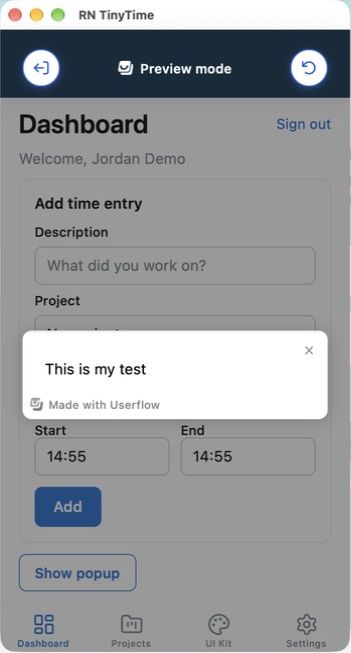
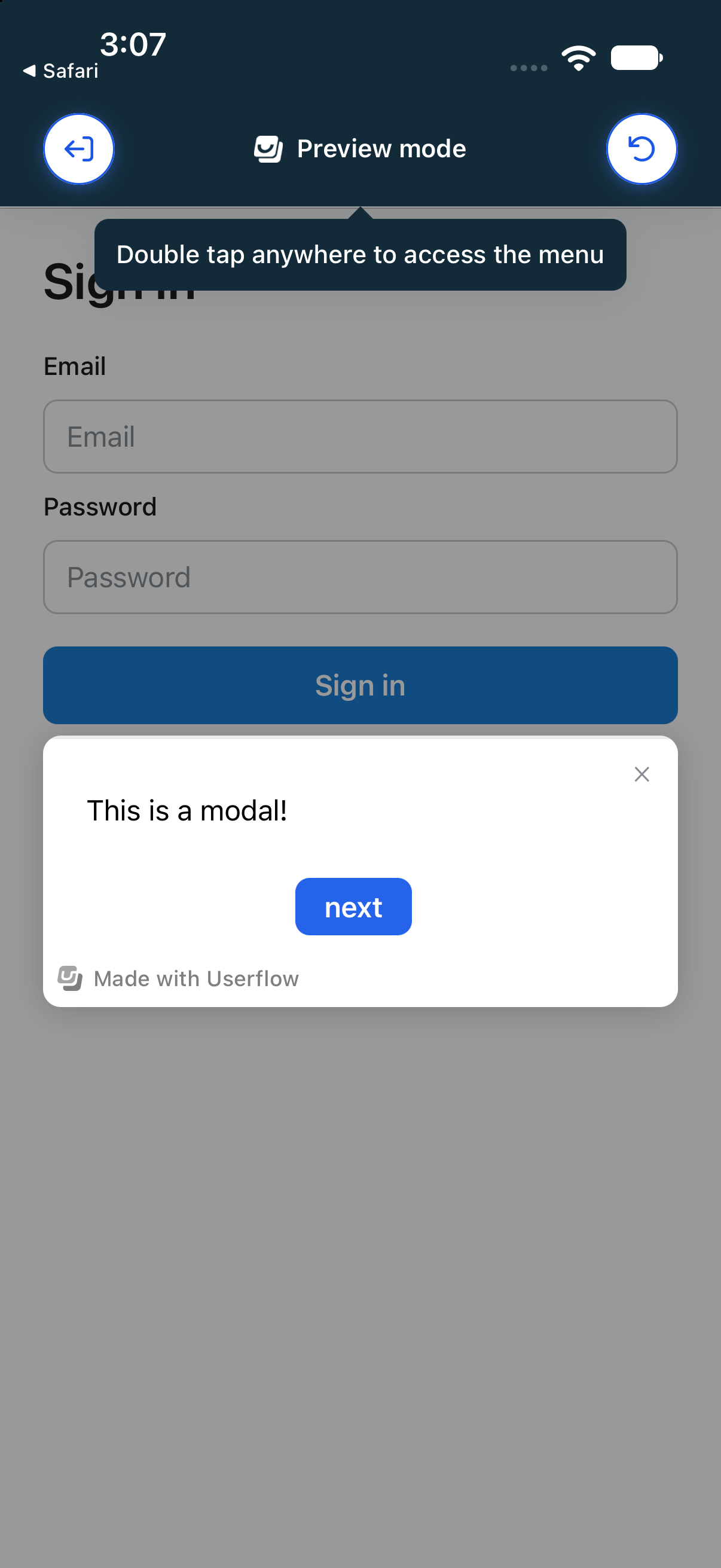
Your app opens with a Preview mode menu at the top. That means your device is paired with the builder.
Your flow starts in the app straight away — step through it just like your users would. Previewing doesn't affect your real users.
While your device stays paired, clicking Preview in the builder and then Preview flow sends the flow straight to your app — no need to pair again.
4.2 Preview on an iOS simulator
No TestFlight build?
You can pair an iOS simulator the same way. Make sure the simulator is running a build of your app with the SDK installed and verified.
In the builder, click Preview, choose who to run the flow as, then click Pair a device.
Click Copy to copy the pairing link.
In the simulator, open Safari (or Chrome) and start a new tab.
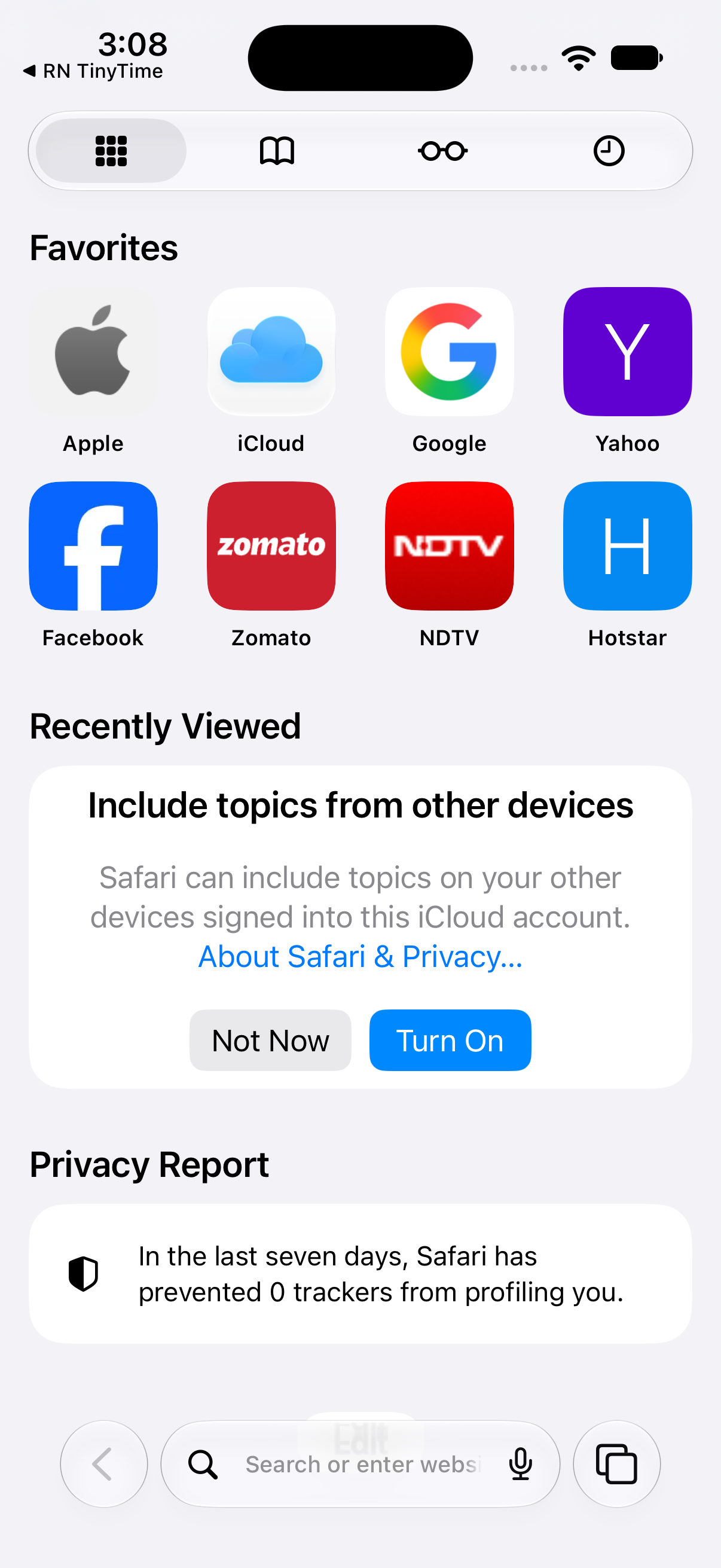
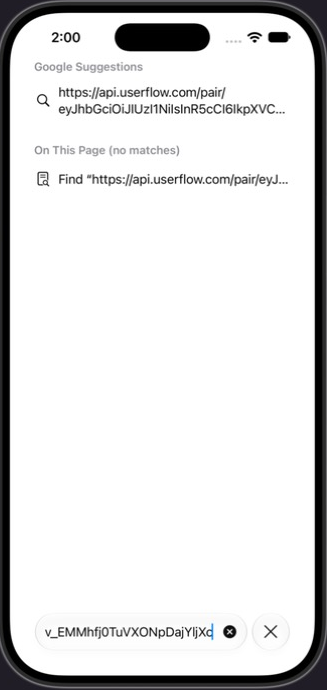
Paste the pairing link into the address bar and press Enter.
When Safari asks Open this page in "[your app]"?, click Open.
Your app opens with the Preview mode bar at the top, and your flow starts straight away.
Tip: if pasting into the simulator doesn't work, turn on Edit → Automatically Sync Pasteboard in the simulator. Or run this in Terminal to open the link directly:
xcrun simctl openurl booted "PAIRING_LINK"
4.3 Preview on an Android emulator
You can pair an Android emulator with the builder to preview your flow. You open the pairing link in Chrome on the emulator, and the flow starts in your app. Make sure the emulator has an APK of your app installed, with the Userflow SDK set up and verified.
In the builder, click Preview, choose who to run the flow as, then click Pair a device.
Click Copy to copy the pairing link.
On the emulator, open Chrome and tap the address bar. Paste the pairing link into the address bar and press Enter.
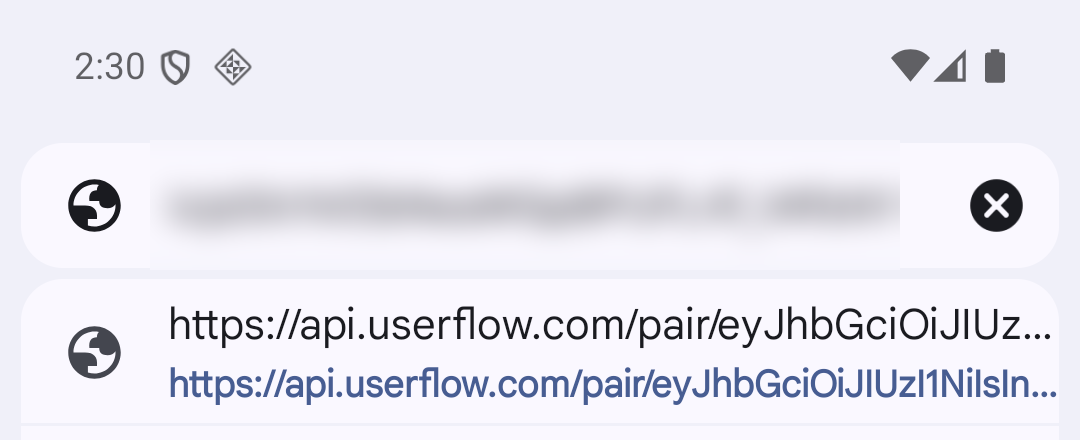
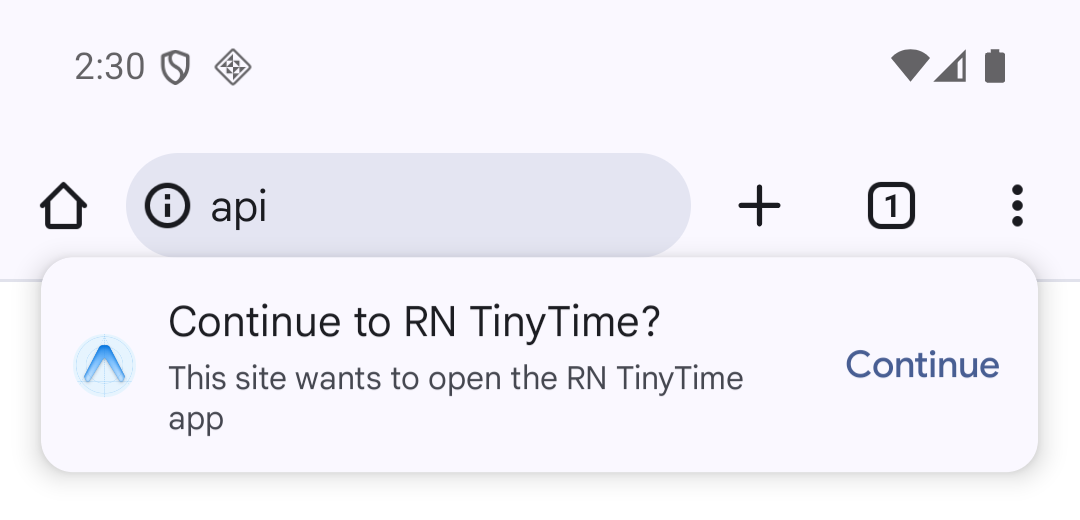
When Chrome asks Continue to [your app]?, tap Continue. If you don't tap it, the app opens on its own after a few seconds.
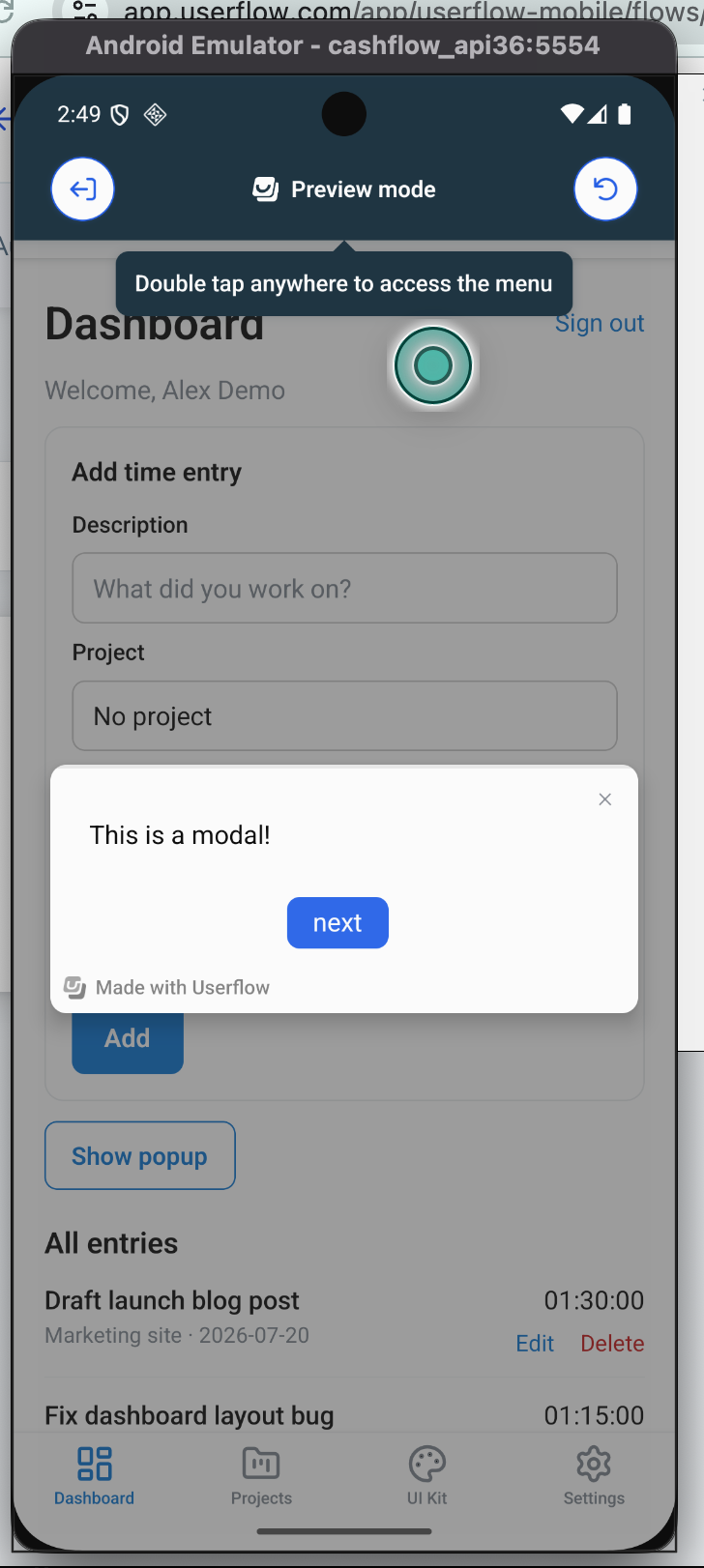
Your app opens with the Preview mode menu at the top and the hint "Double tap anywhere to access the menu", and your flow starts straight away. If the menu disappears, double-tap anywhere to bring it back.
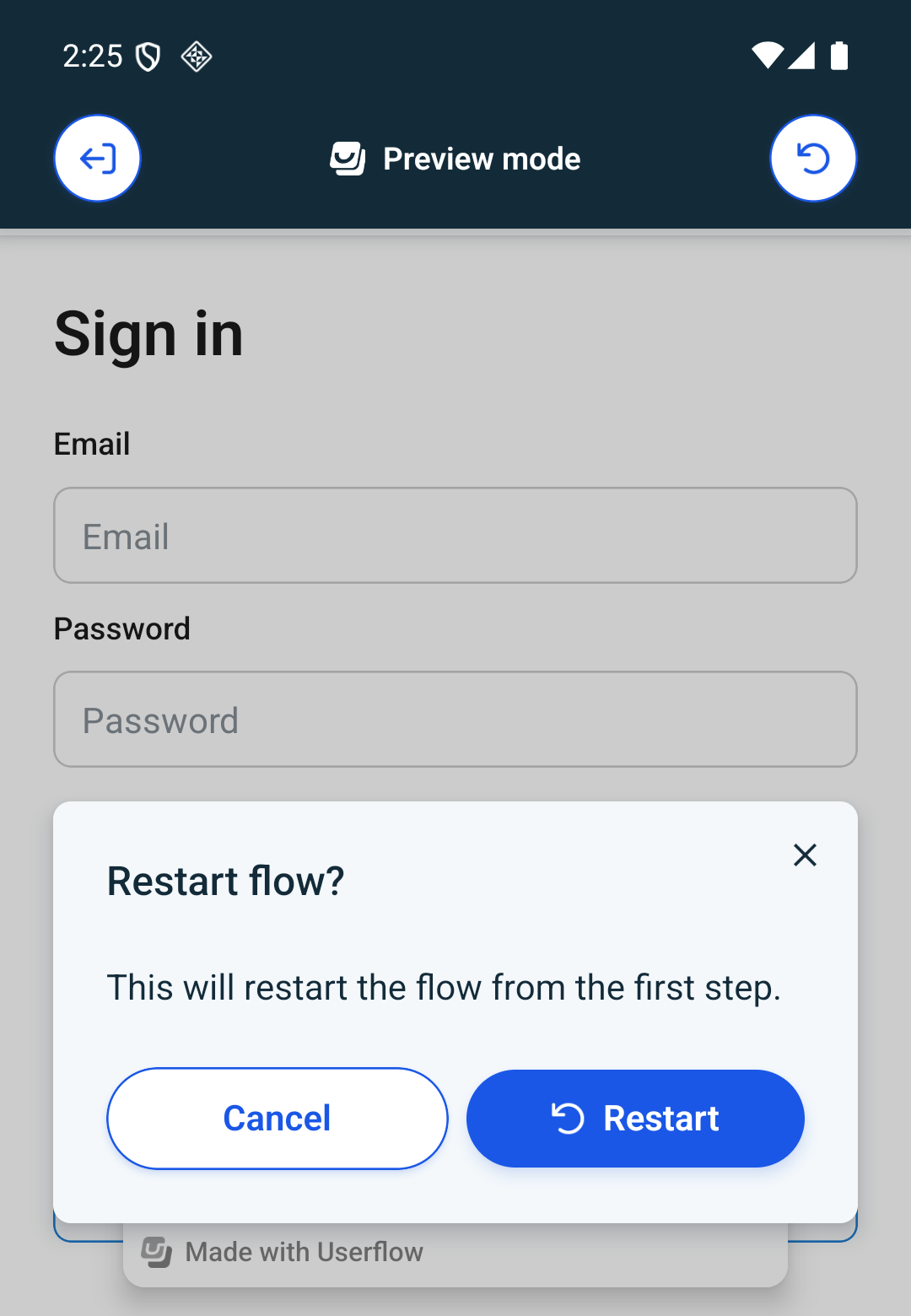
To restart the flow, tap the right button in the bar, then tap Restart.
To leave preview, tap the left button, then tap Exit. You'll need to pair the emulator again to preview a flow.
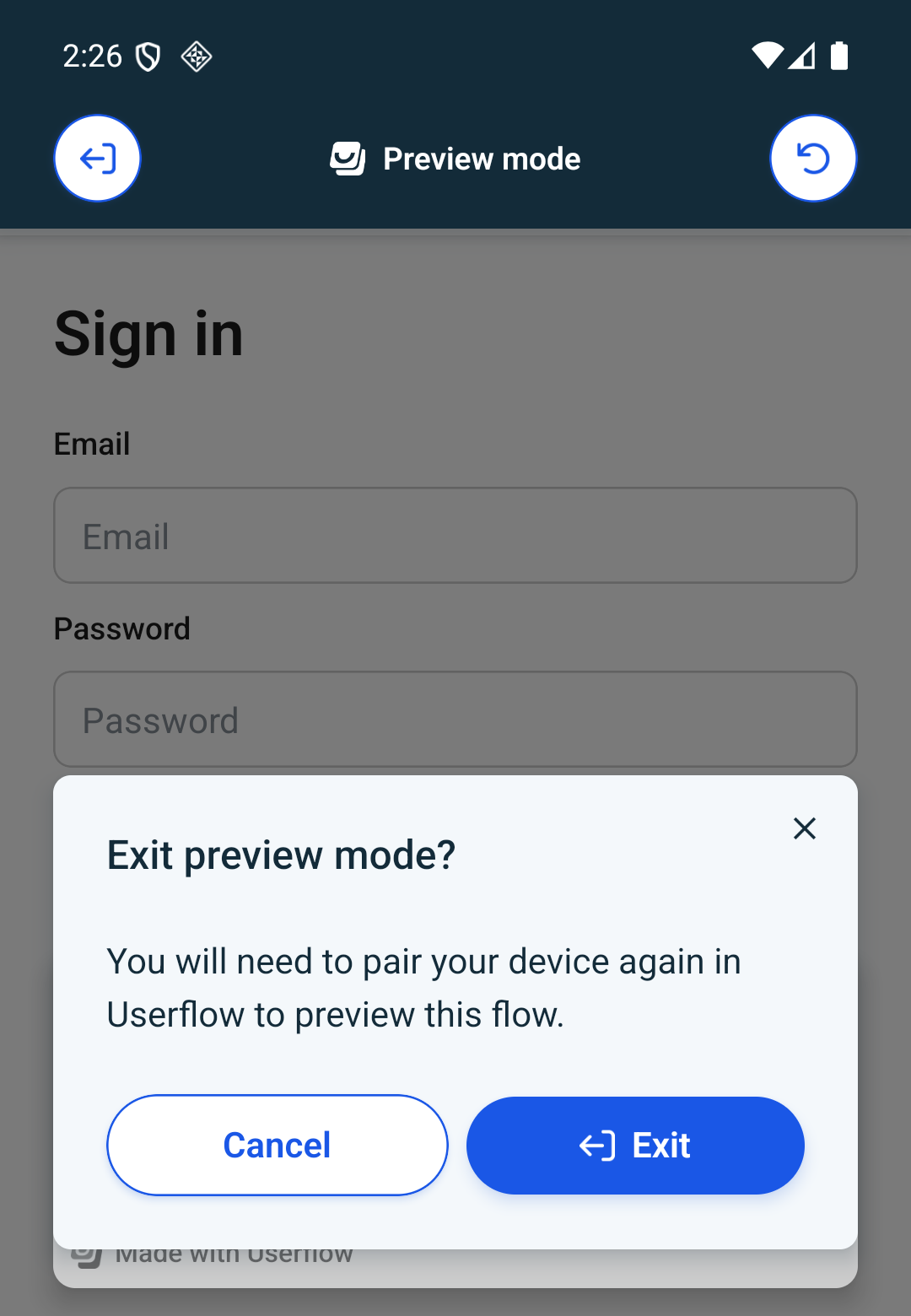
Tip: if pasting into the emulator doesn't work, turn on clipboard sharing in the emulator's Extended controls → Settings. Or run this in Terminal to open the link directly:
adb shell am start -a android.intent.action.VIEW -d "PAIRING_LINK"
4.4 Using the preview menu
While you're in preview mode, double-tap the screen to show the preview menu. Double-tap again to hide it.
Exit (left button) — leaves preview mode.
Restart (right button) — starts the flow again from the first step.
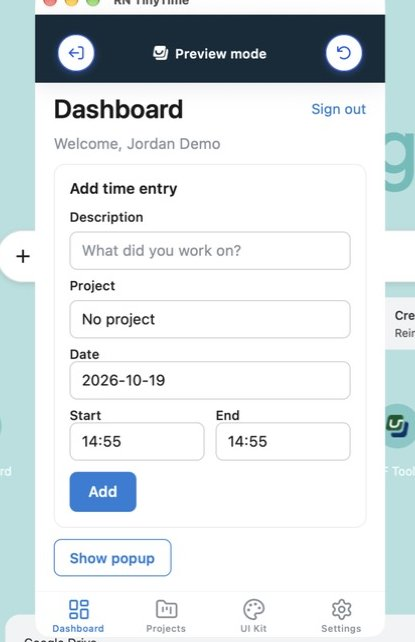
The pairing stays active for up to a day, or until you exit preview mode. After that, pair your device again to preview a flow.
5. Element selection
Tooltips point at a specific element in your app. You can pick the element right in your app, or enter an ID to tag it manually.
You can select an element in three ways:
On a real device through TestFlight
On an iOS simulator
On an Android emulator
Whichever you use, it needs to be paired first (see section 4).
5.1 Select an element on TestFlight
Open your tooltip step in the builder. Under Show tooltip on this element, click Select element.
The builder checks your SDK installation and pairing status. If your device isn't paired yet, follow the pairing steps in step 4.
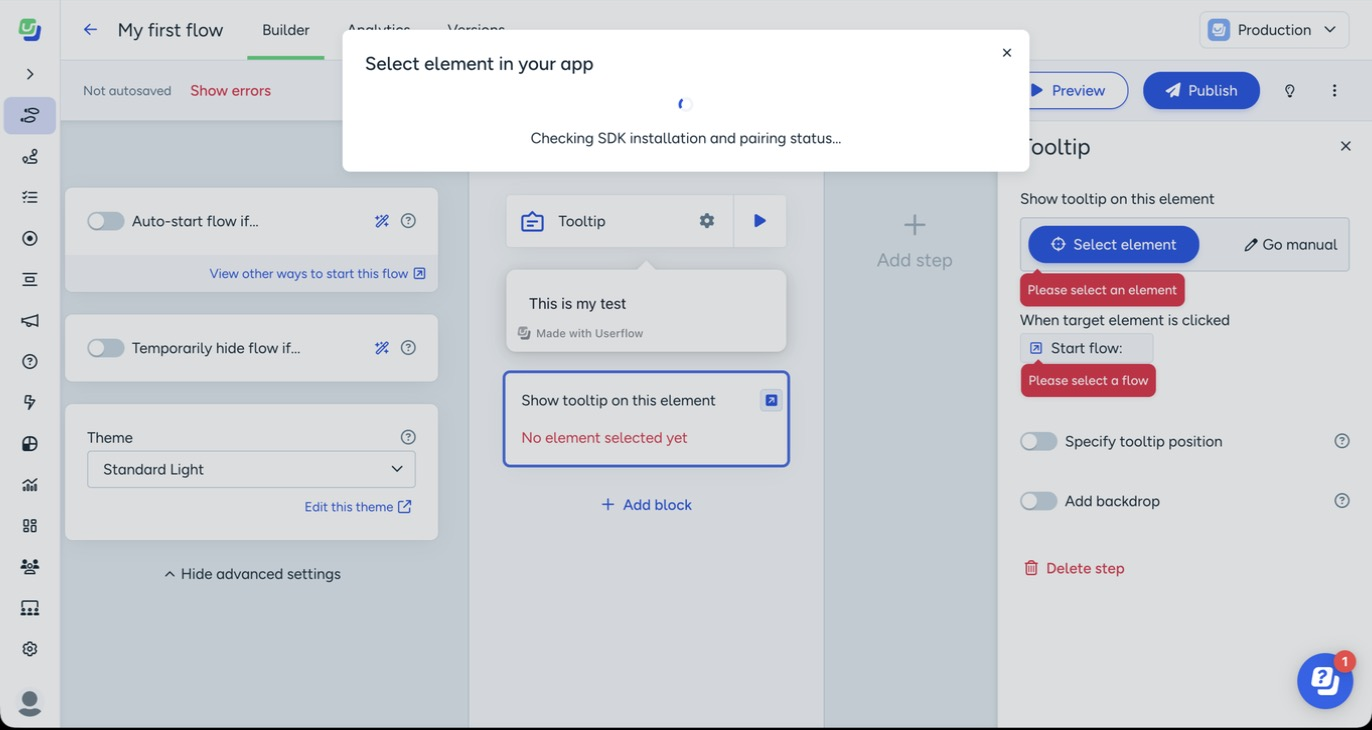
Switch to your app. It opens in Element selection mode, with the Tap an element to select it banner at the top and two buttons at the bottom: Cancel and Navigate screens.
If the element is on another screen, click on Navigate screens, move to that screen, then select the element. If the menu disappears, double-tap anywhere on the screen to bring it back.
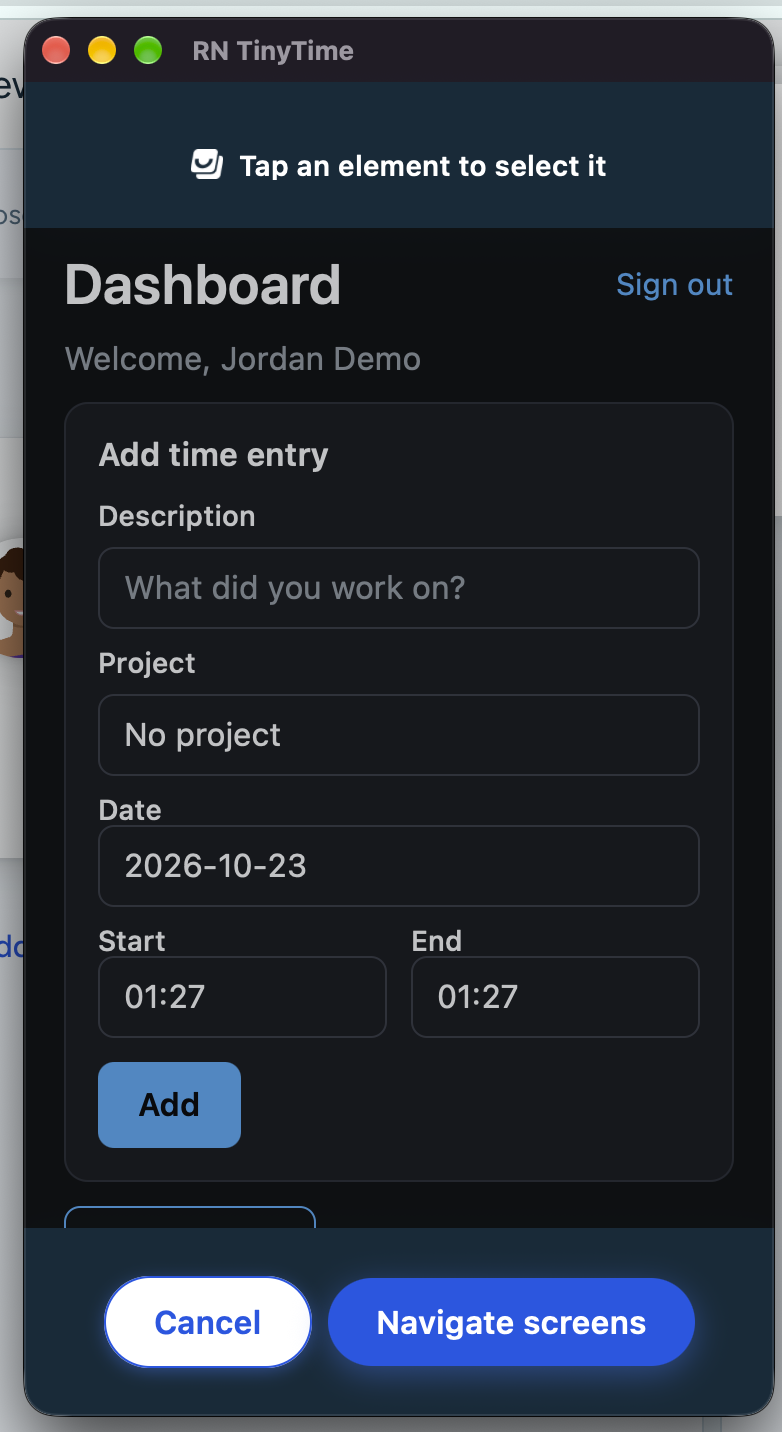
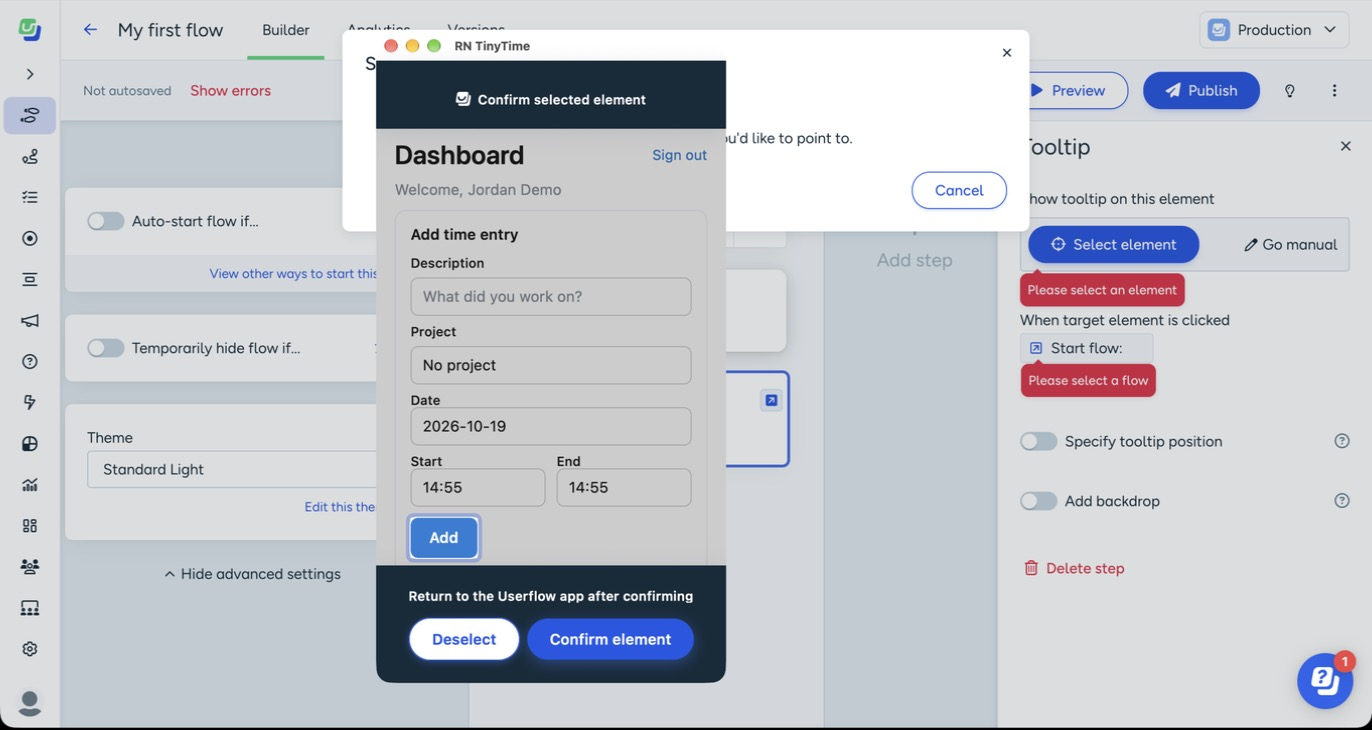
To select an element, click on the element you want the tooltip to point at, like a button. Once it's highlighted, and the bar at the top changes to Confirm selected element.
Tap Confirm element, or Deselect to pick a different one.
Go back to the builder.
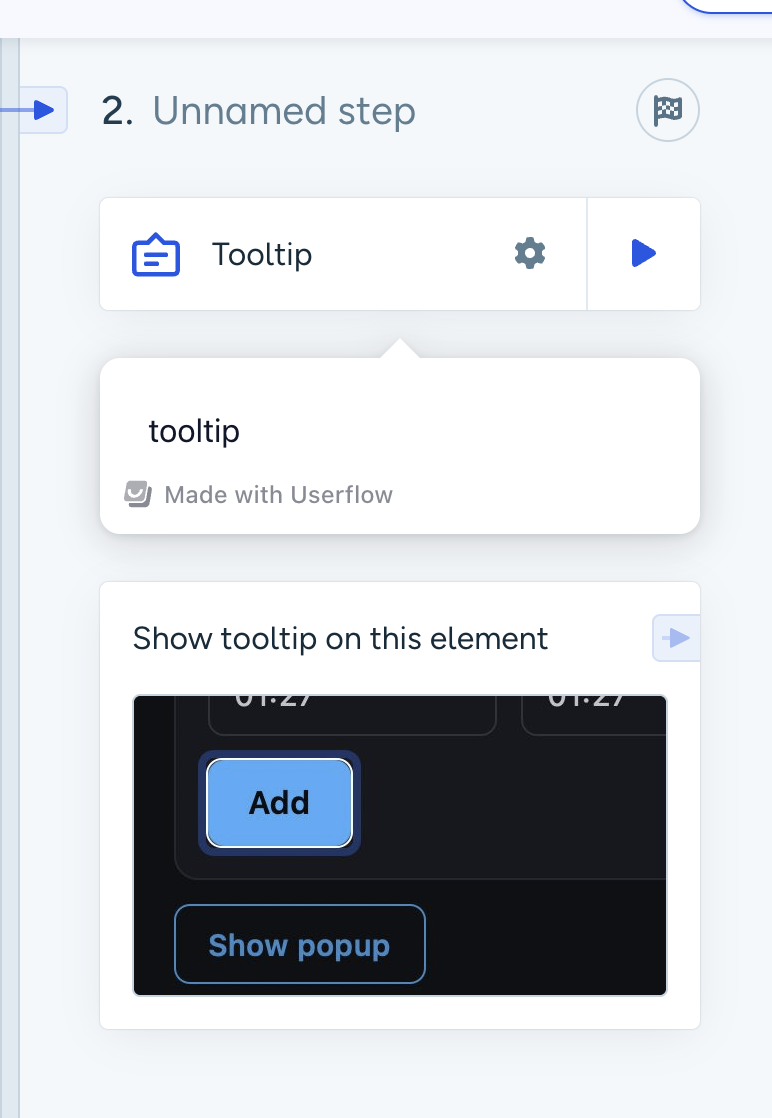
The element now shows under Show tooltip on this element.
5.2 Select an element on a simulator
Once your simulator is paired (see Preview on a simulator above), selecting an element works the same way as on a real device.
Open your tooltip step in the builder. Under Show tooltip on this element, click Select element.
Switch to the simulator. Your app is in element selection mode, with Tap an element to select it at the top and Cancel and Navigate screens at the bottom. If the menu disappears, double-click anywhere on the simulator screen to bring it back.
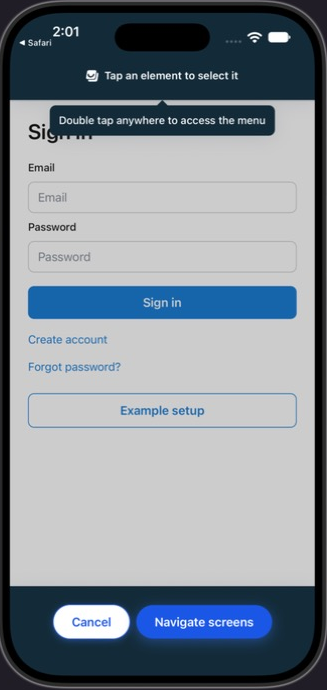
Click the element you want the tooltip to point at. If it's on another screen, click Navigate screens first, go to that screen, then select it.
Click Confirm element.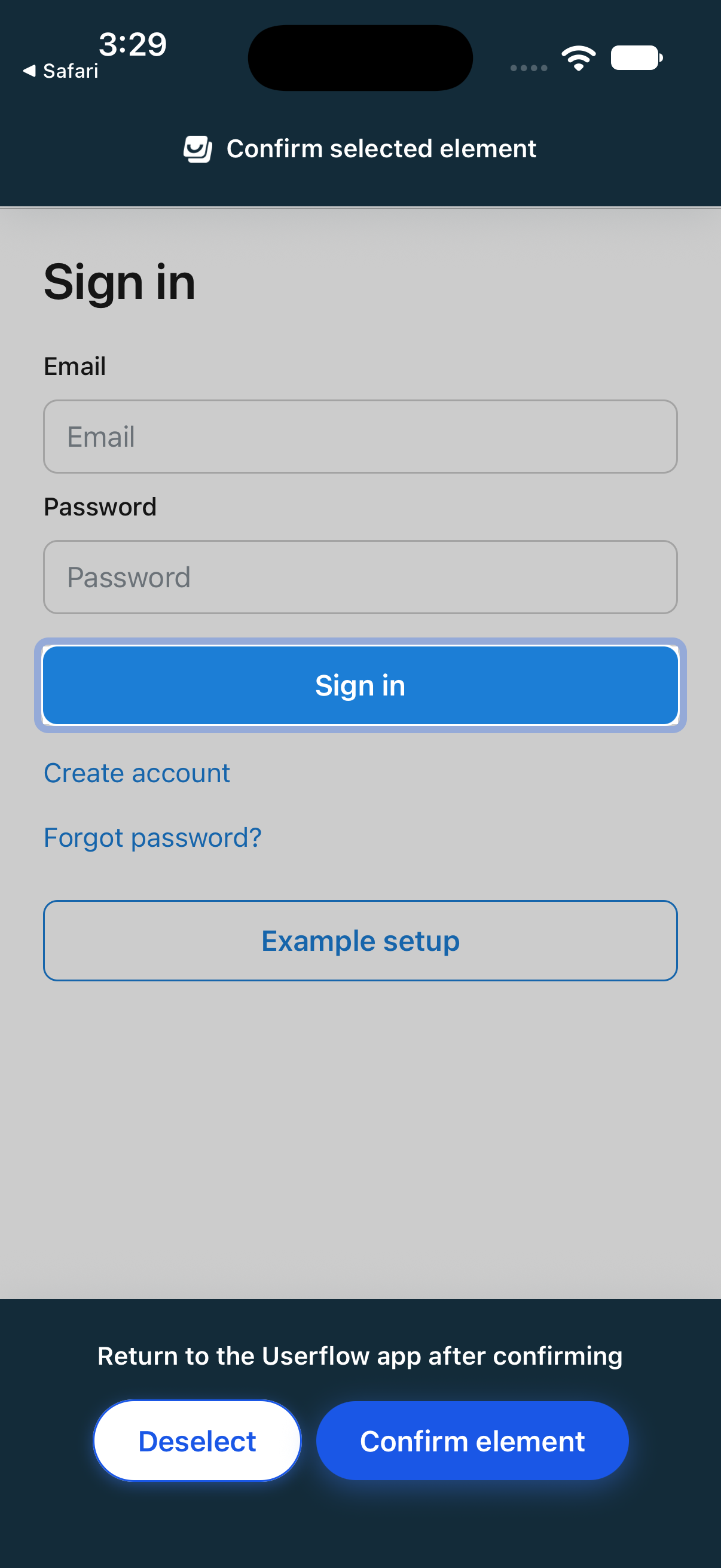
Go back to the builder. The element now shows under Show tooltip on this element.
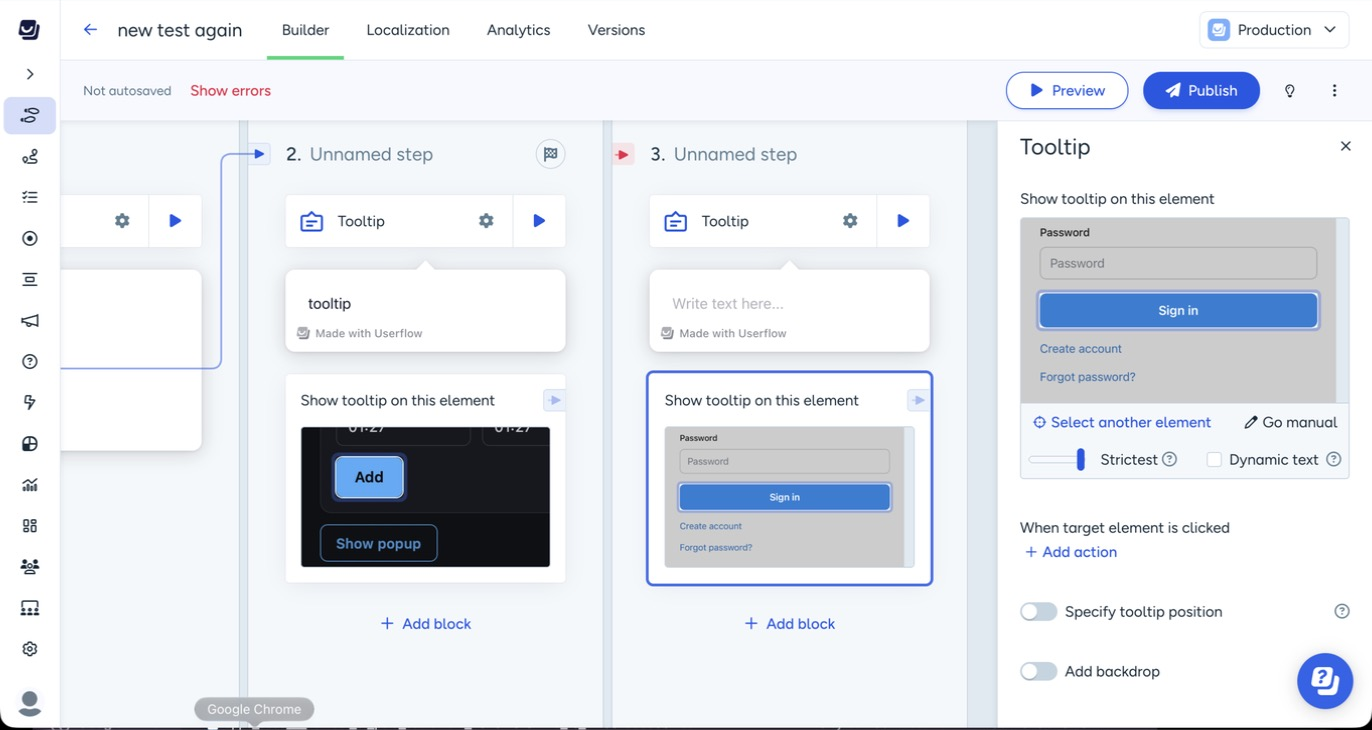
5.3 Select an element on an Android emulator
Once your emulator is paired (see Preview on an Android emulator above), selecting an element works the same way as on a real device.
Open your tooltip step in the builder. Under Show tooltip on this element, click Select element.
Switch to the emulator. Your app is in element selection mode and the screen is dimmed. Double-tap anywhere to show Tap an element to select it at the top and Cancel and Navigate screens at the bottom.
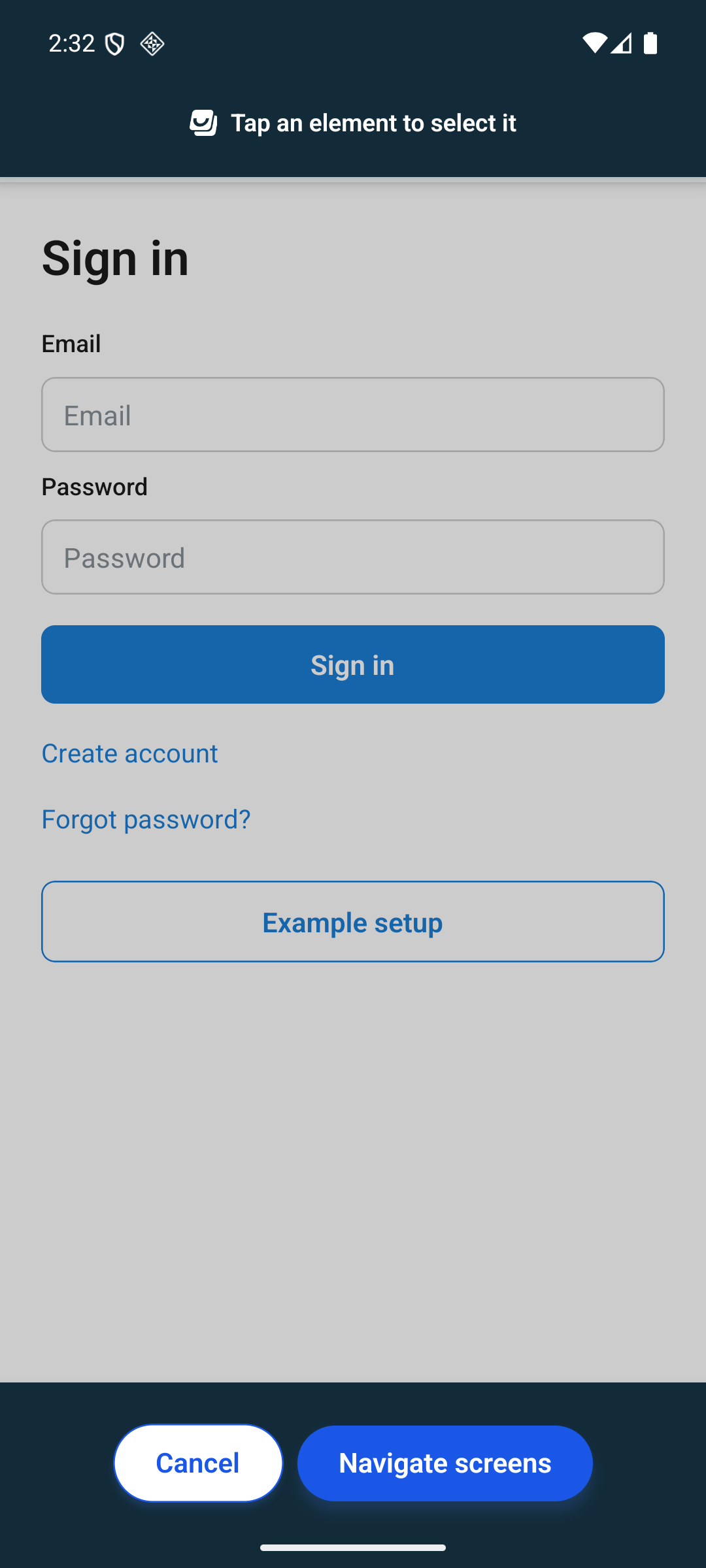
If the element is on another screen, tap Navigate screens and go to that screen. Then double-tap to bring the menu back and tap Select element here.
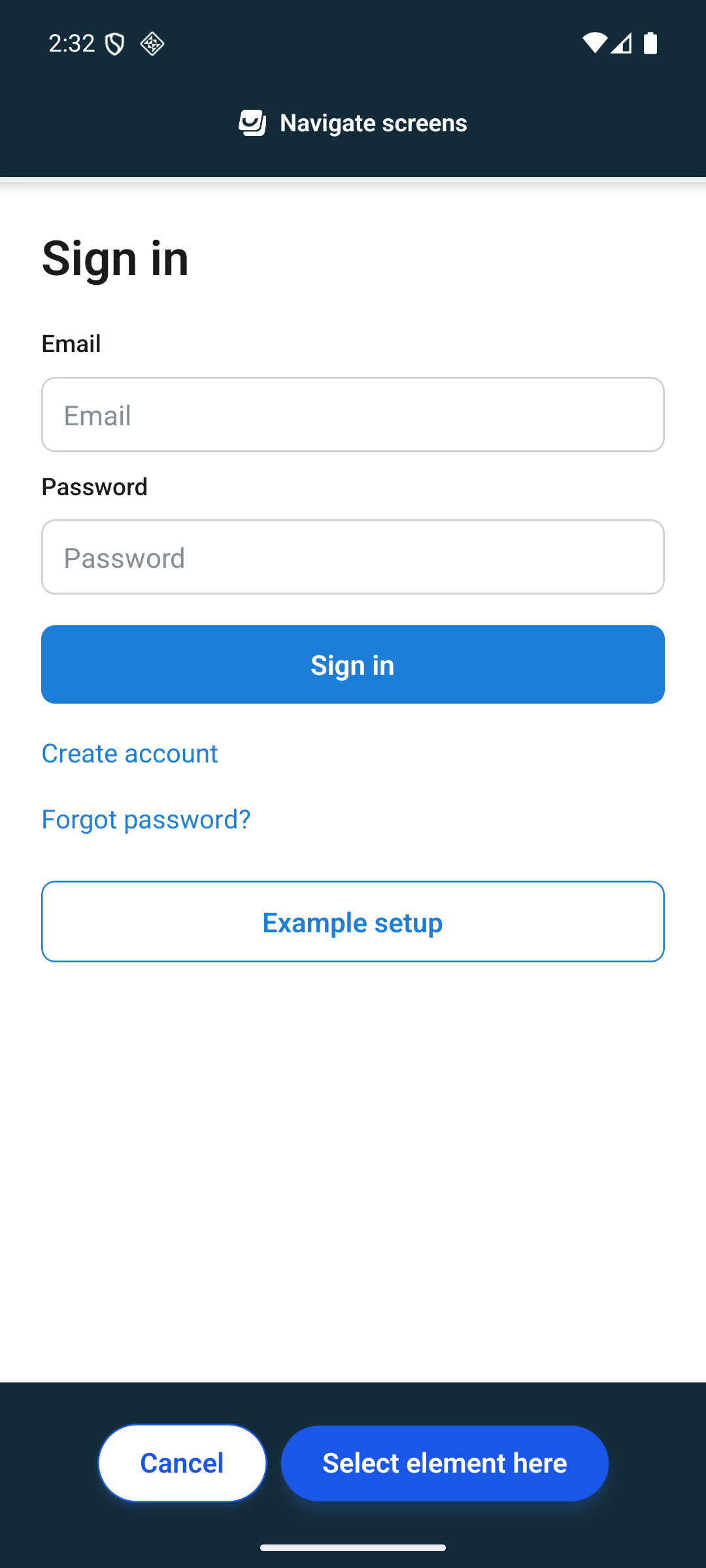
Tap the element you want the tooltip to point at. It's highlighted and the bar at the top changes to Confirm selected element.
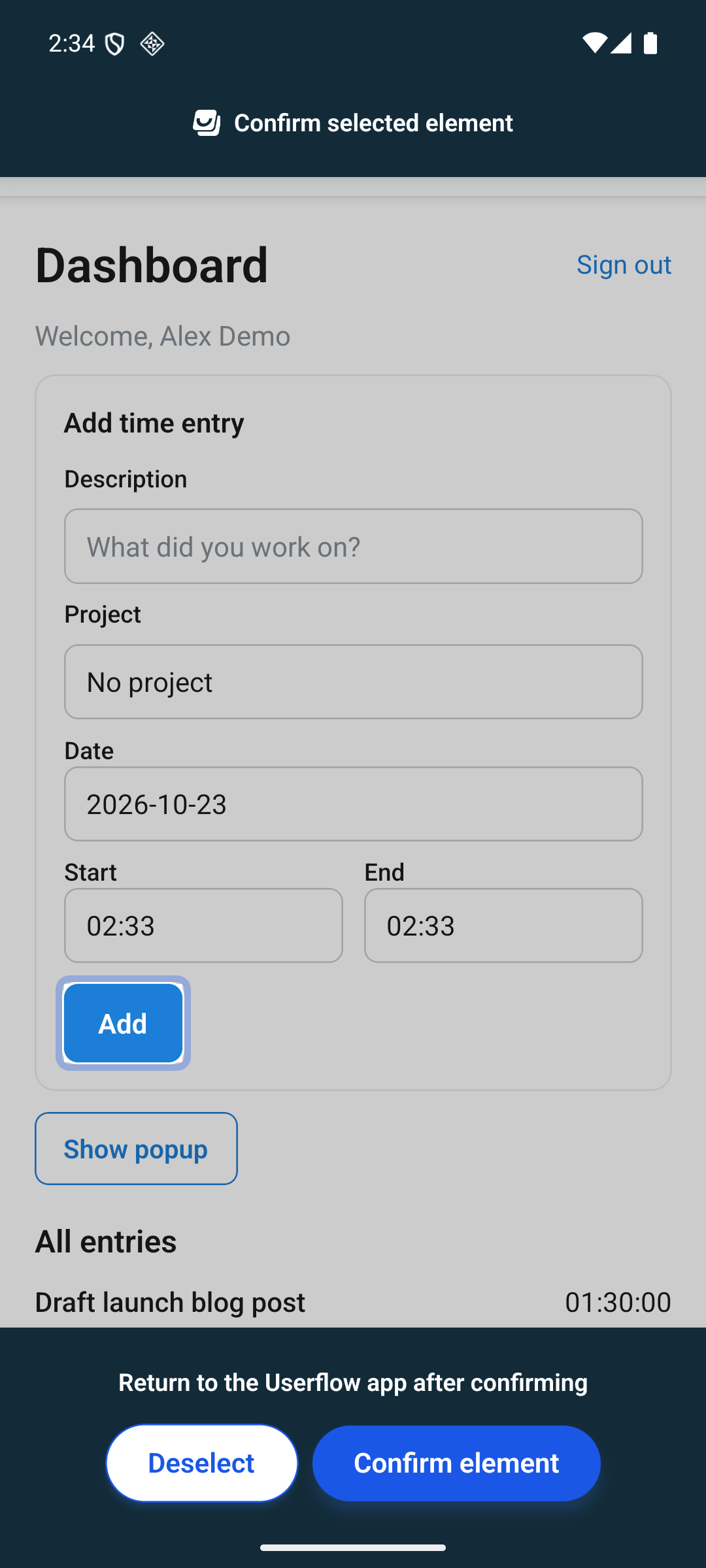
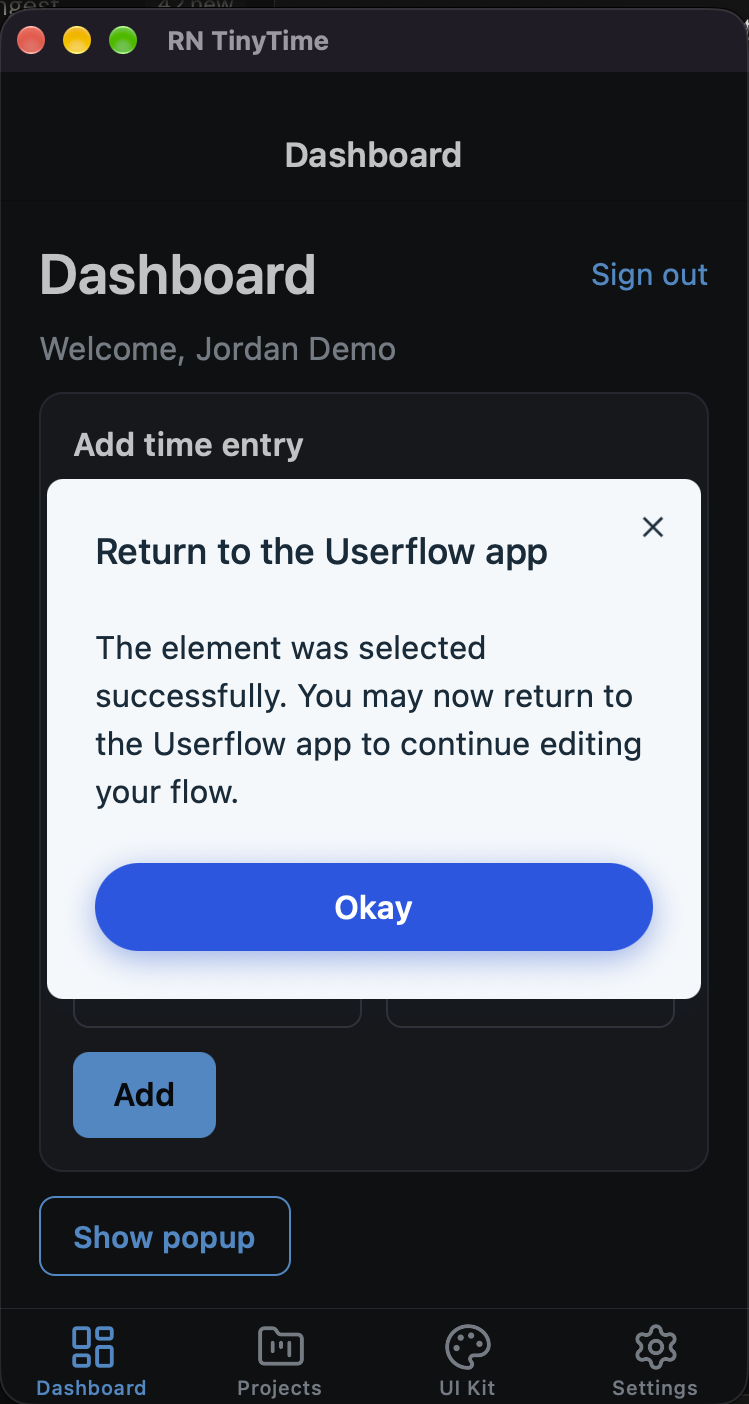
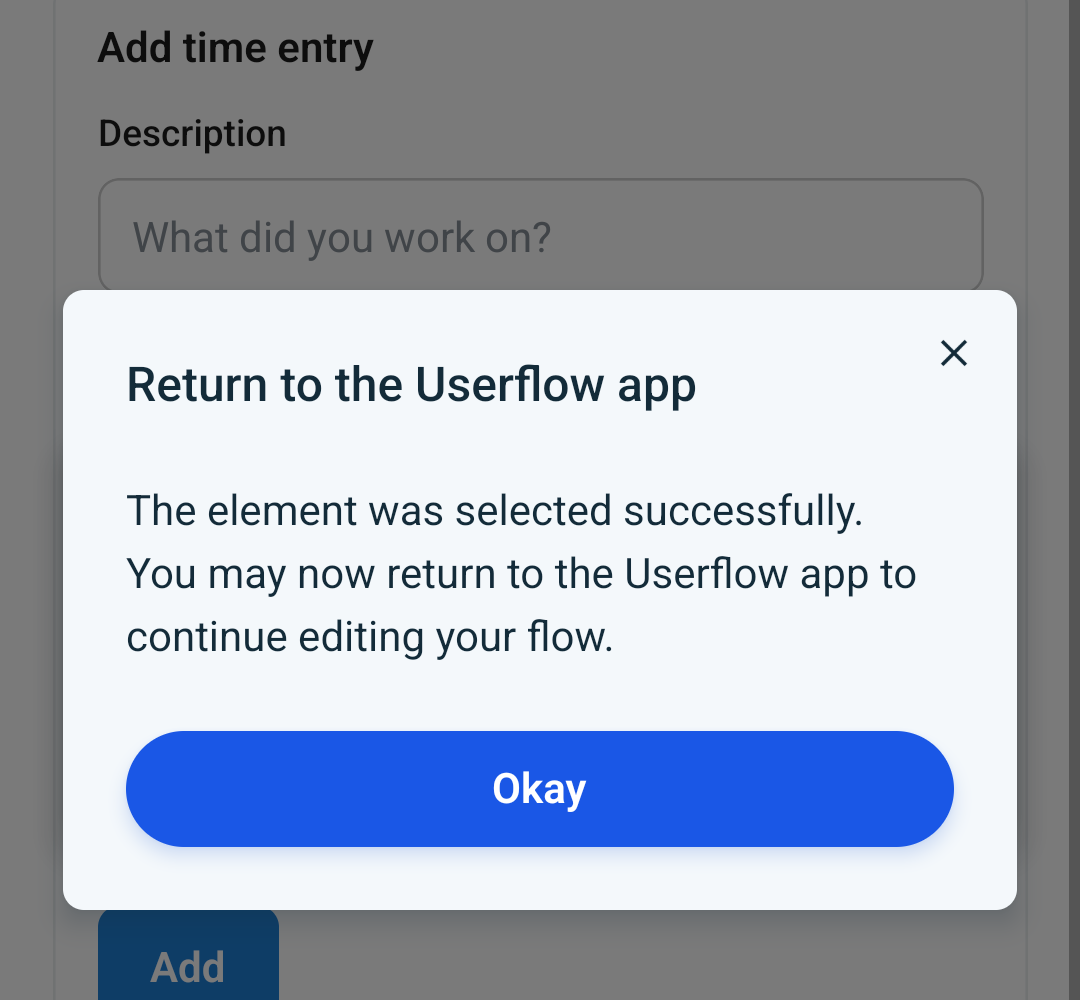
Tap Confirm element, then tap Okay.
Go back to the builder. The element now shows under Show tooltip on this element.
5.4 Enter an element manually
If an element can't be selected in the app, target it by its ID instead.
Add a
testIDto the element in your code, for example<Pressable testID="invite-teammates">.nativeIDandaccessibilityLabelwork too.In the tooltip step, click Go manual.
Enter the ID in the CSS selector field, for example
#invite-teammates.
To go back to picking in the app, click Switch to automatic element selection.
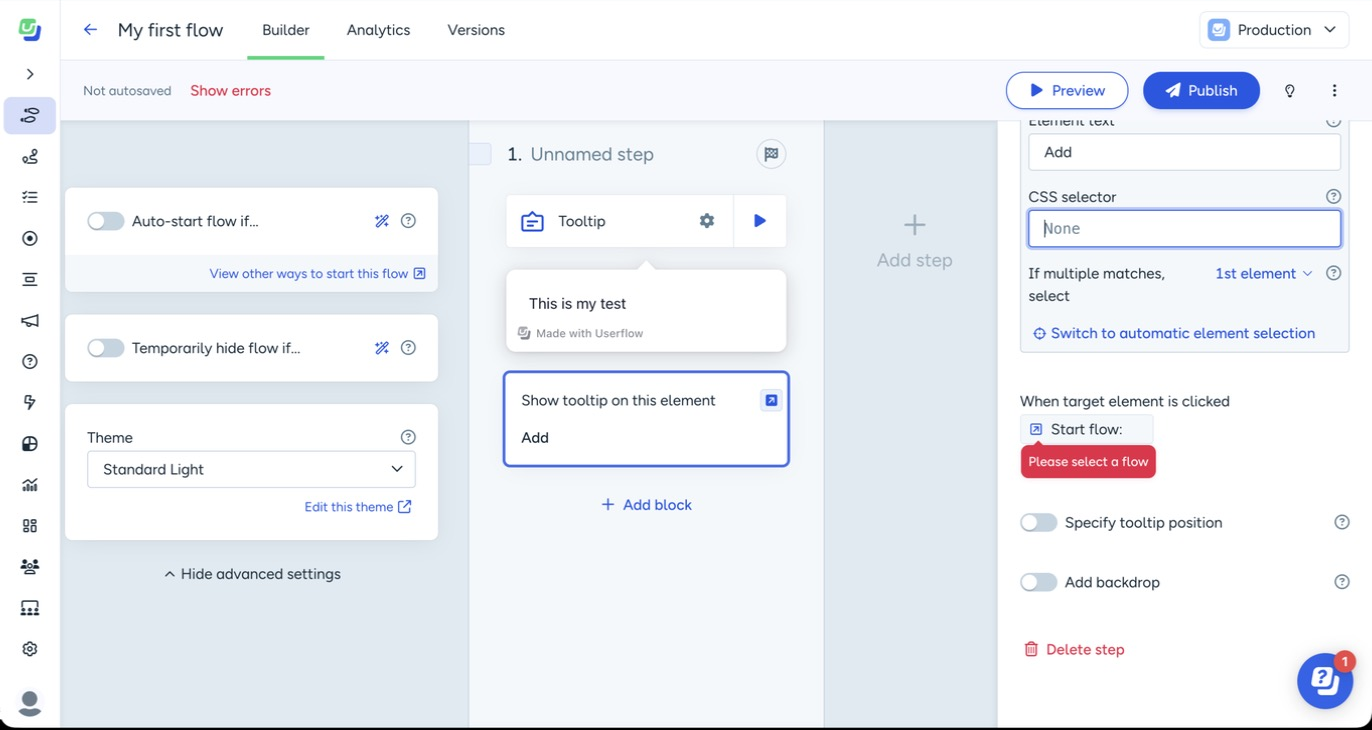
Good to know: elements inside some third-party UI libraries (like React Native Paper) and animated views can't always be selected in the app. Use a testID for those.
Tooltip options
When target element is clicked — add an action, like starting another flow.
Specify tooltip position — for example, below the target.
Add backdrop — dims the rest of the screen. Once it's on, you can also Block tooltip target clicks and set Backdrop padding.
Troubleshooting
What you see | What to check |
|---|---|
The pairing link doesn't open the app | The scheme ID in your app config matches your environment exactly, and you rebuilt the native app after adding it |
The app opens but there's no Preview mode bar |
|
The app shows Preview unavailable |
|
The preview doesn't show after the app was in the background | Open the pairing link again in a new browser tab |
The app jumps to its home screen when pairing (Expo Router) | You've added |
Nothing works in Expo Go | Expo Go isn't supported — use a development build |
The element picker shows no screenshot |
|