To modify the appearance of your NPS (Net Promoter Score) survey, follow these customization options:
1. Change Logo:
Go to Settings > Appearance.
Under the Logo section, upload your custom logo to display on the top-left corner of your NPS standalone page.
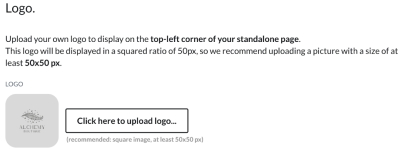
Ensure the logo is a square image with a minimum size of 50×50 px.
Click Upload Logo to select and upload your logo.
2. Change Favicon:
Under Settings > Appearance, upload a custom favicon for your standalone page.
It’s recommended to use a .ico file or an image sized at 32×32 px for best results.
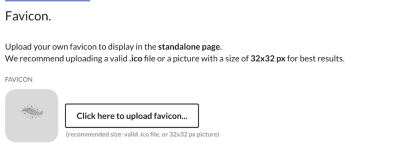
Click Upload Favicon to select and upload your favicon.
3. Custom Domain:
To use your domain for the NPS page, navigate to Settings > General Settings.
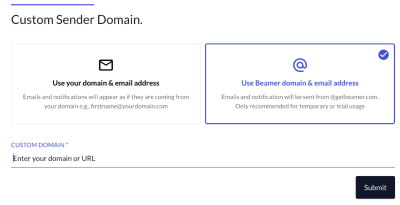
Select the option to use a custom sender domain for your NPS, and configure it to match your domain and email address.
To learn more about Custom Domains, refer to this article.
4. Create Custom Emojis:
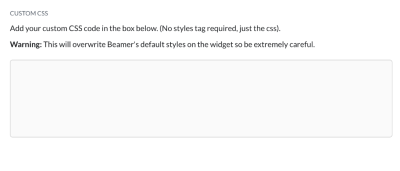
You can customize the emojis displayed in the NPS survey using Custom CSS.
Go to Settings > Appearance > Custom CSS to modify the design, including custom emojis for ratings.