How language tabs decide who sees a post
Beamer shows each reader the translation for their language. Their language is the language value your site sends Beamer, or their browser language if you don't send one.
Their language is in your list in Settings > Languages. They see the post in that language. If the post has no translation in that language, the post is hidden from them.
Their language isn't in your list. They see the post in your default language.
So leaving a language tab empty hides the post from readers of that language. Always fill in your default language tab, because that's what readers outside your list see.
To show a post to one language group only, use a segment as well. Language tabs alone don't do it, because readers whose language isn't in your list still get the default-language version.
Create a segment for the audience you want, based on the language attribute you send to Beamer or on any other attribute that identifies that group.
Apply that segment to the post.
Fill in the language tab for that audience so they read it in their own language.
See the Advanced Segmentation Guide for how to build the segment.
How to enable multiple languages in .
In your Beamer Dashboard go to Settings > Languages.
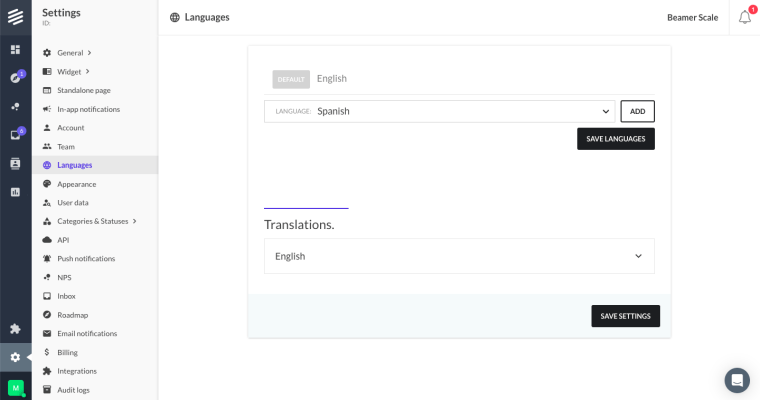
In Languages you can click on the select box to pick a language you would like to enable. Then click on Add to include it in the list.
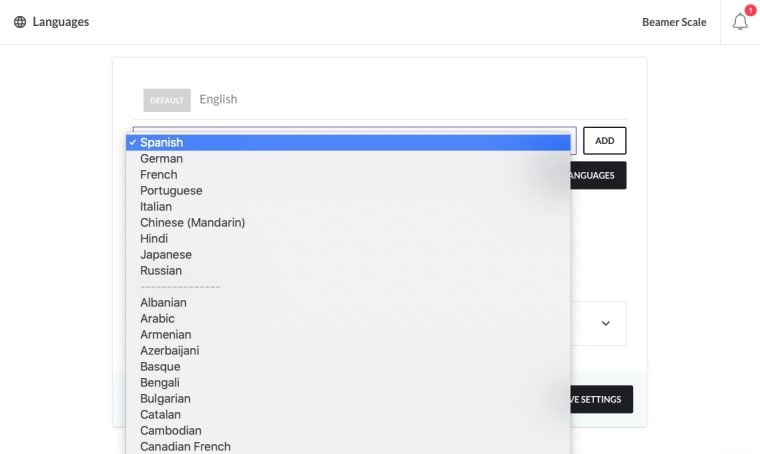
You can add as many different languages as you like.
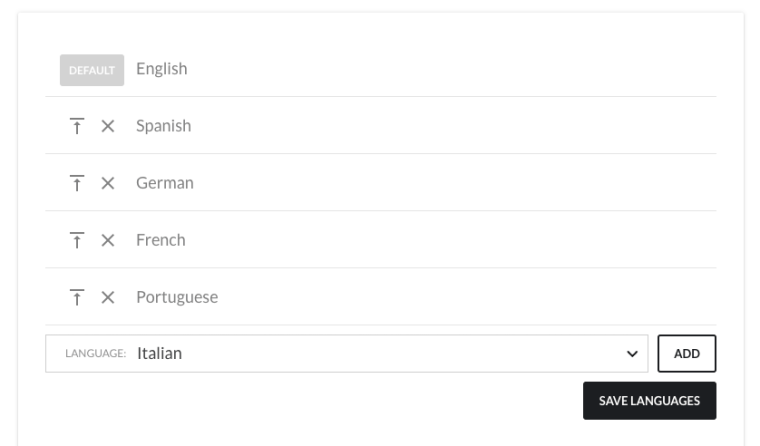
Remember to save your languages by clicking on the save button on the right.
This list will enable the multiple languages for your Beamer feed and for your individual posts!
How to remove a language?
In the Languages screen, go to the language you want to remove.
Click on the remove icon.
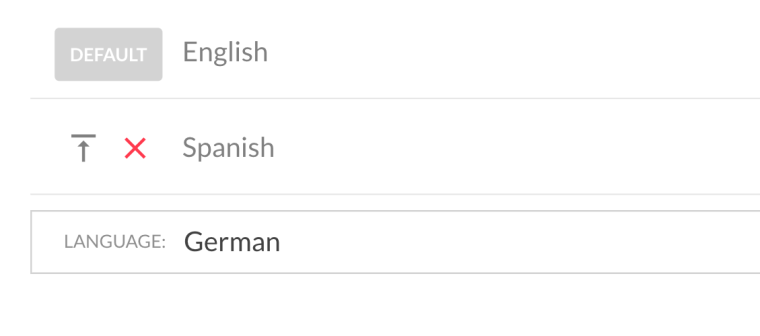
Don't forget to save your changes.
How to pick a default language?
In the Languages screen, go to the language you want to make the default language.
Click on the make default.
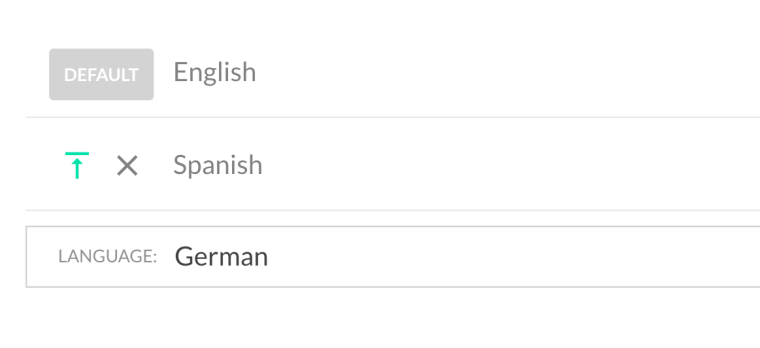
Don't forget to save your changes.
Your default language will appear at the top and will have a default tag like so:
How to change the text to right to left?
There are many languages that are written and read from right to left (RTL) instead of left to right (LTR). When you use those languages, you may want to mirror your UI to make it fit better with those languages. To do so:
In the Languages screen, go to the language you want to make RTL.
If the option is available, the language will have a switch at the right labeled right to left.
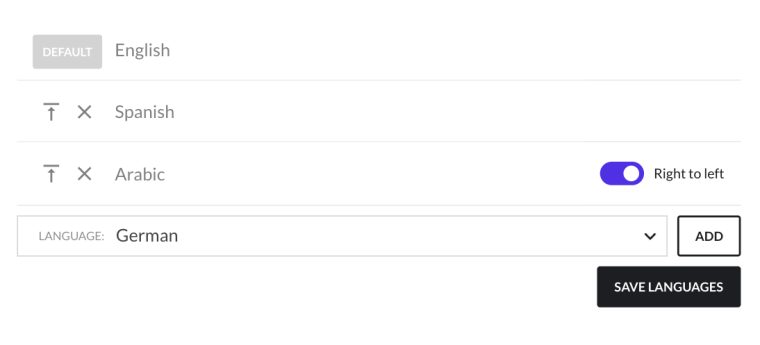
Click on the switch to activate. If the switch is green and at the right position then the option is enabled.
Don't forget to save your changes.
How to translate your Beamer feed
Go to Settings > Language. Scroll down to find a general list of available translations for each of the enabled languages. This translations will include phrases, call to actions and other translatable text.
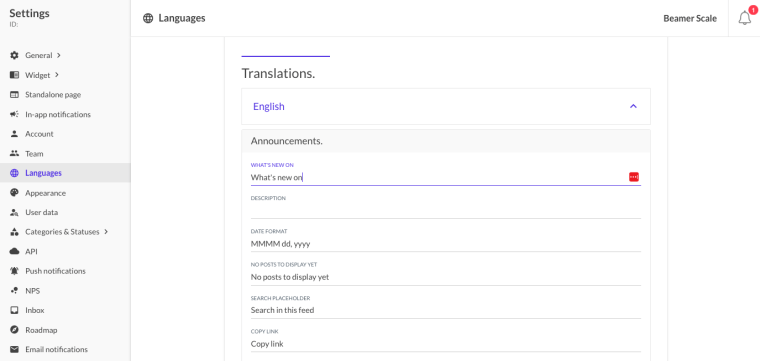
Sart translating!
Remember that this will be different for each of the languages you included (as explained in the first section of this guide).
When you are ready to launch don’t forget to press save translations.
How to translate individual posts
Once you have enabled different languages (as explained in the first section of this guide) you'll be able to translate individual posts.
Each time you create or edit a post you'll see a list of the available languages in the top of the editor.
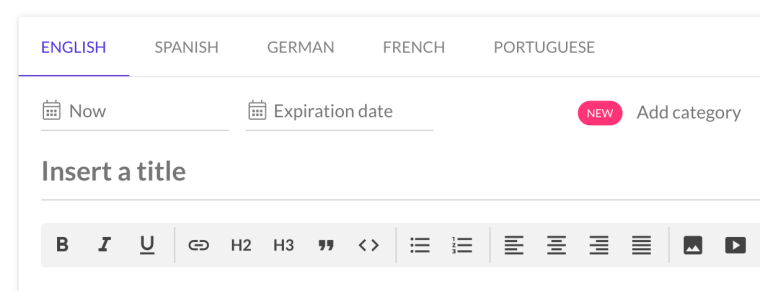
To add a translation to that post just click on the language you want to include and add content. You can translate directly from the other languages or even add specifically localized content that will be only accessible for that language.
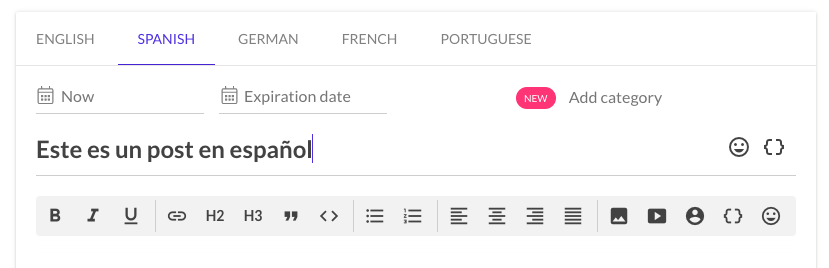
If a user's language is set in their browser, or passed in the
languageparameter, they'll get your translated feed and hence your translated post. Remember that if you don't include a translation for a particular language that post will not be displayed in that language feed.If the language a user uses in their browser is not included in your list, the feed will display the language marked as default. You can learn to change your default language here.
Display translated posts.
As mentioned before, translated posts will be shown according to the language that a user has set on their browser. If you want call a specific language for your widget you can do so using the Beamer Embed Code. Like this:
<script>	var beamer_config = {
		product_id: "YOUR PRODUCT ID",
		selector: "YOUR SELECTOR",
		display: "right", top: 0,
		right: 0,
		button_position: 'bottom-right',
		language: 'EN',
		filter: 'admin',
		lazy: false, alert: true,
		callback: your_callback_function,
		//---------------Visitor Information---------------			user_firstname: "firstname",
		user_lastname: "lastname",
		user_email: "email"	};
</script>
<script type="text/javascript" src="https://app.getbeamer.com/js/beamer-embed.js" defer="defer"></script>
In the previous code example the parameter [code]language[/code] includes the two letter code of the language to display.
Language code list.
Beamer uses two letter codes for languages. For the most common languages the codes are: EN for English, ES for Spanish, DE for German, FR for French, PT for Portuguese, IT for Italian, ZH for Mandarin Chinese, HI for Hindi, JA for Japanese and RU for Russian.The following are all the two letter codes for languages in alphabetical order:SQ – Albanian
AR – Arabic
HY – Armenian
AZ – Azerbaijani
EU – Basque
BN – Bengali
BG – Bulgarian
CA – Catalan
KM – Cambodian
CF – Canadian French
ZH – Chinese (Mandarin)
HR – Croatian
CS – Czech
DA – Danish
NL – Dutch
NB – Dutch (Belgium)
EN – English
CE – English (Canada)
NZ – English (Australia / New Zealand)
UK – English (UK)
ET – Estonian
FJ – Fiji
FI – Finnish
FR – French
FB – French (Belgium)
KA – Georgian
DE – German
EL – Greek
GU – Gujarati
HE – Hebrew
HI – Hindi
HU – Hungarian
IS – Icelandic
ID – Indonesian
GA – Irish
IT – Italian
JA – Japanese
JW – Javanese
KO – Korean
LA – Latin
LV – Latvian
LT – Lithuanian
MK – Macedonian
MS – Malay
ML – Malayalam
MT – Maltese
MI – Maori
MR – Marathi
MN – Mongolian
NE – Nepali
NO – Norwegian
FA – Persian
PL – Polish
PT – Portuguese
BR – Portuguese (Brazil)
PA – Punjabi
QU – Quechua
RO – Romanian
RU – Russian
SM – Samoan
SR – Serbian
SK – Slovak
SL – Slovenian
ES – Spanish
CO – Spanish (Colombia)
MX – Spanish (Mexico)
SW – Swahili
SV – Swedish
TL – Tagalog
TA – Tamil
TT – Tatar
TE – Telugu
TH – Thai
BO – Tibetan
TO – Tonga
TR – Turkish
UK – Ukrainian
UR – Urdu
UZ – Uzbek
VI – Vietnamese
CY – Welsh
XH – Xhosa
Tell Beamer which language each user reads
Pass the language parameter in your embed code for every user, using the two-letter code from the list above. If you don't, Beamer uses the reader's browser language, which may not match the language they use in your app.
Send it for your default-language users too. If English is your default and you add Chinese, send
language: "ZH"for your Chinese users andlanguage: "EN"for everyone else.Beamer stores the language on each user. You can see it on the user's record in Users.
Text in my own app doesn't change after I translate it
Settings > Languages translates text inside the Beamer widget. If you use a custom embed, any text you show in your own app, such as your own "What's new" label, comes from your code. Change or translate it in your code. Clearing your cache won't change it.
Emails arrive in the wrong language
Beamer sends email notifications in the language stored for that user, which comes from the language parameter. If no language is passed, emails use your default language. A user only receives emails for posts that have a translation in their language.
To fix it:
Check the user's language on their record in Users.
Send the correct
languagevalue for that user from your site.Publish a new post to test it. Editing a post that's already published doesn't send the email again.
How to use localization tools.
Instead of spending time and effort on manual copy & pasting or implementing automated solutions by yourself, you can always rely on translation tools like Crowdin.Crwodin allows you to automate your Beamer content translation. Use translation memory, contextual translation, machine translation engines, and one-click translation orders to get your content translated quickly, accurately and consistently.You can learn more about how to use localization for your changelog, release notes and in-app notifications in this post from our blog, Product 101.
How to change translate Beamer with Crowdin?
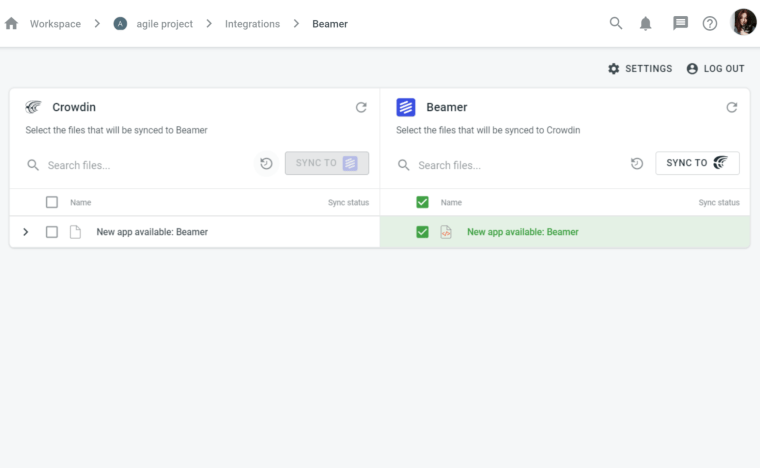
Create your first localization project at Crowdin.
And install the Beamer app.
Choose the sync schedule, so the app will automatically upload all new content from Beamer to Crowdin and vice versa every hour, day, or week.
You can also synchronize content manually in one click.