Elevate your workflows by integrating videos, forms, and images directly into your Userflow content to foster a more captivating, interactive experience. Utilizing various media formats enhances the user journey and can often express intricate concepts more efficiently, ultimately resulting in improved user involvement and contentment.
Videos and forms
You can incorporate videos from your preferred video service using our video embedding feature. Likewise, you can integrate online forms, such as Typeform surveys. .png)
How to embed
Click the + menu in the top right of any content field and select Embed. (If you don't see the toolbar, click inside the editable field to activate it.)
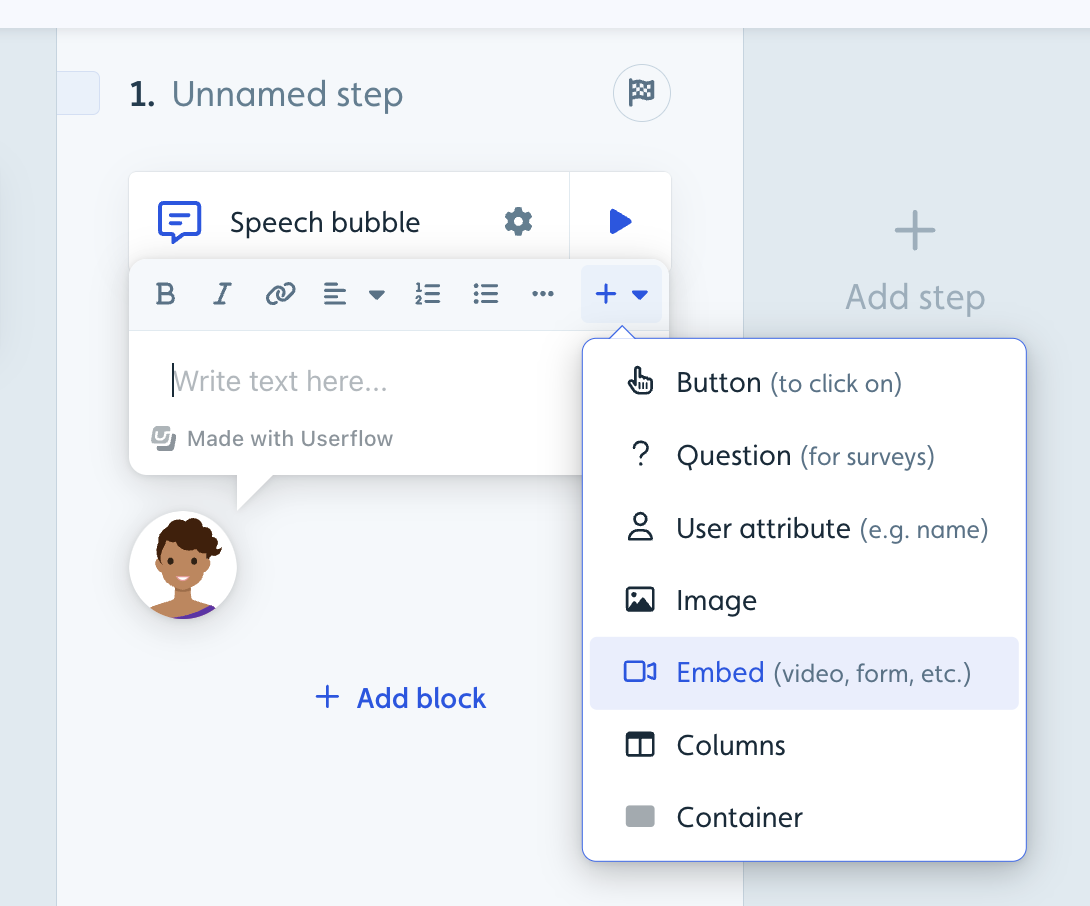
Enter the URL of your video or form. (See troubleshooting note below.)
(Optional) Adjust how the video displays (width, size, margins).
.png)
Auto-play videos
To start videos automatically when users reach that step, add ?autoplay=1 to the end of your video URL before embedding.
Example:
Original:
https://youtu.be/a75Ff8WoLFI?si=hKPCrYtEuIEXkhQyAuto-play enabled:
https://youtu.be/a75Ff8WoLFI?si=hKPCrYtEuIEXkhQy?autoplay=1
Note: Auto-play parameters may vary by platform. Common variations include:
Youtube/Loom:
?autoplay=1Vimeo:
?autoplay=1&muted=1Wistia:
?autoPlay=true
How Userflow handles playback parameters
Userflow renders the embed using the URL you provide—it doesn't rewrite or strip query parameters. That means playback behaviour like autoplay and muting is controlled entirely by the provider's own embed parameters on the URL. Add the parameter your video host expects before embedding:
YouTube:
?autoplay=1&mute=1(most browsers require muting for autoplay to start)Vimeo:
?autoplay=1&muted=1
Tracking video engagement
Userflow doesn't track video opens, plays, or completions for embedded videos. An embedded video is rendered by the provider inside your content, and Userflow doesn't receive playback events from it. What Userflow records for a step containing a video is the same as any other step — that the step was seen, and any flow actions the user took.
If you need a signal that someone engaged with a video:
Put the video on its own flow step and use the step's analytics to see how many users reached it.
Add a button below the video with a Track event action, labelled as a next step, so a click stands in for having watched.
Use your video provider's own analytics, which will have real playback data.
Images
With images, you can either upload an image file or insert a URL.
How to add images
Click the + menu in the top right of any content field and select Image. (If you don't see the toolbar, click inside the editable field to activate it.)
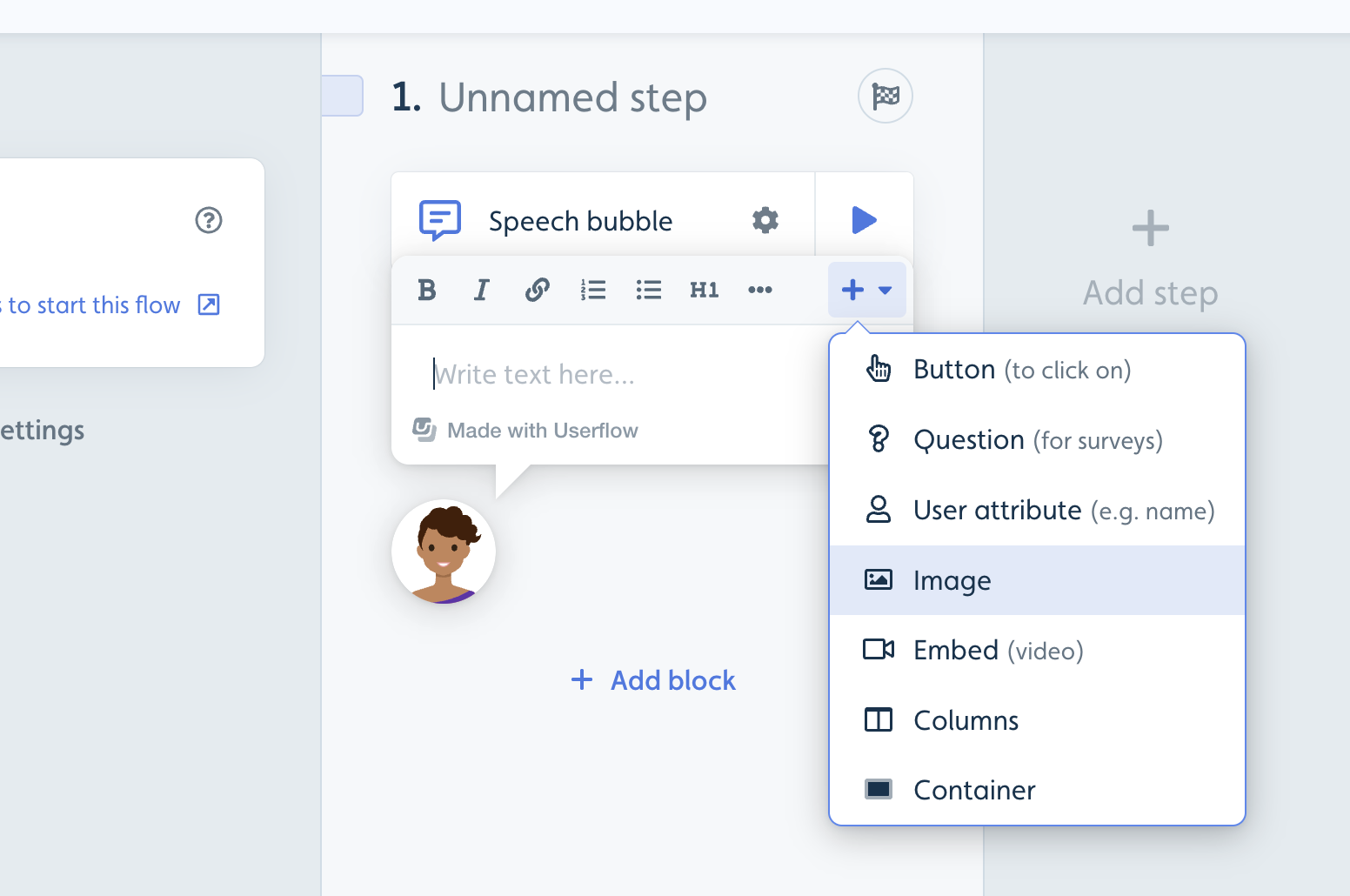
Choose one of two options:
Upload: Select a file from your computer
Link: Enter the URL of a hosted image
Image file requirements
When uploading images to Userflow, the following requirements apply:
Supported formats: JPEG, PNG, GIF, WebP, SVG
Maximum file size: 10 MB per image
Recommended: Optimize images for web use before uploading to ensure fast loading times
Images that exceed the file size limit or use unsupported formats will not upload successfully.
Publishing embedded elements
An embed only appears to your users once the flow, banner, checklist, or Resource Center block that contains it has been published to the environment those users are in. If an embed isn't showing up live, it's often because the containing content hasn't been published yet, or was published to the wrong environment.
Publish the flow, banner, checklist, or Resource Center that contains the embed.
Confirm you published to the correct environment (production vs. staging). An embed published only to staging will not appear in your production app.
Reload your live app as a real user (not the builder preview) to confirm the embed renders as expected.
If the containing content is published to the right environment and the embed still doesn't appear, see the Launcher/Banner not showing and Flow not starting articles for environment and targeting checks.
Troubleshooting
Embed not displaying?
Verify the URL is publicly accessible.
Check if the content provider allows embedding.
Some platforms require specific embed URLs rather than regular viewing URLs.
User data not passing to embedded forms?
When embedding forms using iframes, URL parameters formatted with#(hash) are processed only on the client side and won't be passed to the embedded content. This can prevent user attributes (such as email, name, or user ID) from reaching the embedded form, resulting in empty or missing response fields.
To ensure user attributes are properly passed to embedded forms, use ? (question mark_ for URL parameters instead of #. Parameters formatted with ? are processed server-side and will successfully pass through to the embedded content, allowing all user data to be captured correctly.
Use
?instead of#for URL parameters to ensure data passes correctly through the iframe.Example:
form.com?email={{email}}instead ofform.com#email={{email}}