In this guide you can learn how to track if a button in a flow tooltip/speech bubble/modal is clicked. This is e.g useful in cases where you have buttons that navigates to an external URL like a webinar or similar using a Navigate to Page action.
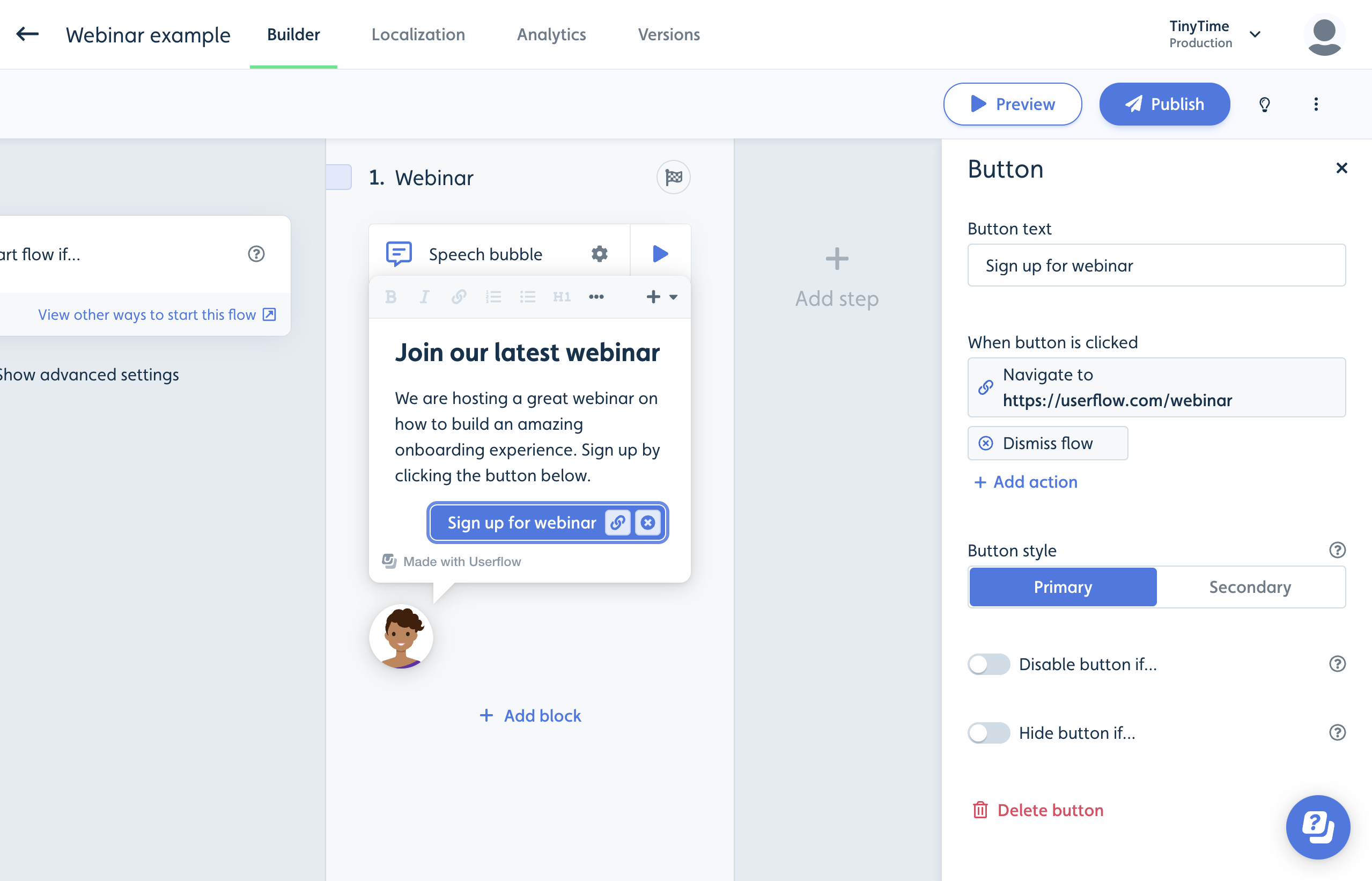
There are three ways to do it. The quickest is a Track event action on the button.
Method 1: Add a Track event action to the button
Open the step and click the button.
Click Add action and choose Track event.
Pick an existing event, or type a new name to create one.
Publish the flow.
Each click now tracks that event for the user. You'll find the event under Settings → Events, and you can use it in Chart Builder, segments and auto-start conditions.
Events created this way aren't listed on the Event trackers page. That page only shows no-code trackers you build there.
The same Track event action works on buttons in launchers and banners. See Button Click Tracking for that setup.
In announcements: announcement buttons have the same Track event action. The clicks don't appear in the announcement's own analytics, so read the event in Chart Builder instead. See Announcements.
Method 2: Track button click with a hidden step
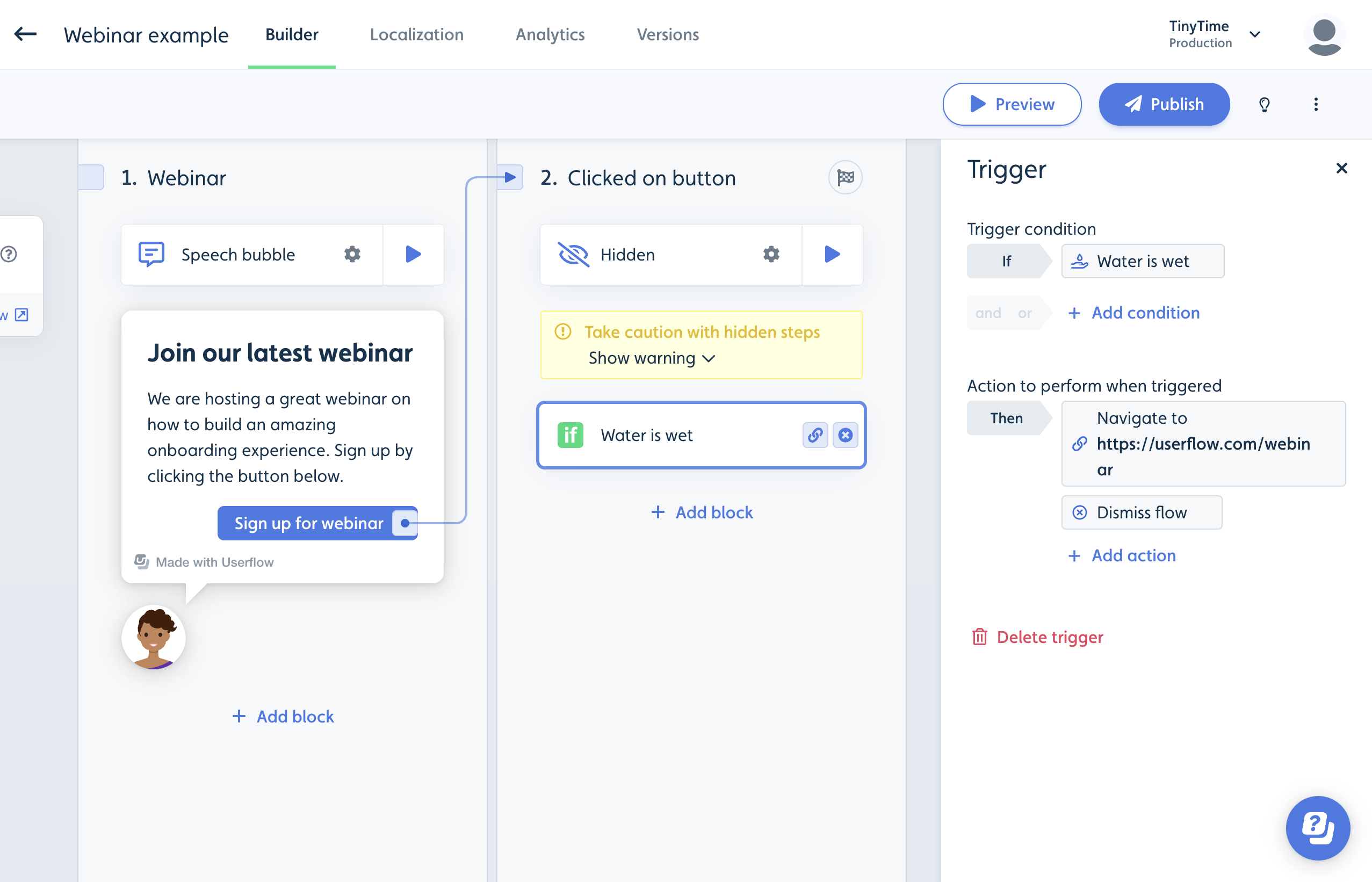
Add a hidden step that triggers if the button is clicked that has a trigger that is always true (Water is wet) and move the actions from the button to the trigger. Make sure you always include a dismiss action so the user won’t get stuck on the hidden step. By having this hidden step you can now track how many clicked the button, by looking at the Analytics for the given step.
Note: If the button connects naturally to another non-hidden step, you can use the same method to track the clicks.
Method 3: Track button click with user attribute
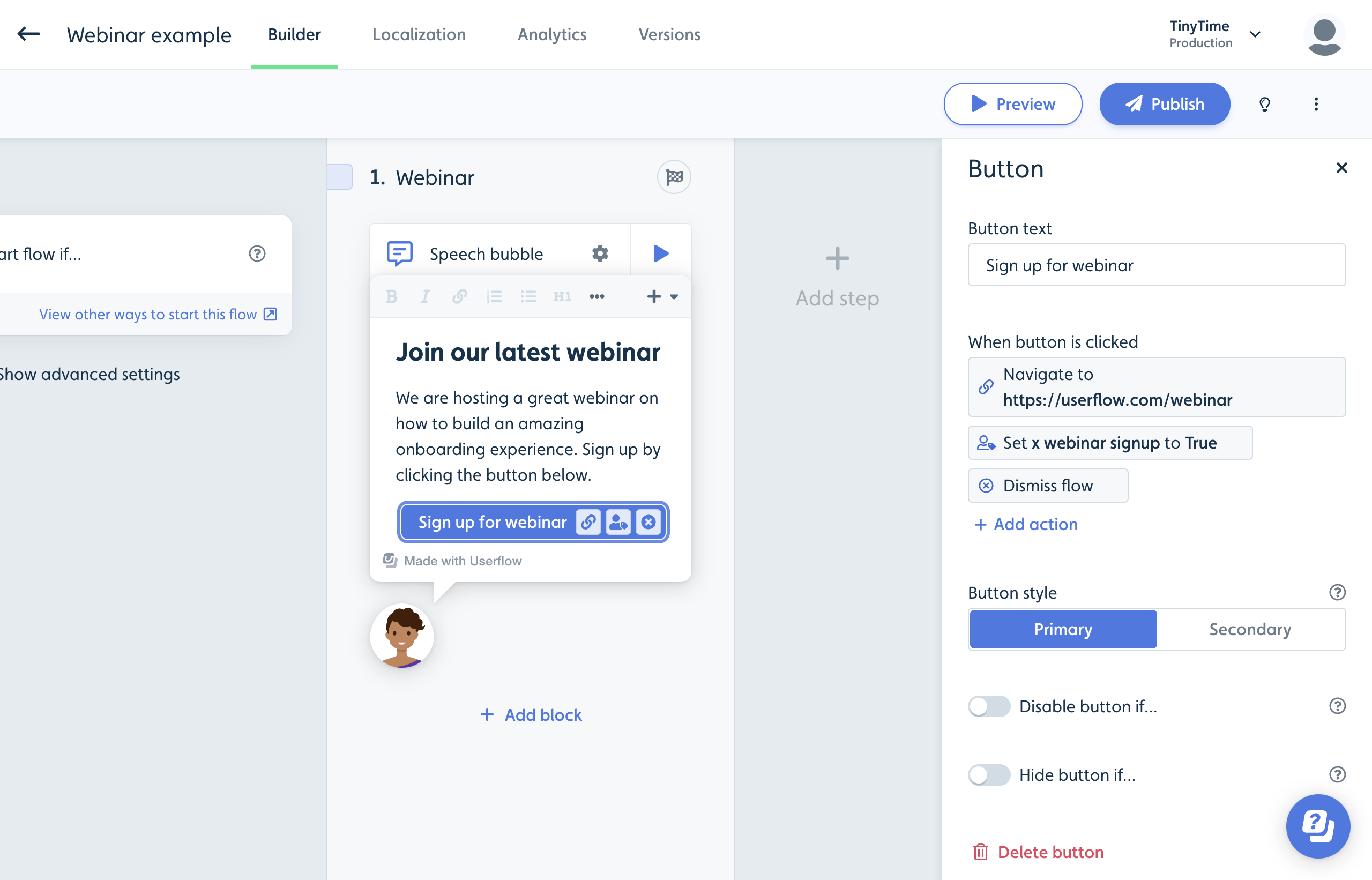
Add a Set attribute action to the button that e.g. sets a binary (true/false) user attribute to true when the button is clicked.
If you allow users to see the flow multiple times and want to count the # of button clicks per user you can alternatively use a user attribute of the number type. Using this type of attribute allows you do a Set attribute action where you add increments of the number to the attribute. E.g. first click would set it to 1, 2nd click to 2, etc.
With this user attribute approach you will be able to create overviews/segments of the users who clicked the button in the users list. See Users and Segments for more info.
What if I want to track a tooltip target click?
To track whether a user clicked a tooltip's target element when the tooltip has no next step, use a hidden step (Method 2) or a Set attribute action (Method 3).
To track clicks on elements in your app outside of a flow, use a no-code event tracker instead.