Userflow's help desk integrations let your users reach live chat and search your help articles from inside your app, through the Resource Center. Live chat and public knowledge base search need no setup under Settings → Integrations. Connecting Intercom or Zendesk under Settings → Integrations adds two things: the Adoption Agent can learn from your help center articles, and the Resource Center can search articles that are behind a login.
Which help desk tools work with Userflow?
Userflow works with help desk tools in three ways:
What you want | Tools supported | Setup needed |
|---|---|---|
Open live chat from the Resource Center | Crisp, Freshchat, Help Scout, HubSpot, Intercom, Zendesk Web Widget (Classic and Messenger), or any other chat widget | Resource Center Contact block only |
Search public help articles from the Resource Center | Freshdesk, HubSpot, Zendesk, or any site Google has indexed | Resource Center Knowledge base block only |
Search articles behind a login, or train the Adoption Agent on your help center | Intercom, Zendesk | Connect under Settings → Integrations |
Open live chat from the Resource Center
The Resource Center Contact block can open your live chat widget. When a user clicks the Chat icon in the Contact block, the Resource Center closes and your live chat opens. When the user closes the chat, the Resource Center shows again.
To set it up, open the Resource Center in the builder, select the Contact block, and choose your provider in the live chat provider dropdown. Supported providers are Crisp, Freshchat, Help Scout, HubSpot, Intercom, and Zendesk Web Widget (Classic and Messenger).
Live chat needs no setup under Settings → Integrations. Userflow calls JavaScript functions to open and close a chat widget that's already installed in your app, so the chat widget must be loaded on the page.
Connect a chat provider or AI agent that isn't listed
The Resource Center Contact block can open any chat widget or AI support agent that's installed in your app, including ones not in the provider list (for example Sierra). The built-in provider options only save you from writing the open and close calls yourself.
Make sure your provider's widget or SDK is already loaded in your app.
In the Resource Center builder, open the Contact block settings and choose Custom / Other in the live chat provider dropdown.
Point the open and close hooks at your provider's own show and hide functions. Clicking Chat then opens your widget, and closing it returns the user to the Resource Center.
Like the built-in providers, a custom provider needs no setup under Settings → Integrations.
Search your knowledge base from the Resource Center
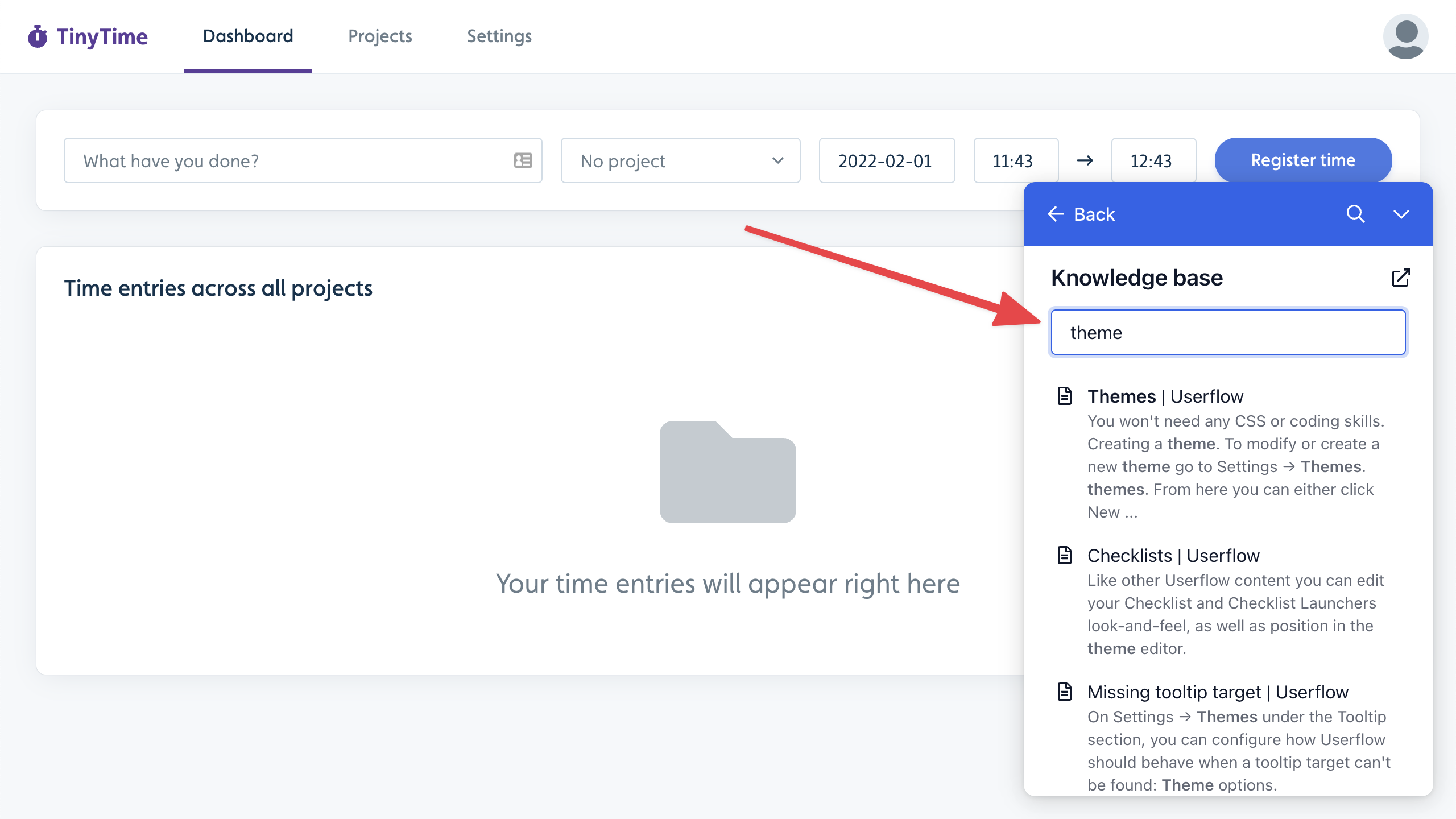
The Resource Center Knowledge base block lets users search your help articles without leaving your app. Clicking a result opens the article in a new tab, and a link button at the top goes to your knowledge base home page.
To set it up, select the Knowledge base block in the Resource Center builder and choose your Knowledge base provider and Knowledge base URL in the side panel.
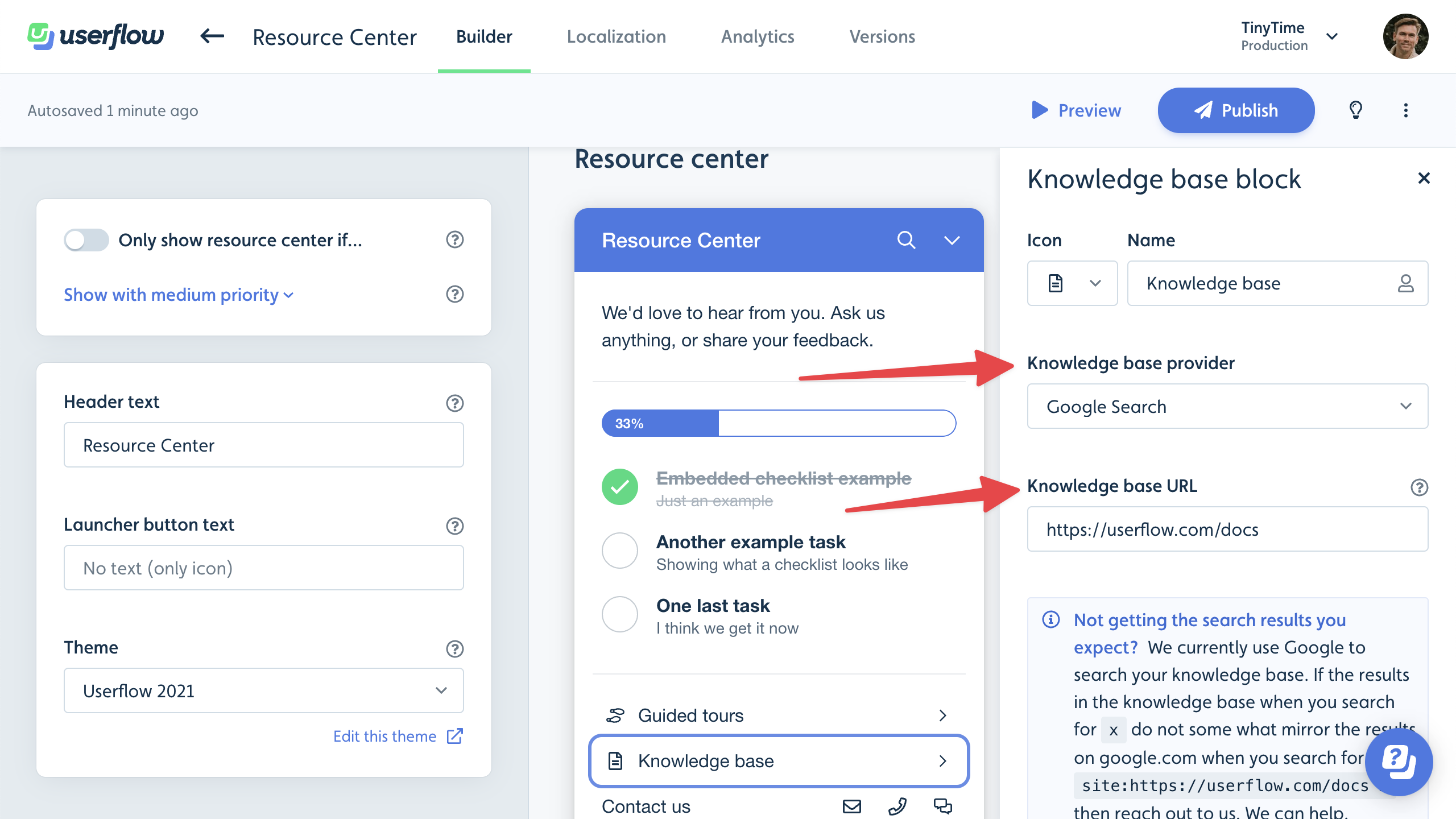
Knowledge base search supports these providers:
Public search (no login needed): Freshdesk, HubSpot, Zendesk.
Search behind a login: Intercom and Zendesk. Connect them under Settings → Integrations first. See Connect Intercom to Userflow and Connect Zendesk to Userflow.
Search a knowledge base that isn't listed
The Resource Center Knowledge base block has two options for other knowledge base tools or a docs site you built yourself:
Google Search: returns results like searching
site:yourdomain.com/pathon google.com. Your site must be indexed by Google.Adoption Agent: searches the sources your Adoption Agent is trained on. The agent must be trained and published, but you don't have to use it for AI chat. Searching this way costs nothing. It also lets you search a Salesforce knowledge base that is behind a login.
Connect Intercom to Userflow
Connecting Intercom lets you train the Adoption Agent on your Intercom Help Center articles and search Intercom articles in the Resource Center, including articles behind a login.
Sign in to Userflow.
Check that the right environment is selected in the top-right corner.
Go to Settings → Integrations.
Click Add integration, then Intercom.
Click Add Intercom, then Connect with Intercom.
In the popup, choose your Intercom workspace in the top-right corner.
Click Authorize access.
To add your Intercom articles as a source, see Intercom in the Adoption Agent article.
Open a non-public Intercom article from a flow or launcher
Userflow can open an Intercom article in Intercom Messenger from a flow button, a launcher or a trigger, including articles that aren't public. Use an Evaluate JavaScript action with this code, replacing ARTICLE_ID with the article's ID from Intercom:
Intercom('showArticle', ARTICLE_ID)This needs Intercom Messenger installed in your app, because the code asks Messenger to open the article. It won't run if your app turns off Evaluate JavaScript actions with userflow.disableEvalJs().
A non-public Intercom article can't be embedded inside a tooltip or flow step. Embeds load a page by its URL, so they only work with public articles.
Connect Zendesk to Userflow
Connecting Zendesk lets you train the Adoption Agent on your Zendesk Help Center articles and search Zendesk articles in the Resource Center, including articles behind a login.
Sign in to Userflow.
Check that the right environment is selected in the top-right corner.
Go to Settings → Integrations.
Click Add integration, then Zendesk.
Click Add Zendesk, then Connect with Zendesk.
Enter your Zendesk subdomain and click Continue.
Click Allow.
To add your Zendesk articles as a source, see Zendesk in the Adoption Agent article.
Zendesk integration stopped working or stopped syncing
If your Zendesk integration with Userflow stopped working, or private articles stopped syncing, the likely cause is that Zendesk is retiring long-lived API tokens in waves, from April 30, 2026 through April 2027. Zendesk connections made before Userflow added token refresh stop working once your Zendesk account reaches its enforcement date:
Public Help Center: private articles and categories stop syncing to Userflow. No error is shown, so missing content can go unnoticed.
Private Help Center: the integration fails. Userflow turns it off and emails the integration owner with steps to reconnect.
To fix it, reconnect Zendesk once: go to Settings → Integrations → Zendesk and click Connect with Zendesk. After that, Userflow refreshes the connection automatically.