At a glance | |
|---|---|
Audience | Teams that want more customers to use the features that matter most |
You will be able to | Find the important features your customers aren’t using yet, draft an in-app nudge for the top gaps, and check whether each nudge worked |
What you need | An AI tool that supports skills (such as Claude or ChatGPT), the Userflow MCP (included on every plan) with editor access or above, and a tracked event for each feature you want more customers to use |
Overview
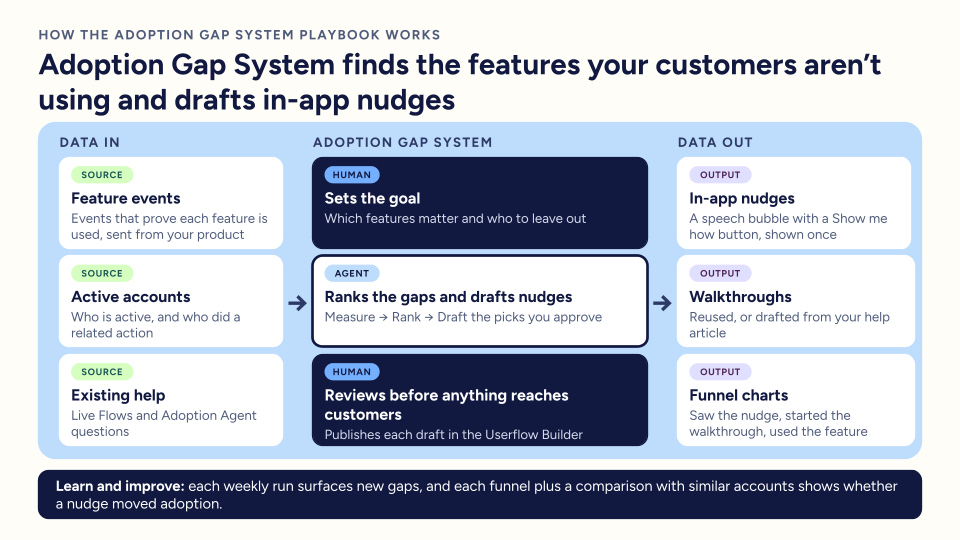
This playbook finds your adoption gaps: important features that customers who would benefit from them aren’t using yet. It ranks the gaps by how many accounts a nudge could move and drafts a nudge for each of your top picks. A nudge is a small speech bubble in your product with a Show me how button that starts a walkthrough of the feature.
An MCP connects your AI tool to another product so it can read and work in it. The Userflow MCP connects it to your Userflow account.
A skill is a set of instructions your AI tool follows for one job, so your prompts can stay short.
A playbook is a set of skills that work together toward one goal. This playbook uses one: Create adoption nudges.
Think of it as a robot sandwich: you set the goal, the skill does the work, and a person approves the result. The skill drafts nothing until you approve your picks, and it never publishes. You review each draft and publish it yourself in the Userflow Builder, where you edit content before it goes live.
4 Parts make up this playbook | What you do | What you have at the end |
|---|---|---|
1. Find your adoption gaps | Run the ranking, answer the skill’s questions and pick which gaps to draft | A draft nudge, walkthrough and funnel chart for each pick |
2. Review and publish each nudge | Preview the walkthrough in the Userflow Builder, then publish it and the nudge | A live nudge for each pick |
3. Measure each nudge | Read the funnel chart after 30 days and compare with similar accounts after 60 days | Evidence of whether each nudge moved adoption |
4. Run the ranking every week | Schedule the ranking and approve new picks | A fresh ranking every week |
Get set up
Step 1: Connect the Userflow MCP
The Userflow MCP lets your AI tool read and create things in your Userflow account. Follow Connect Userflow to Claude, ChatGPT, and other AI tools with the Userflow MCP. You need editor access or above in Userflow, because the skill creates drafts and charts.
Step 2: Track an event for each feature
The skill measures adoption from the events you send to Userflow. Each feature you want more customers to use needs an event that proves real use, such as exporting a report (visiting the reports page doesn’t count). You also need one event that means an account is active, such as signing in. Send events with Userflow.js, or set them up without code with event trackers (how many you can create depends on your plan). If you count adoption by company, attribute each event to the company as well as the user.
Step 3: Connect your other tools (optional)
In your AI tool, connect the tool where your help center lives (for example Document360 or Zendesk). The skill takes the steps for a new walkthrough from your own help article, and you can also paste the article link when it asks. You can connect your task tool too (such as Asana, Jira or Linear) to get one task for each pick with the steps to publish and measure it. Most AI tools call these connectors.
Step 4: Add the skill
Download the skill file:
Then add the file to your AI tool:
ChatGPT: add the file as a skill:
Start a new chat in ChatGPT and upload the skill file.
Type
@skill-creatorand ask ChatGPT to review the file and create the skill. For example:@skill-creator Review this file and create the skill.Once the skill is created, install it. You can then start using it.
Claude: go to Customize → Add → Upload a skill and drop the file there.
Once the skill is added, you don’t need to name it. The prompts below run it.
Using an AI tool other than Claude/ChatGPT? Most tools that support skills use the same file format. See the AI Skills Library for how skills work.
Part 1: Find your adoption gaps
The Create adoption nudges skill measures how many of your active accounts use each feature. It then counts lookalikes: active accounts that recently did something closely related but have never used the feature. These accounts are the most likely to try it after a nudge. The skill ranks the features and drafts only the ones you approve.
Step 1: Run the ranking
Time: about 15 minutes, mostly answering the skill’s setup questions.
Before it measures anything, the skill asks you:
which Userflow environment to use, usually your production one
whether to count adoption by company or by user
which features you want more customers to use (3 to 15 works best) and the event that proves each one is used
for each feature, a related action that people do before they need it, such as creating a dashboard before scheduling reports. The skill suggests one
how much each feature matters to your business, from 1 to 3
which event means an account is active
who to leave out, such as your own team, test accounts or trials
It leaves out the events Userflow creates itself, such as Flow (also called a guide or tour) and checklist events, because they aren’t product features. Open a new conversation in your AI tool and run this prompt:
Find our biggest feature adoption gaps.Or open it directly within your AI agent:
Step 2: Pick which gaps to draft
Time: about 10 minutes, mostly while the skill drafts.
The skill shows a ranking table with each feature’s adoption rate, its number of lookalikes and its score. A feature scores higher when no live Flow, checklist or other content teaches it. If you have an Adoption Agent published in your product, a feature also scores higher when users asked the Adoption Agent about it and didn’t get a good answer. The skill skips a feature that already has a nudge, had content first published in the last 30 days, or is owned by another team, and tells you why. A feature whose event has stopped firing is marked “check tracking” and goes to the bottom.
The skill proposes the top 3. For each pick you approve, it drafts:
a nudge named “Nudge | <Feature>: …”. It shows once to people at accounts that did the related action in the last 30 days but have never used the feature, and never within a day of another Flow
a walkthrough named “How to | <Feature>: …” for the Show me how button to start. The skill reuses one you already have. If you don’t have one, it asks for your help article and drafts the walkthrough from it. With no help article, it offers to switch to the next pick or to draft an outline for you to finish in the Builder
a funnel chart that tracks who saw the nudge, who started the walkthrough and who then used the feature
Feature and Stage labels, if your account has them. The skill suggests only labels that already exist and applies the ones you accept
In the same conversation, tell the skill which gaps to draft. Run this prompt:
Draft nudges for the top 3.Or open it directly within your AI agent:
Part 2: Review and publish each nudge
The skill creates every nudge and walkthrough as an unpublished draft. When it finishes, it gives you a Builder link for each draft, a link to each funnel chart and a checklist. If you connected a task tool, it offers to create one task for each pick.
Step 1: Preview the walkthrough
Time: about 15 minutes for 3 walkthroughs.
Open the walkthrough’s Builder link and preview it in your product. The skill can’t see your product’s screens, so fix any tooltip that doesn’t point at the right element. Where the skill couldn’t find the element, the step is a speech bubble with a Next button, and the checklist lists it for you to point in the Builder.
Step 2: Publish the walkthrough and the nudge
Time: about 5 minutes.
Publish the walkthrough before the nudge, or both together. If the nudge goes live first, its Show me how button starts nothing. To show the nudge only on certain pages, open it in the Builder and add Start condition → Current page → URL contains, then enter part of the page’s address. Then publish the nudge.
Part 3: Measure each nudge
Judge each nudge by whether accounts start using the feature, not by how many people saw it. Don’t use the nudge’s completion rate: the speech bubble has no goal step, so its completion rate stays at 0%. Your AI tool can’t read funnel results, so open the charts in Userflow.
Step 1: Read the funnel after 30 days
Time: about 5 minutes.
Open the funnel chart named “Nudge | <Feature>: saw, clicked, adopted” in Userflow. It shows how many saw the nudge, how many of them started the walkthrough, and how many then used the feature.
Step 2: Compare with similar accounts after 60 days
Time: about 5 minutes.
Compare accounts that saw the nudge with similar accounts that didn’t (same plan, similar size) on how many started using the feature. The difference shows whether the nudge helped. It’s an estimate, not proof.
Part 4: Run the ranking every week
After you have run Parts 1 to 3 once, schedule the ranking in your AI tool. Each run skips features that already have a nudge or had content first published in the last 30 days, so you see new gaps. The skill still stops at the ranking and waits for your picks before it drafts anything, so open each run when it finishes and reply with your picks.
Time: about 5 minutes to set up.
Have the answers you gave the skill in Part 1 Step 1 ready, so it doesn’t need to ask again.
Run this prompt to create a weekly scheduled task. Replace each placeholder in square brackets with your answers before you send it. See scheduled tasks in Claude · scheduled tasks in ChatGPT.
Create a scheduled task that runs every week with this prompt: Find our biggest feature adoption gaps in [environment], counted by [company or user]. For each feature, here is the event that proves it is used, the related action and how much it matters from 1 to 3: [your list]. The active event is [event]. Leave out [your team, test accounts, trials]. Show me the ranking and wait for my picks before you draft anything.Or open it directly within your AI agent:
You’re all set
Your Adoption Gap System is running. From now on:
Every week, the skill ranks your adoption gaps and waits for your picks before it drafts anything.
Each nudge you publish shows once to the accounts most likely to try the feature.
Each funnel chart shows who saw the nudge, started the walkthrough and then used the feature.
See the difference. After 4 to 8 weeks, run this prompt to check whether more accounts use the features you nudged:
Compare this month's adoption rate with last month's for the features I nudged.Or open it directly within your AI agent:
Keep this handy
The whole playbook takes about 1 hour the first time. After that, expect about [confirm] a week.
Question | Answer |
|---|---|
Will the skill publish anything without my approval? | No. It drafts nothing until you approve your picks, and it never publishes. You publish each walkthrough and nudge yourself in the Userflow Builder. |
Which plan do I need? | The Userflow MCP is included on every plan. The number of event trackers you can create depends on your plan, and events you send with Userflow.js don’t need an event tracker. You need editor access or above. The skill doesn’t work without the Userflow MCP, because it measures adoption from your Userflow events. |
Why is a feature missing from the ranking? | The skill leaves a feature out when it has no tracked event, when its event has never fired in the environment you picked, or when the event is one Userflow creates itself. It also skips features that already have a nudge, had content first published in the last 30 days, or are owned by another team, and tells you why. |
Why are some numbers marked as rough? | With fewer than about 30 active accounts, adoption rates swing a lot, so the skill flags them as rough. |
How many gaps should I work on at once? | The skill proposes three. That is few enough to review each draft properly and measure each nudge on its own. |
Do I need a task tool? | No. With one connected, the skill offers one task for each pick with the steps to publish and measure it. Without one, you get the same checklist in the conversation. |
Will a nudge make customers use the feature? | Not necessarily. The comparison with similar accounts in Part 3 shows whether a nudge helped, but it’s an estimate, not proof. |
What about features customers are already asking about? | This playbook finds features nobody is asking about. For questions customers already ask, use the Knowledge Loop playbook. |