At a glance | |
|---|---|
Audience | Teams that keep a help center and want it to answer the questions customers actually ask |
You will be able to | Find and fix gaps in your help center every week, turn repeat questions into in-app Flows, and follow up with customers your Adoption Agent could not answer |
What you need | An AI tool that supports skills (such as Claude or ChatGPT), the Userflow MCP (included on every plan), and access to your help center and support tool |
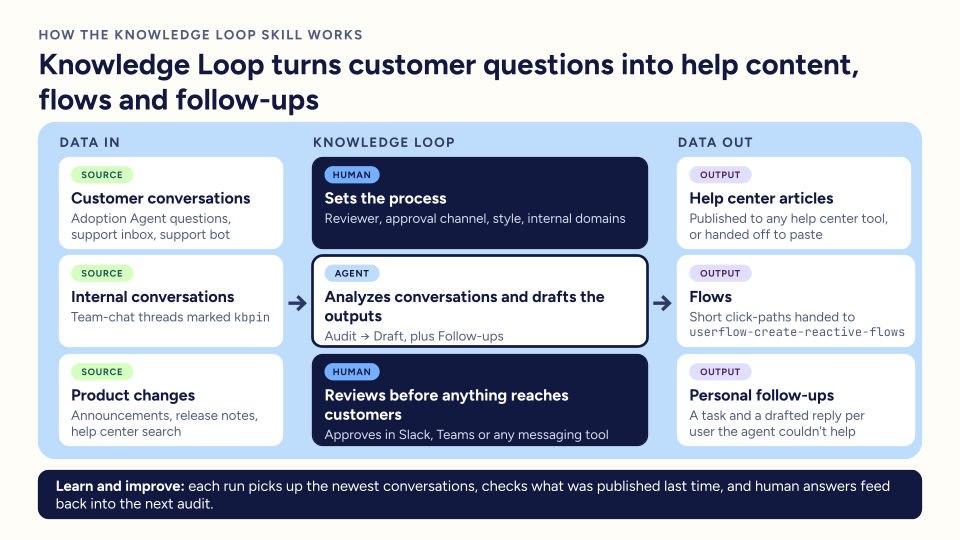
Overview
This playbook sets up a loop you run every week to keep your help center, and the Adoption Agent that answers from it, up to date. It finds questions your help center does not answer well, drafts fixes for your review, suggests in-app Flows (also called guides or tours) for questions that need a walkthrough, and drafts replies for customers your agent could not answer.
An MCP connects your AI tool to another product so it can read and work in it. The Userflow MCP connects it to your Userflow account.
A skill is a set of instructions your AI tool follows for one job, so your prompts can stay short.
A playbook is a set of skills that work together toward one goal. This playbook uses two: Knowledge Loop and Create reactive flows.
Think of it as a robot sandwich: you set the goal, the skill does the work, and a person approves the result. Nothing is published until a reviewer you name approves it, and a person on your team sends every customer reply.
Video: Why run the Knowledge Loop.
Video transcript
0:00 Hi, I'm Chloe from Userflow and welcome to the Knowledge Loop playbook. We all have this problem. You have your Adoption Agent and you have your support team answering questions from customers from your help center content.
0:13 So how do you keep that content up to date and how do you make sure that it's answering questions that customers are actually asking?
0:22 That's where the Knowledge Loop comes into play. It reads your customers' questions from your Adoption Agent and your support team, plus any of your release notes and threads within Slack or Microsoft Teams, whatever it might be.
0:37 Then it finds the questions your help center doesn't answer well and drafts the fixes in your own writing style that you have put together.
0:45 So when you set this up, your help center can continue to answer questions that customers actually ask, not what you guessed they'd asked.
0:55 And your Adoption Agent is going to be answering more every week. And your questions that need a walkthrough can become in-app flows.
1:02 On top of that, customers that the Adoption Agent couldn't help still get a personal reply from your team. And this is where I introduce the concept of the robot sandwich.
1:13 So as you see here, you, the human, set the goal, and the skills then do the work, and a person, you, approves the result.
1:23 So nothing is ever published until you explicitly approve. So to get started, you just need to connect to the Userflow MCP.
1:33 So go ahead and get started with the steps below in part one.
4 Parts make up this playbook | What you do | What you have at the end |
|---|---|---|
1. Find and fix the gaps | Run an audit, review the drafts it writes, and publish the approved ones | Updated articles in your help center |
2. Turn repeat questions into Flows | Find questions that a walkthrough answers better than an article | Draft Flows to review (often none) |
3. Follow up with customers who got stuck | Draft a reply for each customer your Adoption Agent could not answer | A task for each customer with a reply ready for a person to send |
4. Run the loop on a schedule | Schedule Parts 1 to 3 and approve in your team chat | Drafts and replies ready for review each week |
Get set up
Step 1: Connect the Userflow MCP
The Userflow MCP lets your AI tool read and create things in your Userflow account. Follow Connect Userflow to Claude, ChatGPT, and other AI tools with the Userflow MCP.
Step 2: Connect your help center and support tools
In your AI tool, connect the tools where your help center and support conversations live, for example Document360 and Intercom. Most AI tools call these connectors. The skill reads from both. Optional: connect your team chat (such as Slack or Microsoft Teams) to review drafts there, and your task tool (such as Asana, Jira or Linear) to track customer follow-ups.
Step 3: Add the skills
Download both skill files:
Then add each file to your AI tool:
ChatGPT: add each file as a skill:
Start a new chat in ChatGPT and upload the skill file.
Type
@skill-creatorand ask ChatGPT to review the file and create the skill. For example:@skill-creator Review this file and create the skill.Once the skill is created, install it. You can then start using it.
Claude: go to Customize → Add → Upload a skill and drop each file there.
Once the skills are added, you don’t need to name them. The prompts below run them.
Using an AI tool other than Claude/ChatGPT? Most tools that support skills use the same file format. See the AI Skills Library for how skills work.
Part 1: Find and fix the gaps
The Knowledge Loop skill compares what customers ask with what your help center says. It ranks the gaps, drafts fixes for the top 3 to 5 in your help center’s style, and tells you when an existing article only needs to be easier to find. It publishes only what your reviewer approves.
It reads these sources, if they are connected:
Questions your Adoption Agent could not answer, answers users marked unhelpful, and questions users asked more than once
Support conversations, including ones your support bot passed to a person
Recent Userflow announcements and your release notes
Help center searches with no results, if your help center tool shares them
Team chat threads that a teammate marked for the help center with an agreed reply, such as kbpin
Step 1: Find the gaps
Time: about 15 minutes the first time, then about 10 minutes a week, mostly while the skill works.
The first time, the skill asks a few setup questions: which tools to use, who approves articles and how, 2 or 3 articles that show your writing style, and your company’s email domains so it can leave out your own team. It saves your answers and does not ask again. The first audit looks back 30 days, and later ones look back 7. Open a new conversation in your AI tool and run this prompt:
Audit my help center and find the gaps.Or open it directly within your AI agent:
Step 2: Review the drafts
Time: about 15 minutes for 3 to 5 articles.
Each draft appears under the evidence for it. [CONFIRM] marks a fact the skill could not verify, and [SCREENSHOT] marks where an image is needed. Your reviewer resolves these and approves each draft the way you agreed, for example with a checkmark reaction in Slack. Only a reviewer you named can approve. To draft more items from the list, run this prompt with their numbers:
Draft items [item numbers].Or open it directly within your AI agent:
Step 3: Publish the approved articles
Time: about 5 minutes.
The skill publishes only the articles your reviewer approved, after showing you the list. If it can’t publish to your help center directly, it gives you the text to paste in. Afterwards, add any new articles to your Adoption Agent (Adoption Agent → Sources in the Userflow Builder) and publish the agent again. The skill tells you which ones. Run this prompt:
Publish the approved articles.Or open it directly within your AI agent:
Part 2: Turn repeat questions into Flows
Some questions are easier to answer with a short walkthrough inside your product (a Flow) than with an article. The Create reactive flows skill looks for “how do I” questions that many users ask your Adoption Agent and support team. Its checks are strict, so finding no candidates is a normal result. It never publishes a Flow.
Step 1: Find and draft Flow candidates
Time: about 10 minutes, including a quick test of any Flow the skill drafts.
The skill shows you its candidates and drafts only the ones you approve. In the same conversation as Part 1, run this prompt:
Find the questions my users keep asking that should be a Flow.Or open it directly within your AI agent:
Test each Flow before you publish it, then link it from the related help article or a support macro.
Step 2: Add the Flows to your Adoption Agent
The Userflow MCP can’t do this step…yet! So do it in the Userflow Builder. Open Adoption Agent → Sources → Flows, add the Flow, and fill in Flow purpose with one or two sentences in your users’ words. The agent uses this field to decide when to offer the Flow. Then publish the agent again so the change takes effect.
Part 3: Follow up with customers who got stuck
The Knowledge Loop skill finds customers your Adoption Agent could not answer and drafts a personal reply for each one. Each reply goes into a task in your task tool for review, and a person on your team sends it. The skill never contacts customers. The first time, it asks where to create tasks and how often to run (every day by default). This part needs the Userflow MCP.
Time: about 5 minutes
Run this prompt:
Follow up on unanswered Adoption Agent questions.Or open it directly within your AI agent:
Part 4: Run the loop every week
After you have run Parts 1 to 3 by hand once, schedule them in your AI tool and review the results in your team chat. The skill still asks for a yes in your AI tool before it posts to a channel, publishes articles or creates tasks, so check each run when it finishes.
Time: about 10 minutes to set up, then about 30 minutes a week.
Connect your team chat (for example Slack or Microsoft Teams) to your AI tool and choose a channel, such as #knowledge-loop.
Agree how reviewers approve, for example a checkmark reaction. Only reviewers saved in the skill’s settings can approve.
Run this prompt to create a weekly scheduled task. Replace #[channel] with your channel before you send it. See scheduled tasks in Claude · scheduled tasks in ChatGPT.
Create a scheduled task that runs every week with this prompt: Run the weekly Knowledge Loop. First publish the drafts my reviewers approved since the last run. Then audit my help center for the last 7 days and send the new drafts for review to #[channel]. Then find the questions my users keep asking that should be a Flow, post the candidates to #[channel], and draft the ones approved there. Do not publish any Flow. Finally, follow up on unanswered Adoption Agent questions since the last run.Or open it directly within your AI agent:
Approved articles are published on the next scheduled run. To publish sooner, run the Part 1 Step 3 prompt by hand. Follow-ups run every day by default. To keep that, add a second scheduled task that runs every day with the Part 3 prompt.
You’re all set
Your Knowledge Loop is running. From now on:
Every week, the skill checks what customers asked and drafts fixes for your help center.
Your reviewer approves drafts in your team chat, and approved articles go live on the next run.
Customers your Adoption Agent couldn’t help get a personal reply from your team.
See the difference. After 2 to 4 weeks, run this prompt to check whether your Adoption Agent is answering more:
Compare how many questions my Adoption Agent couldn't answer this month with last month.Or open it directly within your AI agent:
Keep this handy
The whole playbook takes about 1 hour the first time. After that, expect about 30 minutes a week.
Question | Answer |
|---|---|
Will the skill publish anything or contact customers without approval? | No. A reviewer you name approves every article, Flows stay unpublished drafts, and a person on your team sends every customer reply. |
Which plan do I need? | The Userflow MCP is included on every plan. Without it, the audit still runs on your help center and support conversations, but it can’t see your Adoption Agent’s questions and follow-ups won’t work. |
Why does my draft run stop partway? | The conversation hit your AI tool’s limit. Start a new conversation and ask the skill to draft the items that don’t have a draft yet. |
Why did my topic not become a Flow? | The skill suggests a Flow only when many users ask the same question and get stuck. Most questions are better answered by an article. |
Can I send a Flow to a customer as a link? | Yes. Build it to work for any user, because a Flow started from a link can’t use start conditions. If the feature depends on the customer’s plan, check their plan first. |
Is there a video? | Yes. The overview video explains why to run this playbook, and its transcript is underneath it. The steps for each part are written in this article. |
Where are my setup answers saved? | In a settings file (knowledge-loop-settings.md) that the skill reads at the start of each run. If your AI tool can’t save files, paste the settings block the skill gives you at the start of each run instead. |