Userflow's element selector is quite advanced; however, there may be instances when an element you chose cannot be located. If you are previewing a Flow or a user is viewing it, a message will appear when an element cannot be found. The specific message will depend on your Missing tooltip target behavior.
.png)
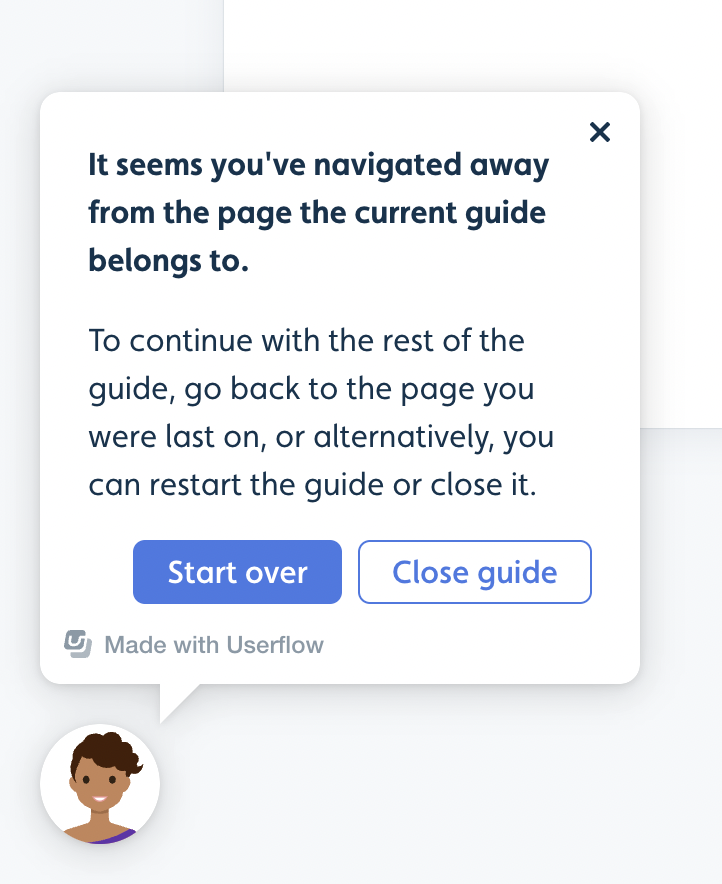
The yellow messages above will only show while previewing a Flow. If a published flow cannot locate an element, it will dismiss the flow and display a warning:
Common reasons an element cannot be found
The element is not on the page
Sometimes, you or a user navigating through a Flow may inadvertently navigate to another page, and the element can no longer be found. Return to the correct page and/or reselect the correct element to clear the message.
Long page load time: Use "Element is Present" or "Wait"
If the element cannot be found because the page is taking too long to load, you can change the trigger for advancing to the next step to "Element is present," and point to a unique element on the next page. This is often the same element you point to in the next step. Once the page loads and the element can be found, the Flow will continue without error.
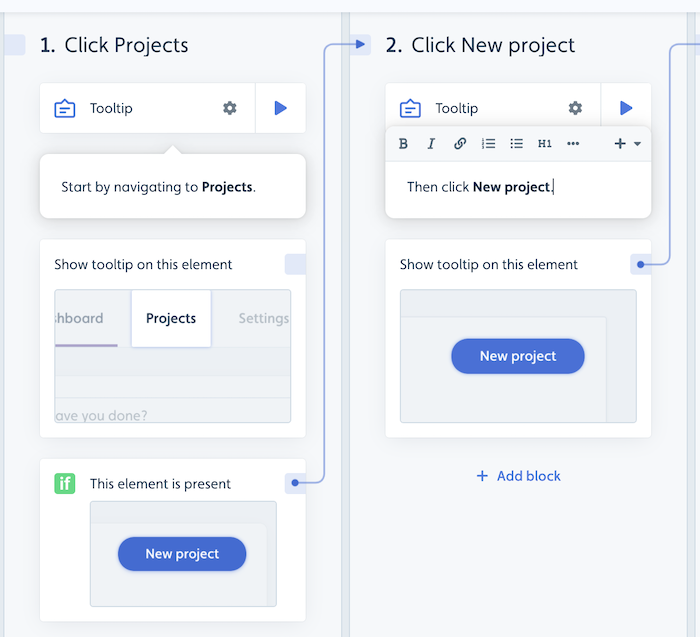
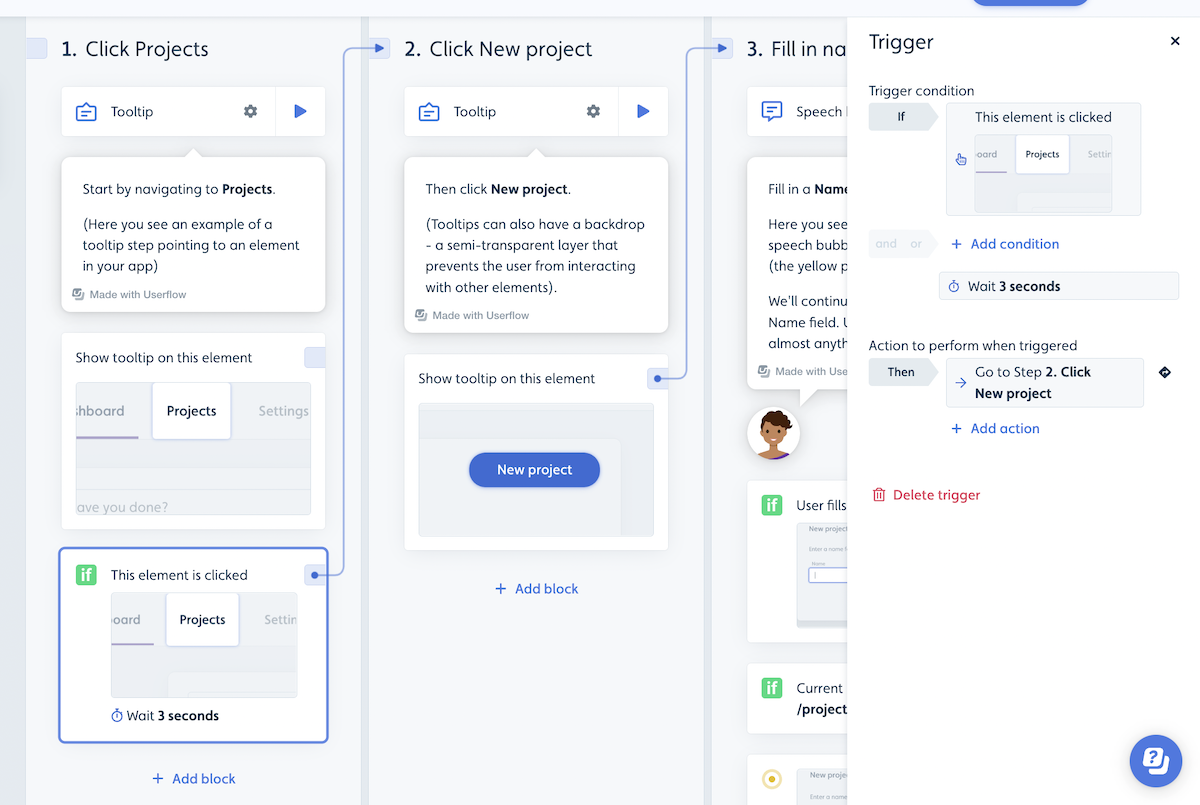
Another alternative is to use our Wait function, in which you add a wait condition either on the same step or a Hidden Step. The drawback, however, is that load times can vary across users. Using the Element is present approach is typically better and more robust.
The element changed
If something substantial has changed in your application code and Userflow can no longer find an element it previously found, reselect the element and republish the Flow.
Element has dynamic text
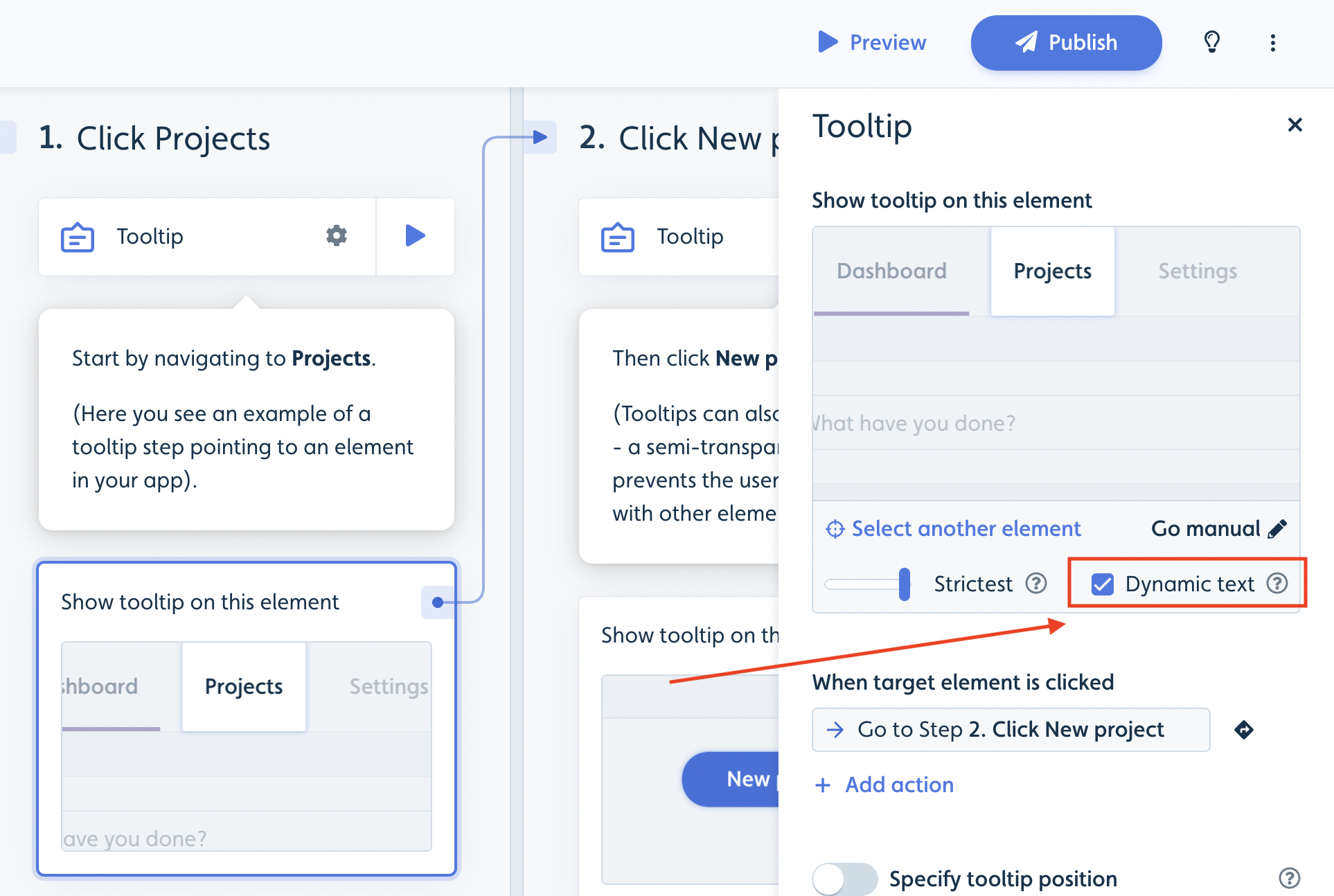
If an element has dynamic text (conditional text), meaning that a part of the text in the element changes slightly for each user (e.g., a custom name), you must indicate this in the element selection.
This can easily be managed by ticking "Dynamic text" when you select the element. Note that for elements with a lot of text, we automatically treat them as dynamic.
Element looks significantly different for different users
Sometimes an element appears differently to different users (e.g., trial vs. paid users). In general, this should not have an impact, but in certain cases it does.
If the changing part is text, select Dynamic text when selecting the element (see above). If it is not text, try to select a portion of the element that excludes the dynamic part, or use manual CSS as a last resort.
You never transitioned from the previous step
In some cases, Userflow cannot find the element because you are still on a previous step from a previous page, even though you transitioned to the new page for the step you want to be on. This can be due to a misconfigured trigger or a similar issue.
To determine whether this is the case, use the preview to test your flow. In preview, the yellow message (see above) highlights the step at which Userflow cannot find the element.
Another way to check this is to open the users list, select the user in question, and review their activity stream/session list.
Element uses dynamic CSS
Some applications use dynamic CSS class names, meaning the CSS class names change for each user or after each deployment. This makes it especially tricky for Userflow, since the element is no longer "the same" from our perspective.
To solve this, you will need a bit of help from your developers. You can learn more about this in our guide about Element inference and dynamic class names.
Extension can't find elements in authenticated pages
Scenario: Element selection works on public pages but fails after you log in.
Cause: This isn't an element selection issue — it's a Userflow.js installation issue. The Chrome Extension needs Userflow.js to be running in your authenticated app.
Fix: Follow the troubleshooting steps in the Chrome Extension not working article, specifically the "Extension works on public pages but not in your app" section.