When building Flows in Userflow, every step needs to be connected to create a complete user journey. The disconnected steps error appears when one or more steps in your Flow can't be reached from the starting point— creating orphaned content that users would never see. This guide explains why this validation exists and shows you exactly how to link your steps together to create seamless, functional flows.
.png)
Before a flow can be successfully auto-saved, all steps must be linked so that every step is reachable from the first.
How to link steps
There are four ways to add links between steps:
Tooltips: When the tooltip target element is clicked.
Buttons: When the button is clicked.
Triggers: When the trigger’s condition (the If part of “If this, then that”) is true.
Questions: When an answer is submitted.
Each of these has a link port in the Builder, which appears as a small light-blue square with an arrow: .png)
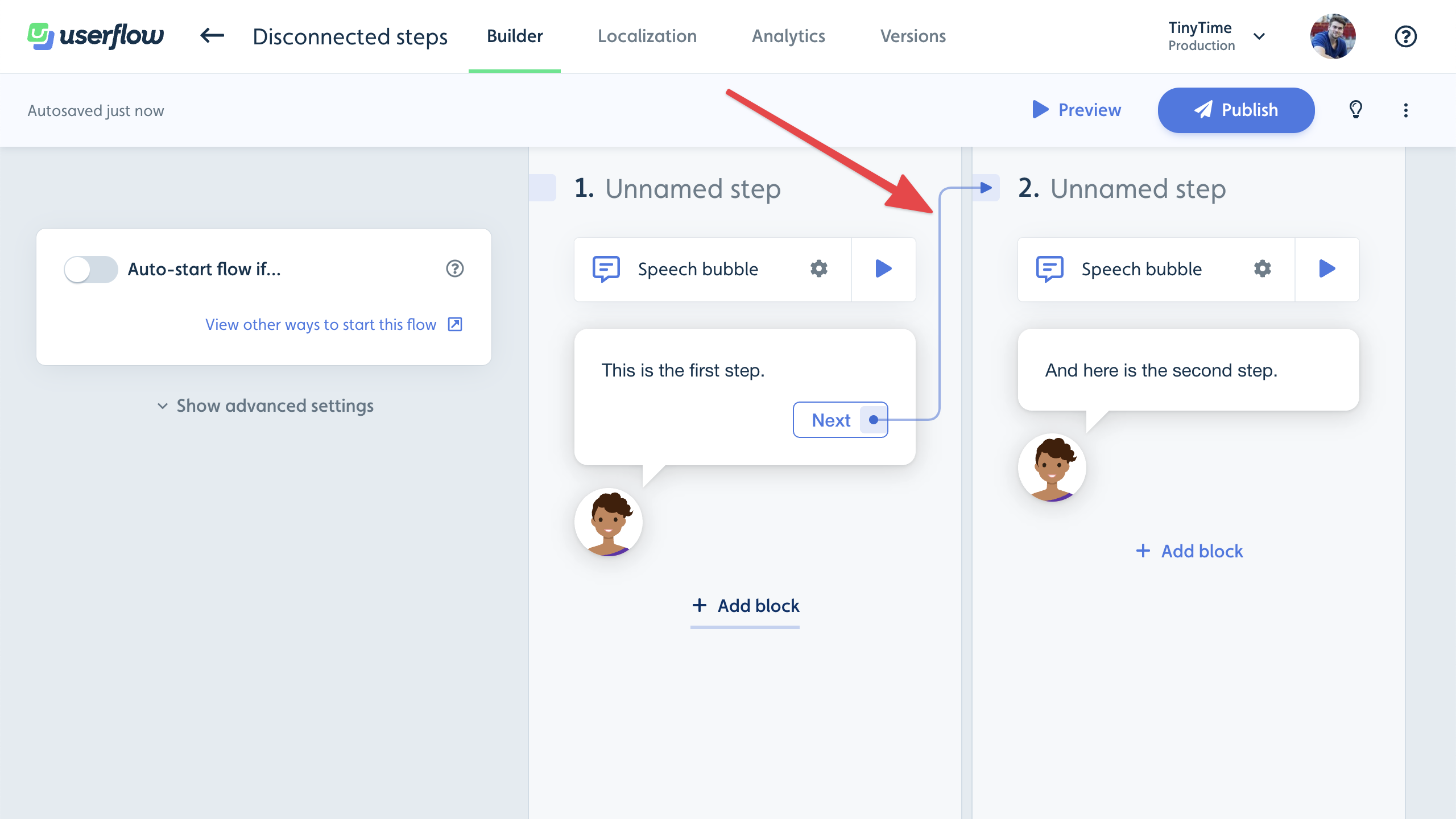
To connect two steps, first click a link port, and then click anywhere on another step. A path with an arrow will appear between the link port and the target step:
Video walkthroughs
First, we’ll show how to connect a speech bubble step with another step using buttons:
In this second example, we’ll show how to connect a tooltip step with another step: