The Flow builder has keyboard shortcuts for moving between blocks, adding and linking blocks, and previewing, plus copy and paste, drag to move or duplicate, and undo. This page lists them all.
What keyboard shortcuts does the Flow builder have?
Key | What it does |
|---|---|
Arrow keys | Move to the neighboring block in any direction. |
Enter | Enter the focused block, which opens the side panel. |
Escape | Close the side panel and return focus to the block on the canvas. |
Delete | Delete the selected block: a whole step, button, trigger, condition, and so on. |
L | With a button, trigger, or tooltip selected, enter link mode. Use the arrow keys to move to the step to link to, then press Enter. |
A | With focus inside a step, open the Add block menu. Use the arrow keys and Enter to pick a block. |
P | Preview the flow in your own app. |
? | Show the Flow builder cheat sheet. You can also click the light bulb icon in the top bar. |
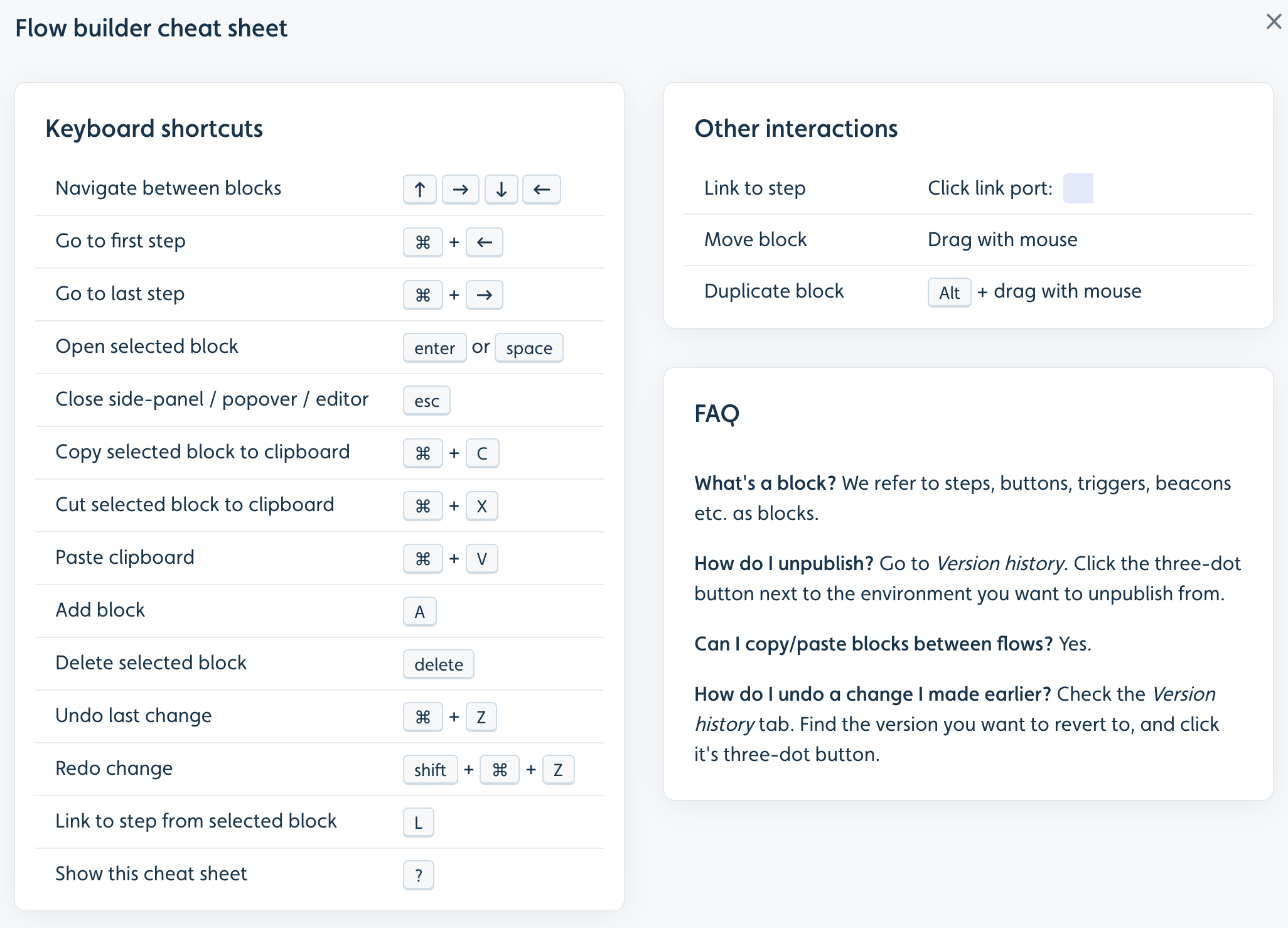
You can do everything in the Flow builder with the keyboard, except previewing in your app and selecting elements. Previewing needs the Userflow Chrome extension, and selecting elements is done by clicking in your app. See Selecting elements.
How do I copy and paste blocks in the Flow builder?
You can copy any Flow builder block and paste it in the same flow or a different one. This works for whole steps, buttons, triggers, and conditions.
Focus the block and press
Cmd + C(Ctrl + Con Windows).Move focus to where you want the copy and press
Cmd + V(Ctrl + Von Windows).
To reuse a step across many flows, you can also save it as a step template.
Move, reorder, or duplicate blocks by dragging
To move a block in the Flow builder, drag it and drop it where you want it. This is how you change the order of buttons in a step, or the order of steps in a flow.
To duplicate a block instead of moving it, hold Alt while you drag. The cursor changes, and when you drop the block, a copy is placed there and the original stays where it was.
How do I undo or redo a change in the Flow builder?
Press Cmd + Z (Ctrl + Z on Windows) to undo the last change. Press Shift + Cmd + Z (Ctrl + Shift + Z on Windows) to redo it.