When a user triggers a Flow from a Checklist or the Resource Center, they may not be on the correct page for that Flow. There are three methods for addressing this.
Method 1: Navigate to a page within Flow
You can navigate to the page from within the Flow using a Modal or a Speech Bubble with a button. You can also configure it to skip the step if the user is already on the page, using the trigger “If current page is”.
Pros: Works no matter where you start the Flow from (checklist, Resource Center, or other)
Cons: Adds a step to your Flow
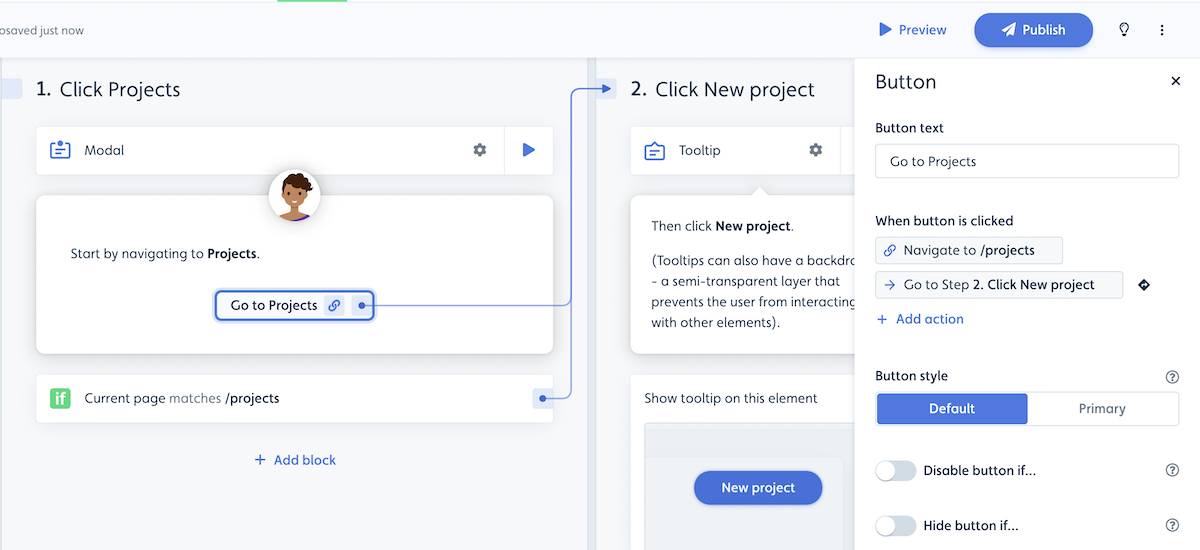
A special variant of this is to use a Hidden Step, so the user does not need to click anything to navigate.
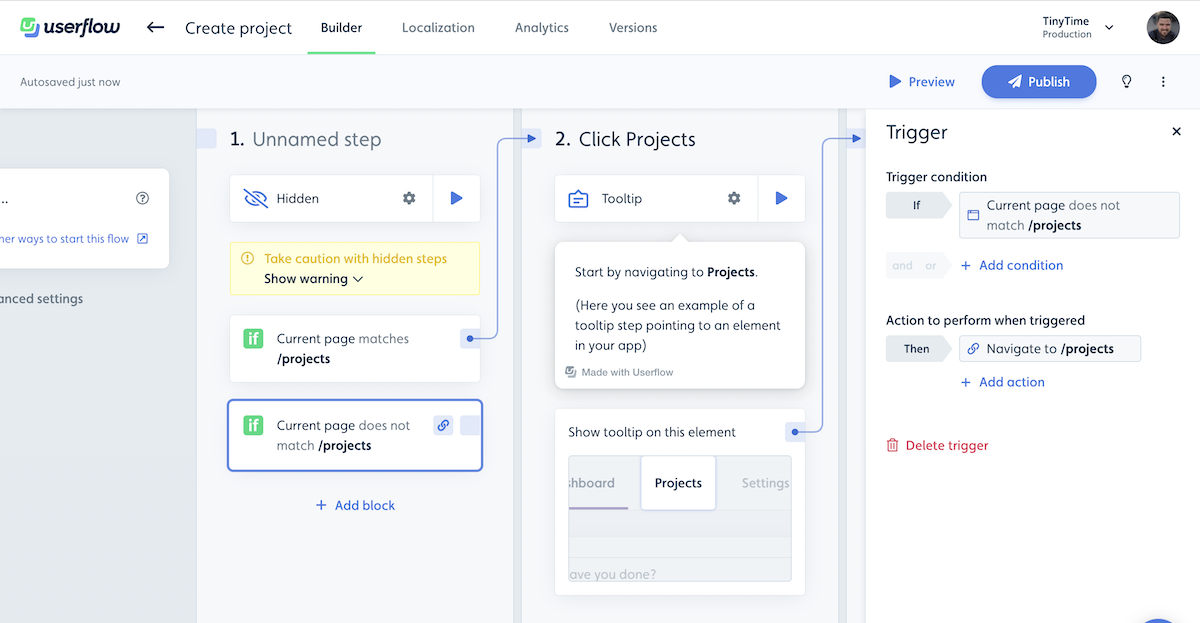
Method 2: Guide the user to a page within the Flow
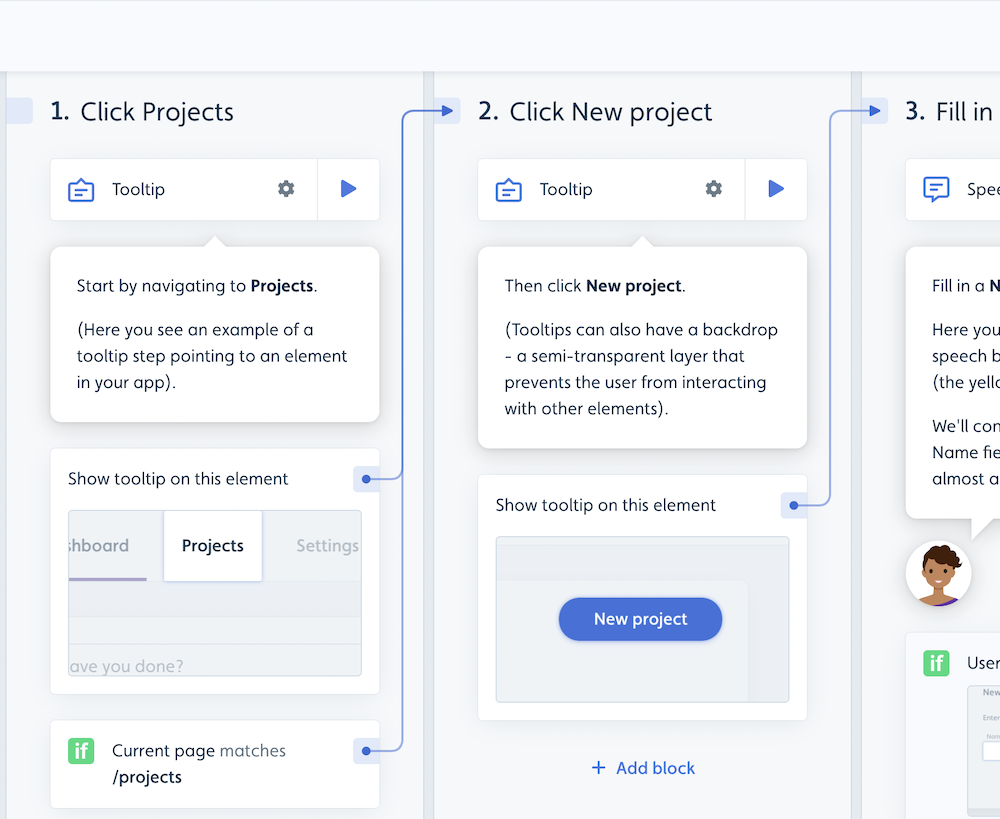
You can guide the user to the page within the Flow by highlighting the actions. You can set it to bypass the step if the user is already on the page using a trigger “If current page is.”
Pros: Guides the user to find the page themselves in the future
Cons: Adds extra steps in the Flow
Method 3: Navigate to a page from a Checklist or Resource Center
Navigate to a page from a Checklist
A user can navigate directly to a page from a checklist task using a “Navigate to” action combined with “Start Flow.”
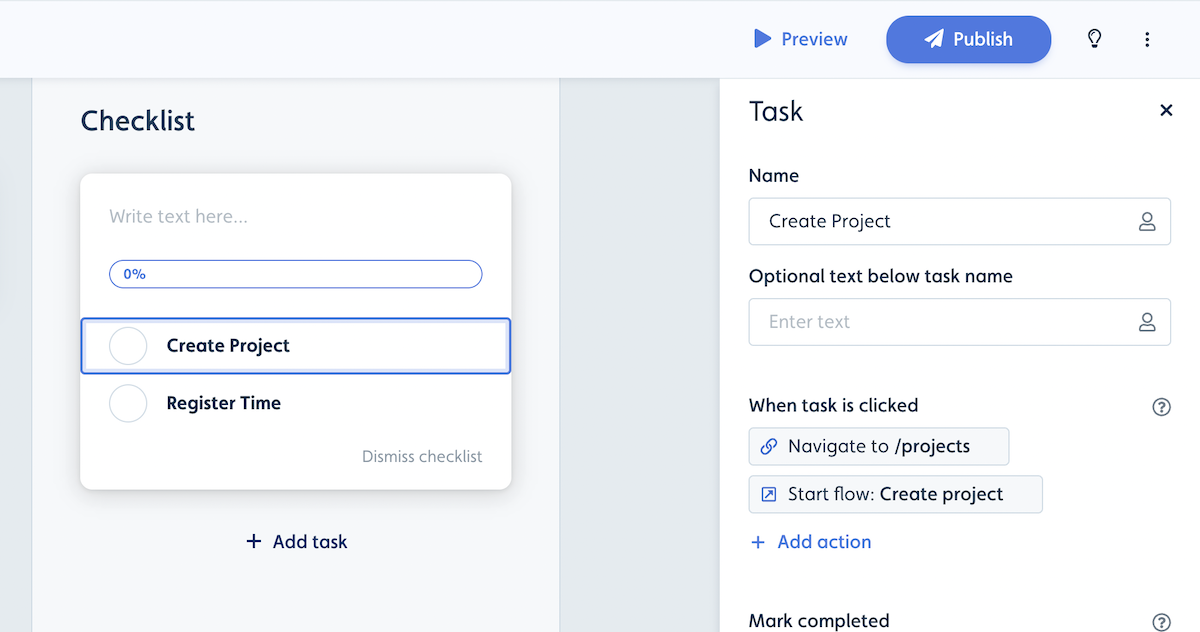
Navigate to a page from the Resource Center
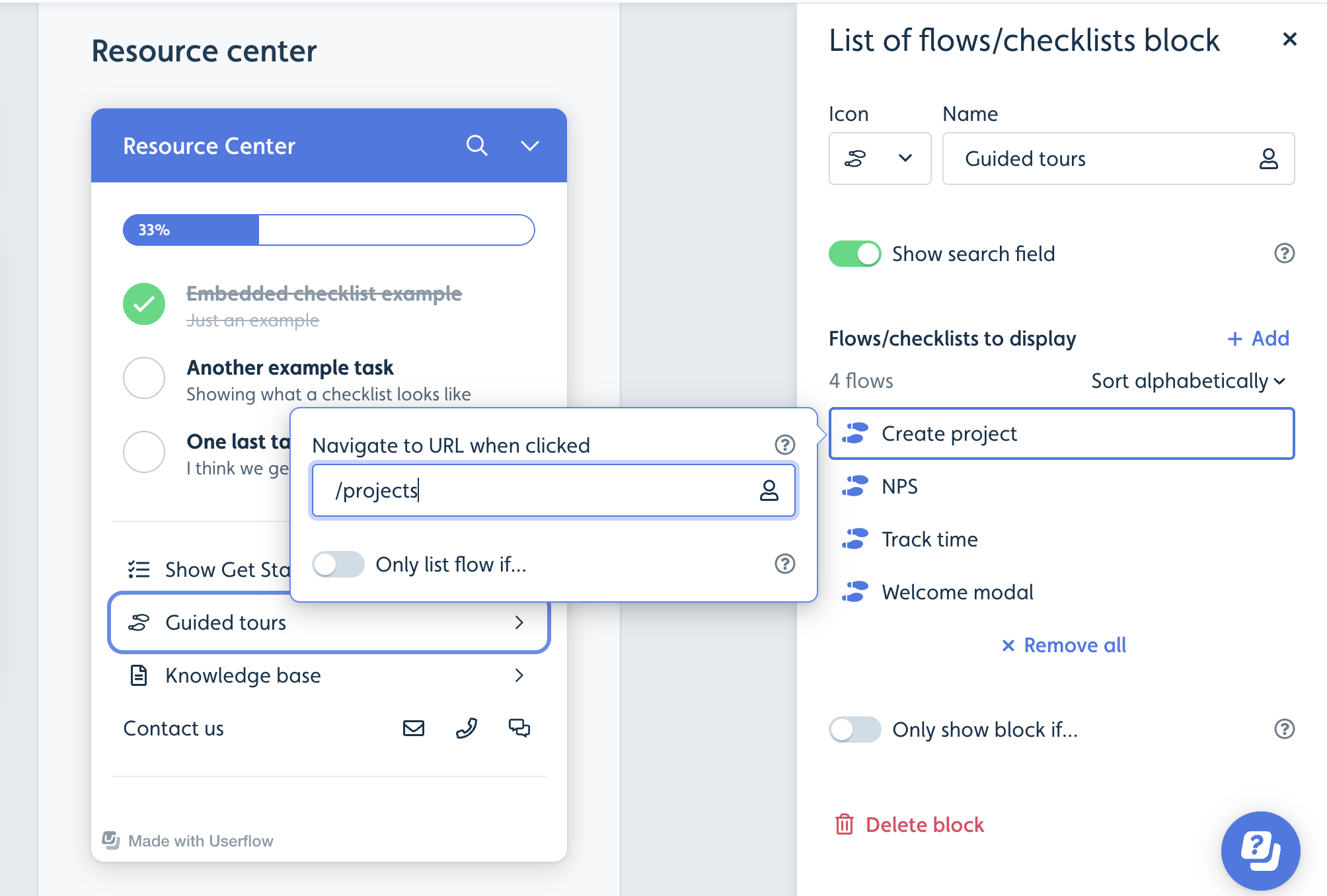
One can similarly use a checklist to navigate to the page for a specific Flow via an action block or by setting a page for the Flow in a Flow/checklist block.