Userflow enables you to initiate a Flow or Checklist through various methods, providing a versatile platform for managing tasks and processes. You can trigger flows manually, automate them based on specific conditions, include a link to a flow directly in an email, or integrate them with other tools and applications. This flexibility allows you to adapt to different scenarios and requirements while streamlining your operations. By leveraging these diverse initiation methods, you can enhance productivity and ensure all necessary steps are completed efficiently.
Start automatically via auto-start conditions
You can automatically start a flow or checklist using auto-start conditions that determine who should see an experience and under what circumstances.
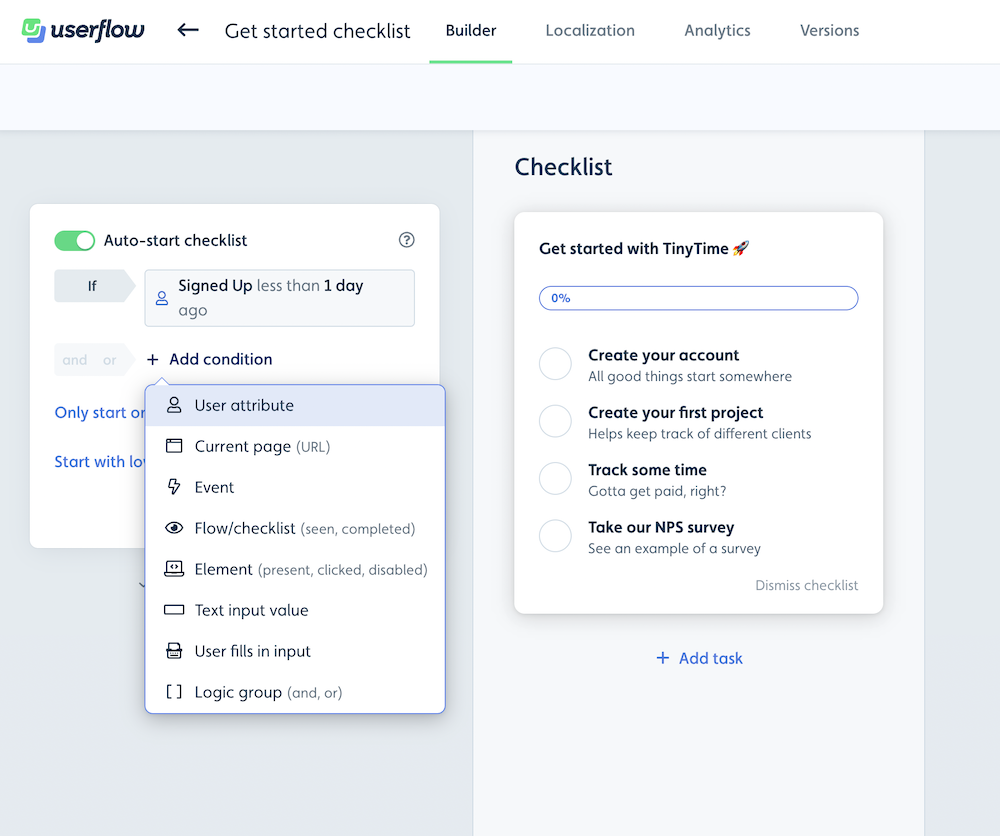
You can start and Segment flows and checklists based on the following:
User attribute - Send user/company attributes via the Userflow.js, the HubSpot Integration, or the API
Current page - The page the user is currently on. This Userflow tracks automatically if Userflow.js is installed
Event - Either send events that happen outside of flows via userflow.track in Userflow.js, or our no-code event trackers.
Flow/Checklist - Start the flow/checklist if another flow/checklist is completed/seen.
Element - Start the flow/checklist if a specific UI element in your app is present/clicked.
Text input value - Start the flow/checklist if the user fills in a specific value in a field.
User fills in input - Start the flow/checklist if the user fills in any input in a field.
Current time - Used for scheduling - Set a date and time that the flow should start before or after.
Scheduling Flows or Checklist for a future date/time
You can use auto-start conditions to schedule a Userflow experience ahead of time. See Scheduling Userflow Experiences to learn more.
Things to note
You can combine the conditions and make and/or combinations by, for example, using logic groups.
Once a checklist is started, it will persist on the screen unless it is dismissed
A Flow will, by default, only start once per user, but you can change it to start unlimited times. If you do this, make sure that it does not restart when dismissed by adding an event condition
Flow started exactly 0 times in the last 1 hr where flow id is <flow id>If you want a few seconds of delay before starting the flow, you can use the Wait condition above your other conditions.
Auto-start conditions are evaluated on page load and on navigation. A condition that depends on a repeated in-page interaction (such as Element is clicked) will not re-evaluate until the user navigates.
When auto-start conditions are evaluated
Userflow checks auto-start conditions when the page loads and when the user navigates to a new page — not continuously, and not on every interaction.
This matters most for the Element is clicked condition. Once a flow has started and been dismissed, clicking the same element again on the same page will not start it a second time, because no new evaluation has happened. Navigating elsewhere and back triggers a fresh evaluation, so the flow starts again — which is why this often looks intermittent rather than broken.
If you need a flow to start every time a user clicks an element, use one of these instead:
Track the click as an event. Create a no-code event tracker on the element, then set the flow's auto-start condition to that event rather than to Element is clicked. Events are evaluated as they arrive, so repeat clicks each start the flow.
Use a Launcher. Add a Launcher anchored to the same element with a Start flow action, and turn auto-start off on the flow. A Launcher fires on every click, independent of page loads and navigation.
Start from an action in a checklist, launcher, or flow
You can start a flow/checklist from a checklist, launcher, or flow by adding an action. See screenshots for each below.
Checklist task action 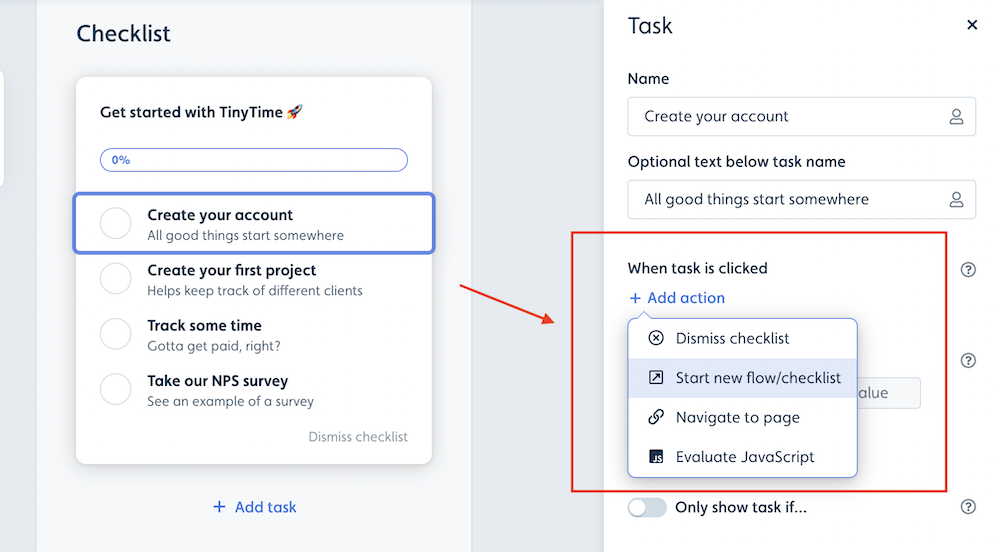
Flow button/trigger action 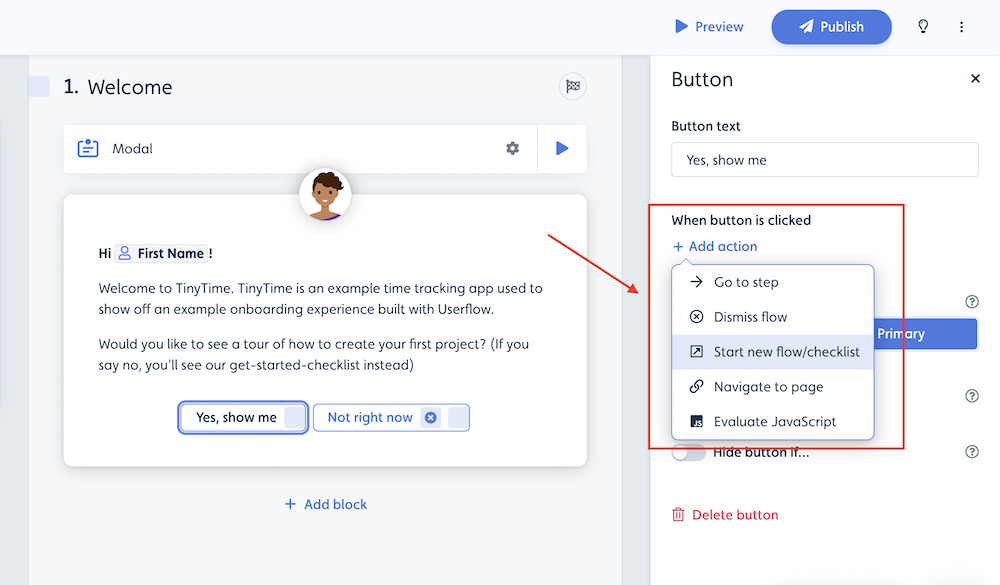
Launcher action 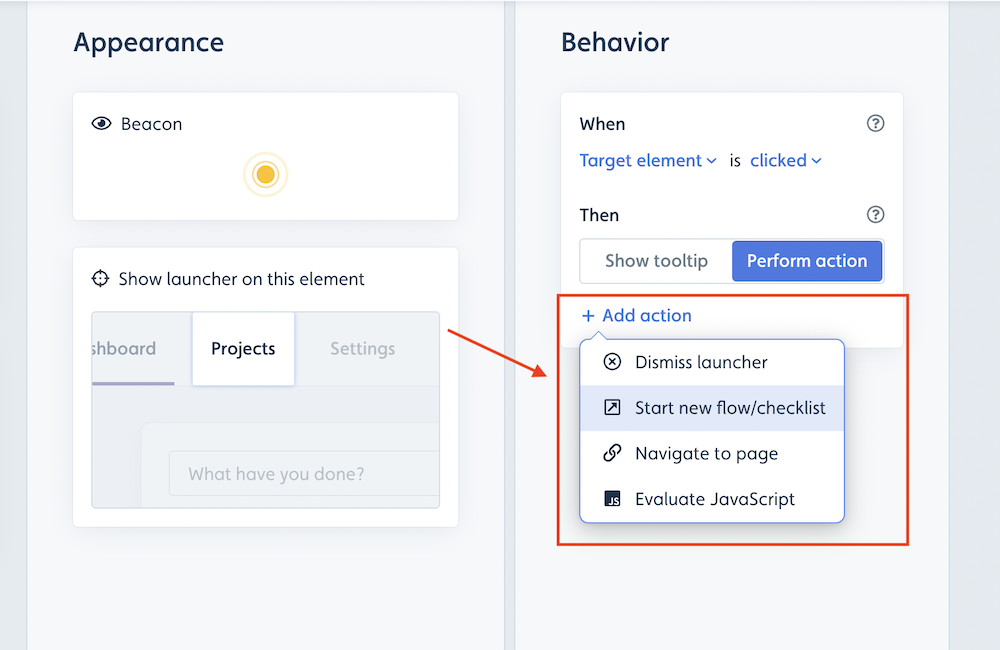
Start from a link
You can use a link or an embedded button (e.g., in an email or support chat) to start a flow or checklist in your app.
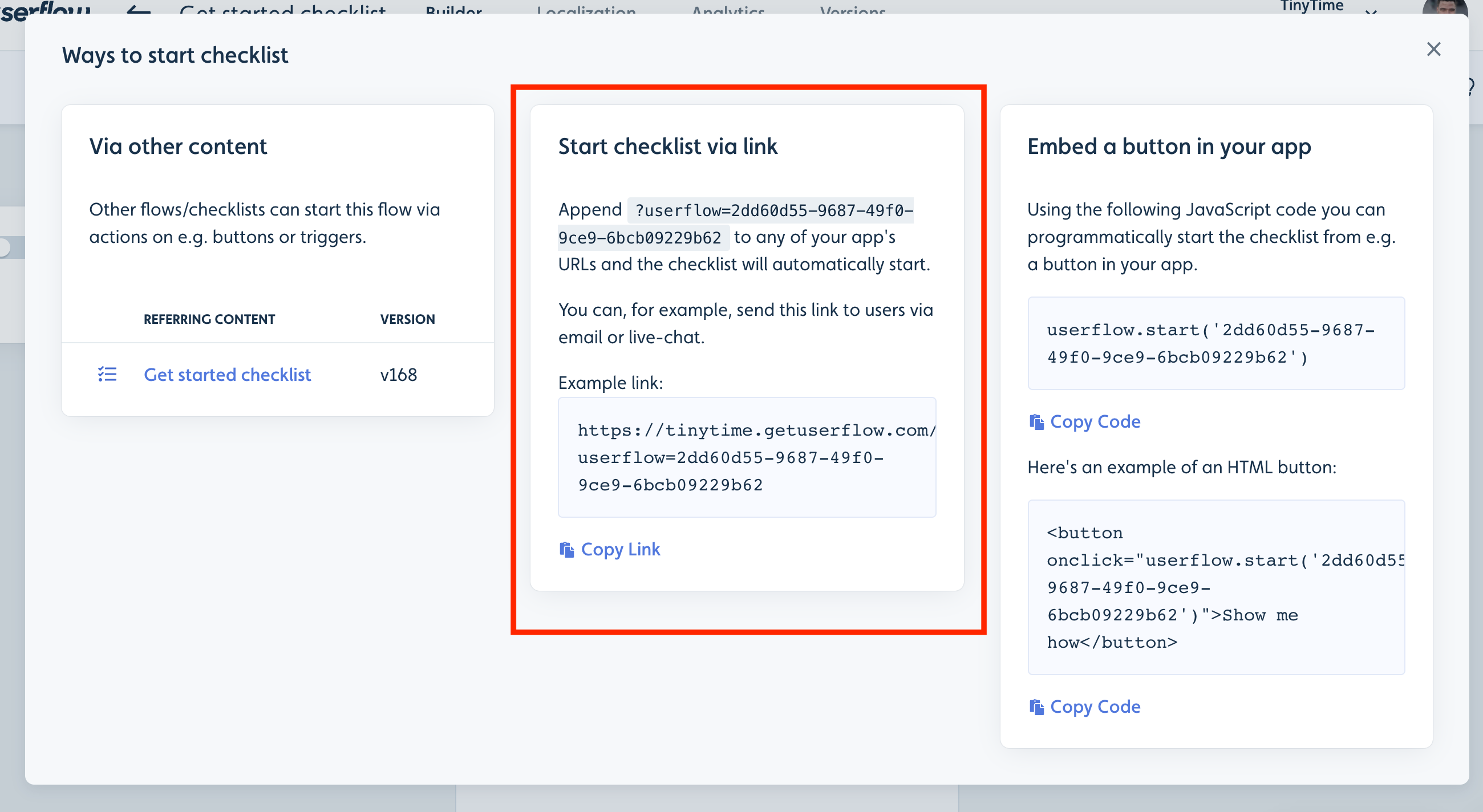
To start a flow or checklist from a link, add
?userflow=<flow id>to the end of any URL in your app. For example, to start a flow onhttps://app.example.com/dashboard, usehttps://app.example.com/dashboard?userflow=<flow id>.
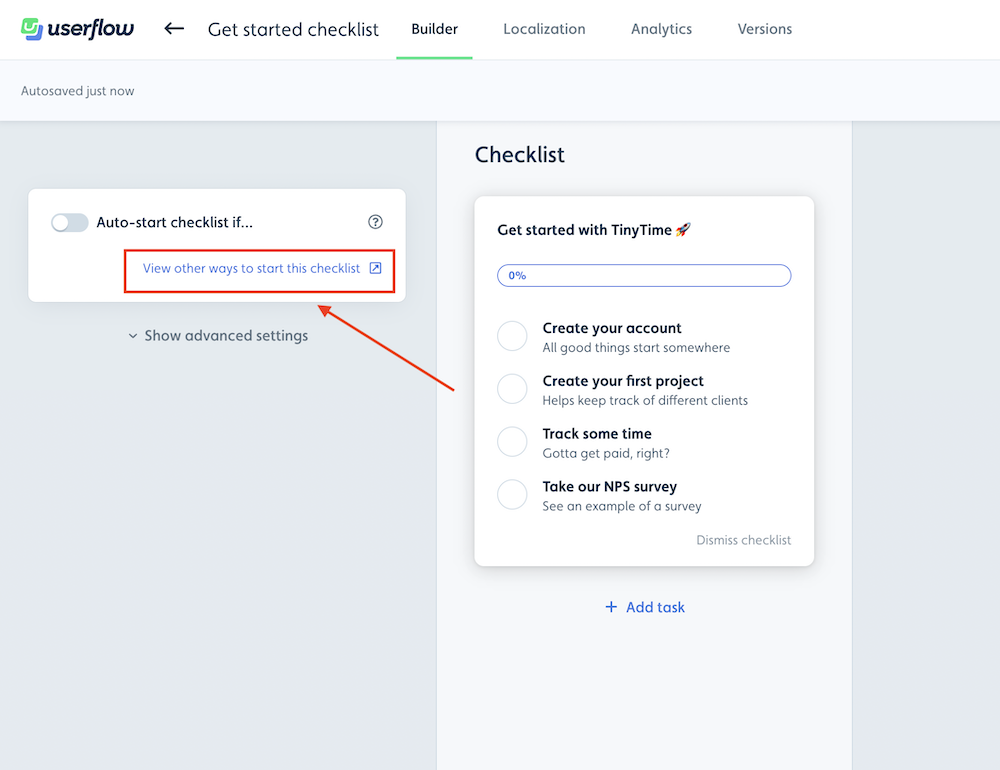
You can find the Flow ID and an example by clicking on View other ways to start a flow by the auto-start conditions.
Start from an embedded button or JavaScript code
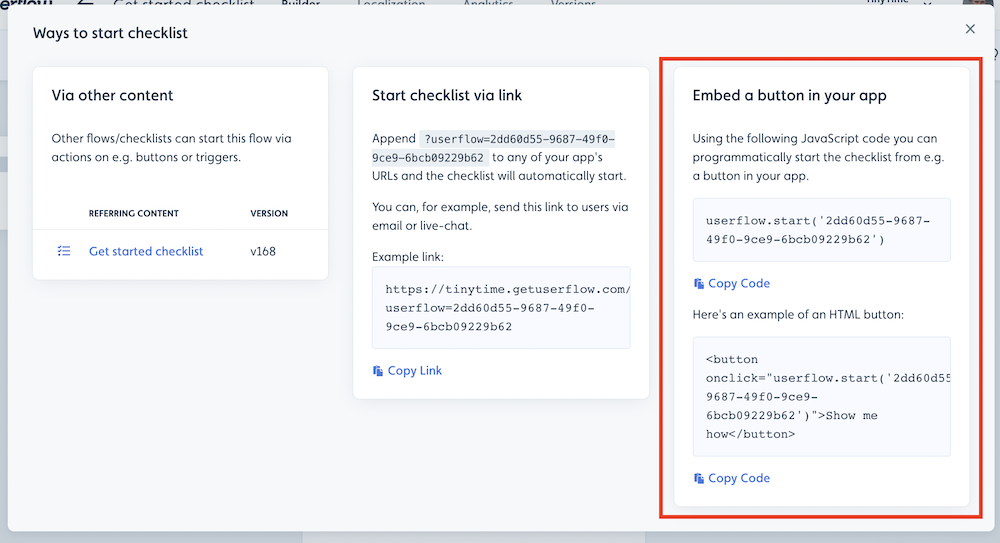
You can start a flow from an embedded button in your application or via JavaScript code in general by using userflow.start(). Refer to this guide to learn more.
How to find the flow and checklist ID?
To start the flow via userflow.start() you need the content ID (flow ID or checklist ID). As mentioned in this guide, this ID is available in the "View other ways to start this flow" tab. It's also the ID you see in the URL in the builder: /app/{company}/flows/{contentId}
Flow Priority
When a user qualifies for more than one auto-start flow at the same time, Userflow starts the flow with the highest Priority (set in the flow's settings). After the user dismisses or completes it, the flow with the next-highest priority can start.
If two or more flows have the same priority, the flow that was created first starts first.
To control which flow users see first, give each flow its own priority, or use auto-start conditions that don't overlap.
Common Priority Conflict Scenarios
When multiple flows are set to start on the same page at the same time, Userflow shows only one. Here's how priority is determined in common scenarios:
Example 1: Banner vs. Flow vs. Checklist
Setup:
Flow A: Welcome tour (modal)
Flow B: New feature announcement (banner)
Checklist: Onboarding checklist (sidebar)
All three are set to start on page load for new users.
What shows:
First visit: Banner (Flow B) shows first, because banners have the highest priority
After dismissing banner: Welcome tour (Flow A) starts automatically
After completing tour: Checklist appears in the sidebar
Why: Banners always take precedence. Flows start after banners are dismissed. Checklists are always visible (they don't block other content).
Example 2: Two Flows Targeting the Same Trigger
Setup:
Flow A: "Feature X tutorial" — starts when user clicks #feature-x-button
Flow B: "Feature X upgrade CTA" — starts when user clicks #feature-x-button
What shows:
Only one flow starts: the one with the higher priority. If both have the same priority, the flow created first starts.
Why: Userflow starts one flow per trigger. When two flows target the same trigger, Userflow picks by priority, then by which flow was created first.
How to fix: Use hidden conditions to ensure only one flow is eligible at a time:
Flow A: Show if "Plan = Free"
Flow B: Show if "Plan = Pro"
Example 3: Hidden Conditions Block All Flows
Setup:
Flow A: "Dashboard tour" — starts on /dashboard, hidden if user has seen "Dashboard tour" before
Flow B: "New dashboard features" — starts on /dashboard, hidden if user has seen "New dashboard features" before
After a user has seen both flows once:
What shows: Nothing. Both flows are now hidden forever for that user.
Why: Hidden conditions are permanent by default. Once a user has seen a flow, "Has not seen Flow X" will always be false for that user.
How to fix: Use time-based hidden conditions instead:
"Has not seen Flow X in the last 30 days"
or "Has seen Flow X fewer than 2 times"
Example 4: Debugging "Why Isn't My Flow Showing?"
Setup:
You have a high-priority flow that should be showing, but it's not. Another lower-priority flow is appearing instead.
How to debug:
Open the Userflow Debugger (icon in bottom-right corner)
Click on your flow in the list
Look at "Why is this flow not starting?" section
Common reasons:
"User has already seen this flow" (hidden condition blocking)
"Another flow is currently active" (priority conflict)
"User does not match audience rules" (targeting issue)
What if the flow/checklist doesn't start?
If you used one of the methods above and your Flow/Checklist does not start, refer to this troubleshooting guide to identify the possible cause.