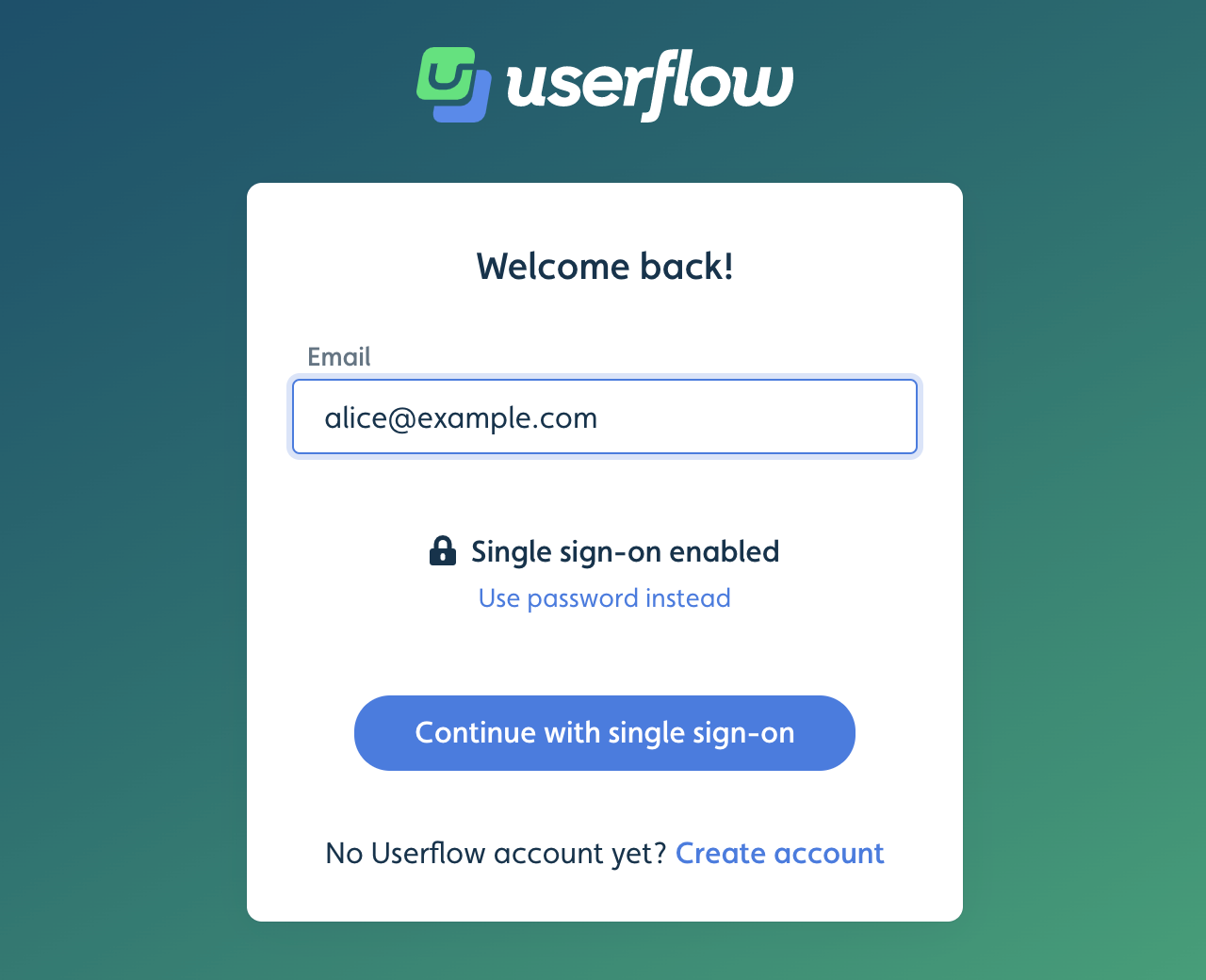
SAML single sign-on (SSO) lets your team sign in to Userflow through your identity provider, such as Okta, Microsoft Entra ID or OneLogin. Once SSO is on, the Userflow sign-in form recognizes your domain and sends your team to your identity provider to sign in.
Important
SAML SSO availability depends on your plan and may be offered as an add-on. To check whether it's included on your plan, see your billing settings or contact support@userflow.com.
How do I set up SAML SSO?
Step 1: Get your Customer ID from Userflow
Send an email to support@userflow.com with the following information:
Indicate that you wish to enable SAML SSO for your Userflow team
Your company name
Domain(s) your users sign in with
We’ll get back to you (typically within 24 hours) with your Customer ID, which you need for Steps 2 and 3.
Step 2: Configure your identity provider
Follow the instructions for your identity provider. Each one needs the Customer ID from Step 1.
Okta
For easy setup with Okta, refer to 'How to Configure SAML 2.0 for Userflow in Okta'.
Microsoft Entra ID (Azure AD)
In the Entra admin center, go to Enterprise Applications → New application → Create your own application, and set it up as a non-gallery SAML app.
Open the app's Single sign-on page and select SAML.
Under Basic SAML Configuration, enter (replacing CUSTOMER_ID with the value Userflow sent you):
Identifier (Entity ID): userflow
Reply URL (Assertion Consumer Service URL): https://userflow.com/sso/sp/consume/CUSTOMER_ID
Sign on URL: https://userflow.com/app
Under Attributes & Claims, map the claims to
email,firstName, andlastNameto match what Userflow expects. If Entra's default claim URIs don't map automatically, use Entra's claim editor to add custom claim names matching these fields.Download the Federation Metadata XML from the Entra app's SAML page and send it to support@userflow.com as described in Step 3: Send your identity provider's metadata to Userflow.
If Entra's SAML setup prompts for a signing certificate, upload Userflow's SAML certificate, which you can download or copy from the Userflow's SAML certificate section of this page.
Generic SAML identity provider
Make sure to replace CUSTOMER_ID with the value Userflow provided.
Single sign-on URL / SAML ACS URL:
https://userflow.com/sso/sp/consume/CUSTOMER_IDAudience URI / SP Entity ID: userflow
Default RelayState:
https://userflow.com/appName ID format: EmailAddress
Application username: Email
Signed Assertions: Yes
Encryption: Preferred. Use AES256-CBC with Userflow's SAML certificate
Single Logout URL:
https://userflow.com/sso/sp/logout/CUSTOMER_IDSP Issuer: userflow
Signature Certificate: Use Userflow's SAML certificate
Mapped Attributes
email: User’s emailfirstName: User’s first namelastName: User’s last name
Step 3: Send your identity provider's metadata to Userflow
Download your identity provider’s Identity Provider metadata XML file and send it to support@userflow.com.
We’ll complete the setup for you and notify you once SSO is enabled for your domain(s).
How SSO works for your Userflow team
Can existing users still sign in with a password?
Users who were registered in Userflow before you enabled SSO can sign in either via SSO or using their old password.
Contact us to disable password access for specific users after SSO is set up.
Adding members to your Userflow team
You can invite new members to your Userflow team from Settings > Team. They’ll receive an invite link. The invite page automatically detects that SSO is available. Once they sign in via SSO, they’ll have access to your team.
You can also add team members outside of your Identity Provider organization. These users can create regular Userflow user accounts using password sign-in.
To change roles or remove people, see Managing Teams in Userflow. For other sign-in security, see Two-factor authentication (2FA) and Security, privacy, and compliance at Userflow.
What happens when a new user signs in through SSO?
When a new user, whom Userflow hasn’t seen before, signs in via SSO, Userflow automatically creates an account for them.
The new user will NOT get access to your Userflow team, however. They still need an explicit invite.
Are users removed from Userflow when I deactivate them in my identity provider?
When users are deactivated or removed in your Identity Provider, they are not automatically removed from your Userflow team.
However, since users who do not use passwords must sign in via SSO, once you remove their authorization in your Identity Provider, they will no longer be able to access your Userflow team (once their current session, if any, expires after 30 minutes of inactivity).
To be sure, you can always remove team members in Userflow from Settings > Team.
Userflow’s SAML certificate
If you configure your Identity Provider manually, you’ll need this certificate to enable encryption and Single Logout.
You can either download the certificate or copy it from here:
-----BEGIN CERTIFICATE-----
MIIDVjCCAj6gAwIBAgIUCtL81BwLSLWkeW9xPX5SlA4kyEwwDQYJKoZIhvcNAQEL
BQAwMDEWMBQGA1UEAwwNVXNlcmZsb3cgU0FNTDEWMBQGA1UECgwNVXNlcmZsb3cs
IEluYzAeFw0yNTAxMDYwNTExMzlaFw0zMDAxMDUwNTExMzlaMDAxFjAUBgNVBAMM
DVVzZXJmbG93IFNBTUwxFjAUBgNVBAoMDVVzZXJmbG93LCBJbmMwggEiMA0GCSqG
SIb3DQEBAQUAA4IBDwAwggEKAoIBAQDf41jxxETESJFF35nsTE1SDp4kz8QZ0M8J
jiBQzc+9deY8pxqABTjBAHreIVLiq3CdHc411xgO6orZTLvZFalkoVkwFS4jfQE5
kU5m7+ucOq62q3ENv4CJKZaN/PTwnVEw8mTsPVb9s1nzIw+PBABJnJXNTVPOuPRN
TyitzUwj+8Y0CqYK+cE8xjT+Eo0DtoBzLmWU5nkqyr1/MQUiGzvDrybJfD2XQqRe
8mbqC+JTfR48b37vTIOjIrjxYPbWRU5cjAiS0EgyGHK9SUzjuFXOKPfPic8VhShB
rmmCv1FqR0I+bEdf1xSLDMbskywG5PfnLejWyjMY7hcNkCrEGLfPAgMBAAGjaDBm
MB0GA1UdDgQWBBR7spJceWpV+ONY9ZkBcczRuXt2aTAfBgNVHSMEGDAWgBR7spJc
eWpV+ONY9ZkBcczRuXt2aTAPBgNVHRMBAf8EBTADAQH/MBMGA1UdEQQMMAqCCHVz
ZXJmbG93MA0GCSqGSIb3DQEBCwUAA4IBAQAJ0aa/fd6PpwFm3YwKcNsNhtKTplJv
+Zra/pRNDaFIf55rf79Ug/527SugoWEWXysgj7az3Sz9Nc3JgWCWt+XGYAaKXBwB
G64d3PDuNwfE3WP4tEeikuzTUYY89Vm/AVQcffPZDClAi/7JOSCMzRZHuUpP27eY
uyq44aSkTOnnn69aKIuACv1a8dNMkOA3R8+ollgvexFI9VcnT+PMam++UVpooL+V
JBeTJ01lHk9K0hqqF2fvAmcb4SanoHzkN67UOnY67GHcuTn3ACtB8E1GhZdjED9L
LTRNtM8RQ3c0Yo/yjzFnzYnlm7A7vGZWmTotLlZmDn+teVTvWV1XRRcX
-----END CERTIFICATE-----