If you're having issues selecting elements in your app or previewing your flows, it may be caused by your Userflow Chrome Extension having limited access.
The Chrome Extension either needs access "On all sites" or be given explicit access to userflow.com and your own app's domain.
How to fix
Click the Userflow icon in your Chrome extension menu. If it's hidden, then try to find it in the three-dot menu in the top right of Chrome. If you haven't installed yet, install it first.
Open the This Can Read and Change Site Data menu.
Make sure that On all sites is checked (easiest). Alternatively: Make sure you're currently on a page on userflow.com, and mark On userflow.com in the menu. Then do the same on your own app's domain.
This is what it should look like:
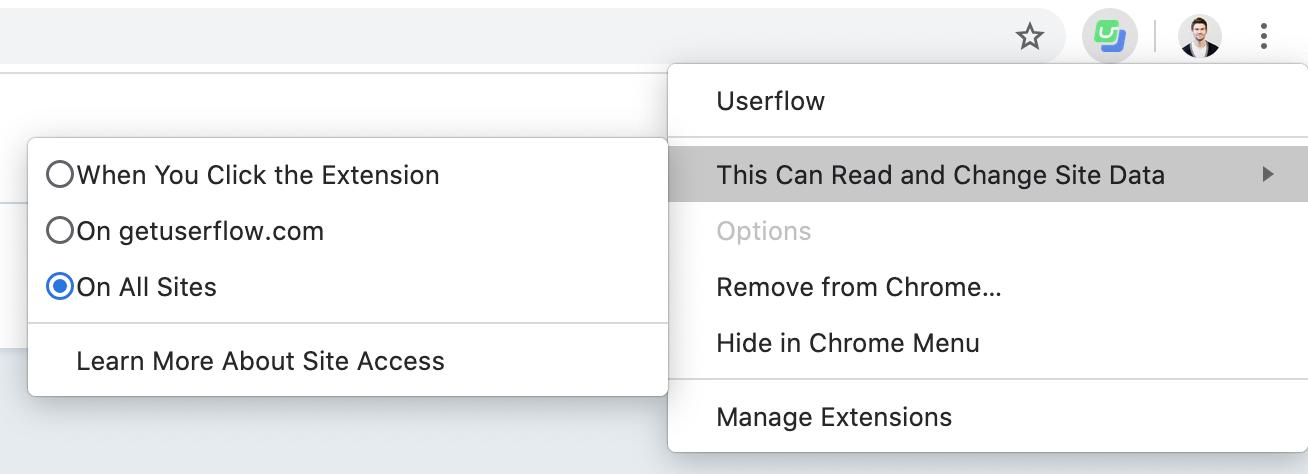
Close the Preview tab (the tab running your own app that Userflow opened for you).
Reload Userflow.
Click Preview / Select element in Userflow again.
Troubleshooting: Extension works on public pages but not in your app
If the Chrome Extension works on userflow.com and your public marketing site, but element selection fails once you're logged into your app, this usually means Userflow.js isn't properly initialized in your authenticated environment.
Why this happens:
The Chrome Extension can preview flows and select elements, but it relies on Userflow.js being installed and userflow.identify() being called to work correctly inside your app. If your login redirects to a different subdomain or loads a new application shell without re-running the Userflow initialization, the extension loses its connection.
How to fix:
Verify Userflow.js is installed on authenticated pages:
Open your browser console (F12) while logged into your app and run:window.userflowIf it returns undefined, Userflow.js isn't loaded on this page.
Check that identify() is called after login:
After logging in, check your console for Userflow initialization. You should see Userflow's snippet execute. If you don't, your identify() call may be missing or wrapped in conditional logic that prevents it from running in certain environments.Confirm you're using the correct environment token:
If you have separate staging and production environments, make sure the page you're testing uses the environment token that matches your current Userflow environment setting. A mismatch here will cause the extension to fail silently.Test in an incognito window:
Sometimes browser extensions or cached sessions interfere. Open an incognito window, log in fresh, and try the Chrome Extension again.
If element selection still fails after these checks, the issue is likely in your Userflow.js installation or identify() implementation. Contact support with:
The URL where selection is failing
A screenshot of your browser console (F12 → Console tab)
Confirmation that you've verified steps 1-3 above
If you're still having issues, then please reach out to us on the live chat.