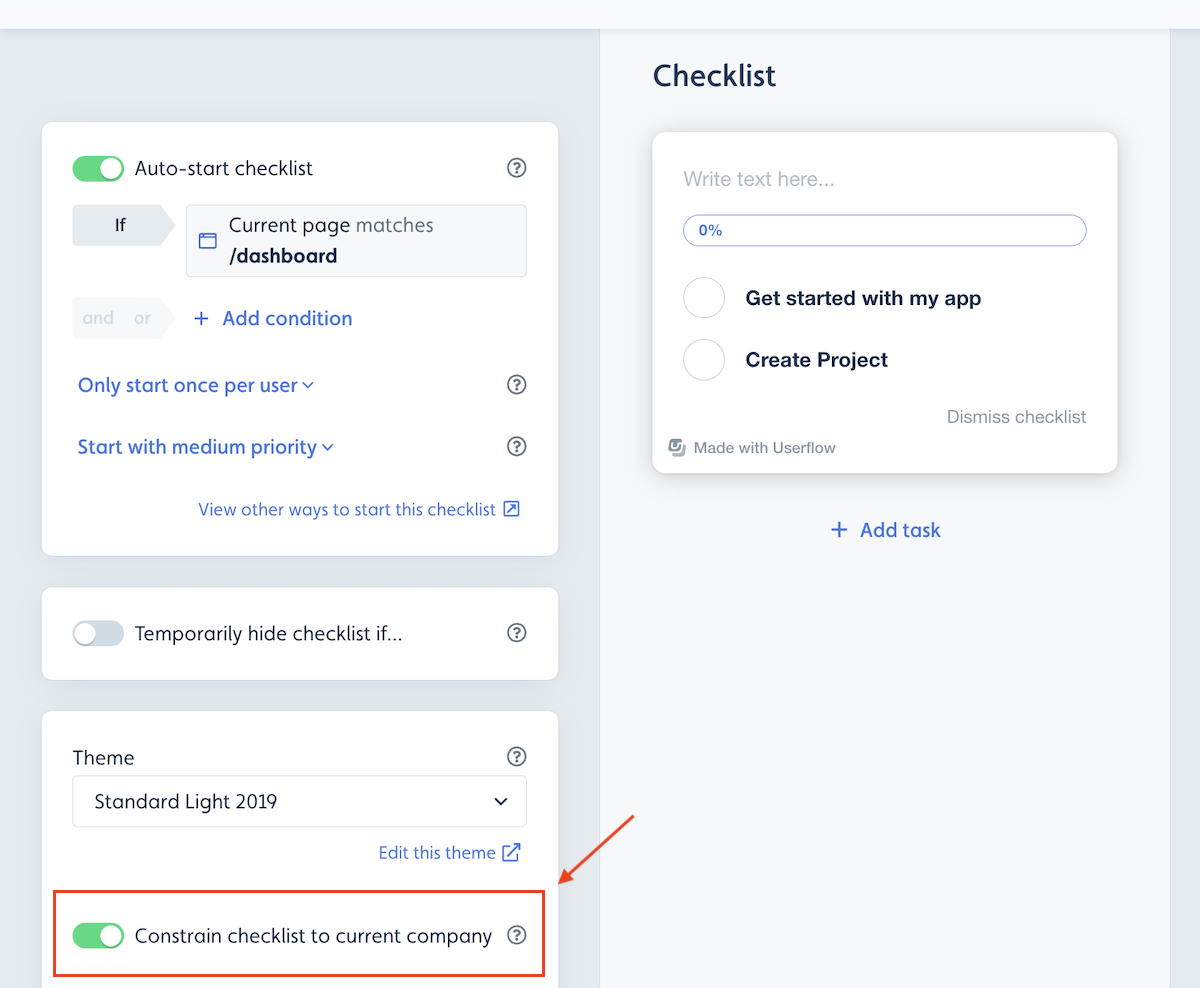
Companies let you group users who belong to the same organization in your app, so you can target content, complete checklist tasks and view activity for the whole company rather than one user at a time. Your app may call these organizations, accounts, workspaces or teams. In Userflow they're Companies.
Note: This feature was previously called Groups. See blog post to learn more.
What can you do with Companies?
With Companies, you can easily manage content (flows/checklists/surveys/launchers) based on company attributes or events performed by any user in a company.
Users who belong to more than one company. Userflow tracks a user's role in each company separately.
Control content targeting and completion based on the entire company’s behavior, instead of just a single user.
Gain an overview of users within a company. You get an aggregated overview of their activities.
How do I set up Companies?
Call userflow.group(companyId) in your Userflow.js installation to tell Userflow which company the current user belongs to. You can pass company attributes and company membership attributes the same way, through Userflow.js, Segment or the Userflow API. For the full method, see userflow.group() in the Userflow.js Reference.
How do I use Companies in flows and checklists?
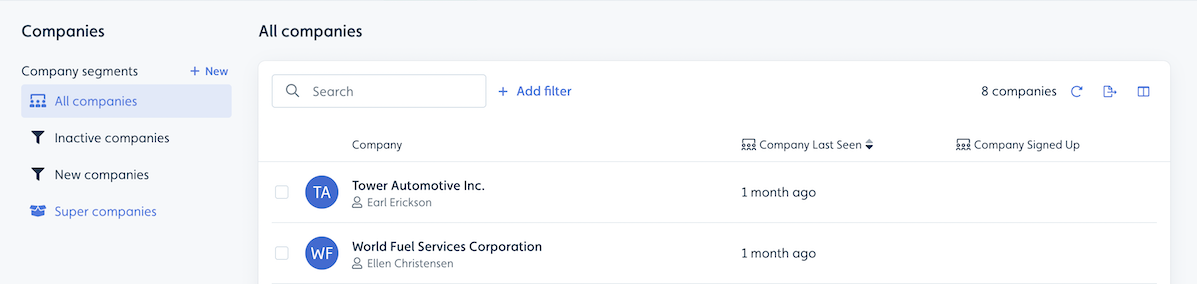
Once you have configured Companies, they’ll show up on the Companies page in the sidebar below Users.
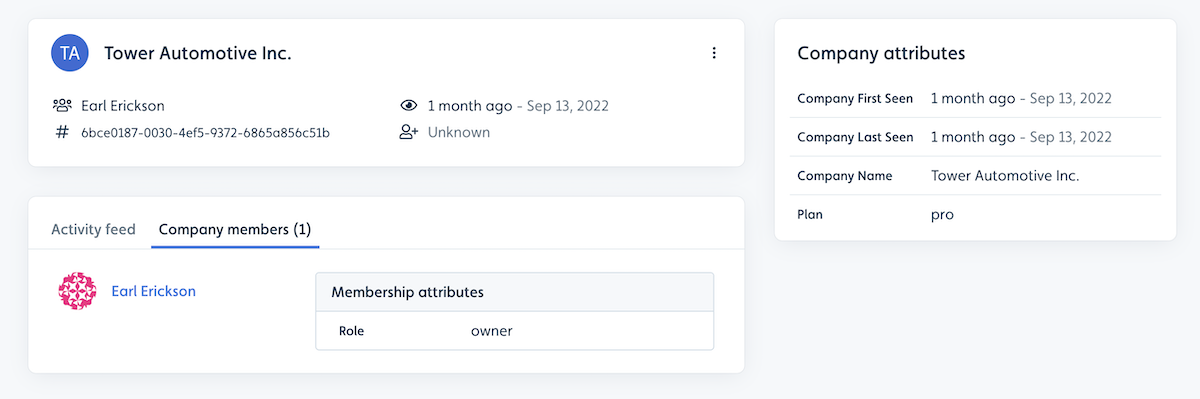
Dive further into a company and see its members and attributes.
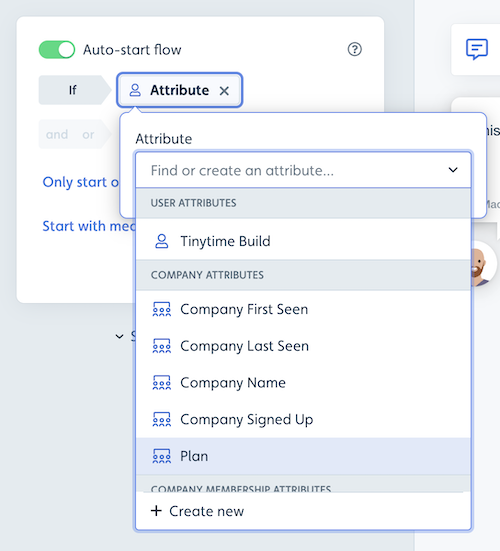
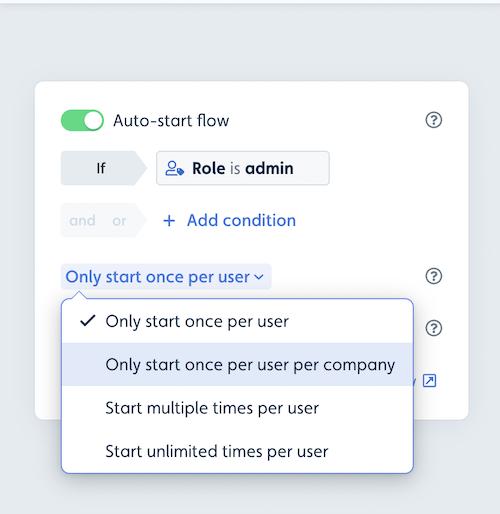
Use company attributes in a flow's auto-start conditions. See Flow targeting and audience rules.
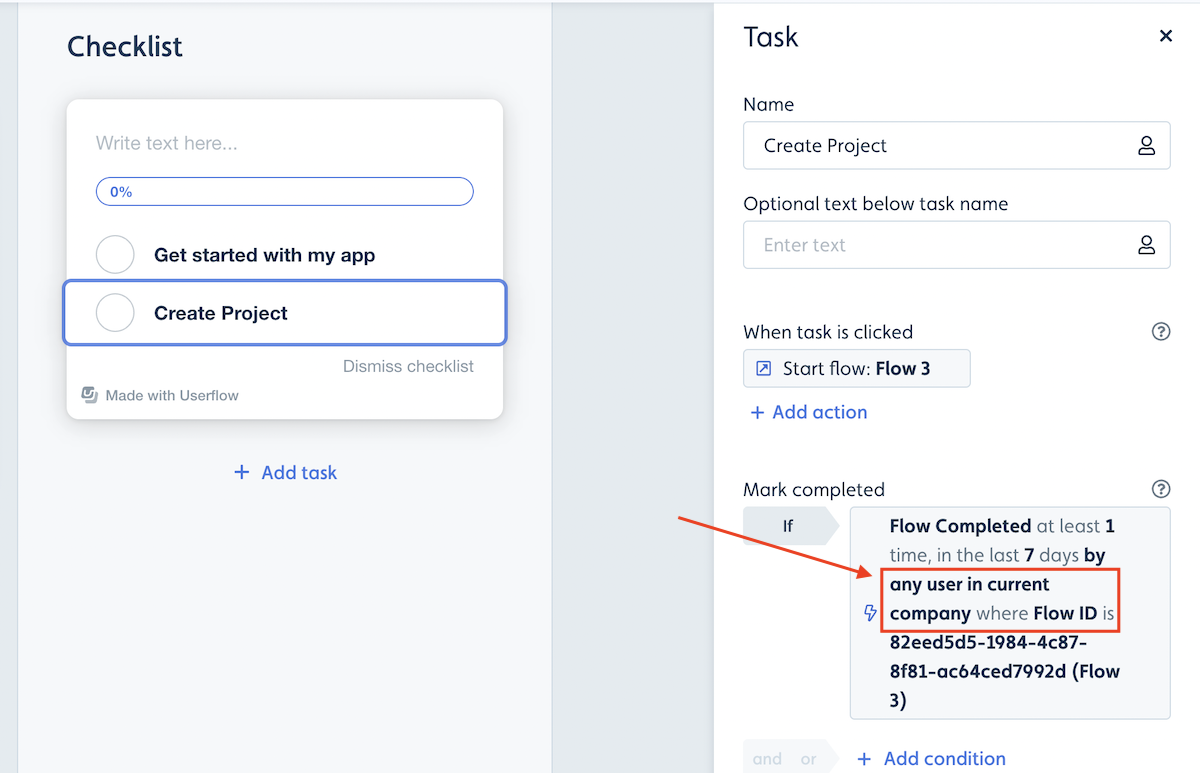
Mark a checklist task complete when any user in the company completes it.
If a user belongs to multiple companies, you can constrain checklists to be tied to a specific company. When the user navigates to a different company in your app, the checklist will be hidden, or another checklist (potentially with different progress) may be shown.