Userflow supports iframes out-of-the-box as long as your app lives up to a few requirements.
Native support
Userflow supports iframes natively if your app follows these rules:
The top-level document and the iframe document must be on the same domain. Examples:
✅ Same domain: Top-level document is
https://example.com/appand iframe ishttps://example.com/components/dashboard.✅ Different subdomains (with below subdomain work-around): Top-level document is
https://app.example.com/and iframe ishttps://components.example.com/dashboard.❌ Different domains: Top-level document is
https://example.com/appand iframe ishttps://other.com/components/dashboard. See Alternative methods.
The
sandboxattribute must not be set on the<iframe>element.
When the iframe is on the same domain as the top-level document (or on a subdomain using the work-around for different subdomains), install the Userflow.js snippet in the top-level document only. Don't also install it inside the iframe. If the iframe is on a completely different domain, the rule changes: see Alternative method 2: Separate flows between top-level document and iframe.
Nested iframes (i.e. iframes inside other iframes) are also supported, as long as they follow the same rules.
Work-around for different subdomains
If the top-level document and the iframe is on different subdomains, but share the same domain ending, such as app.example.com and components.example.com (which both end in example.com), then you’ll need to add the following line of code in both documents:
document.domain = 'example.com'This tells browsers that communication between the 2 frames are allowed. In most cases this is fine, but you may want to consult with your security team before making this change.
Note that Chrome as of v115 (released July 2023) has disabled changing this property, unless your app sends the HTTP header
Origin-Agent-Cluster: ?0in the HTML responses for both the outer document and the iframe document. See also the Chrome blog
Alternative methods
If your iframe is on a completely different domain than the top-level document, you won’t be able to select elements with Userflow inside the iframe.
There are 2 methods to solve this problem.
Alternative method 1: Use speech bubbles for the iframe part
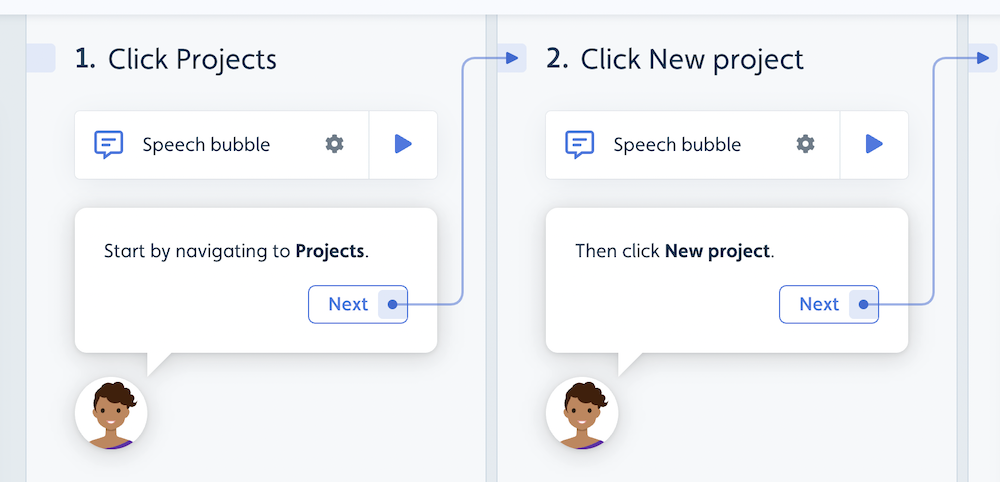
The simplest way to deal with iframes is to use speech bubbles for the steps related to the iframe. Add a “Next” button to take the user through each step.
Alternative method 2: Separate flows between top-level document and iframe
If you want to use tooltips for the iframe part of your flows, you can take a more sophisticated approach:
Step 1: Make sure Userflow.js is installed both in the top-level document and in the iframe.
Step 2: Split up flows into separate flows for the top-level document vs. the iframe part. One can trigger the iframe part of the flow using “Add action -> Start Flow” on the last step of the top-level flow.
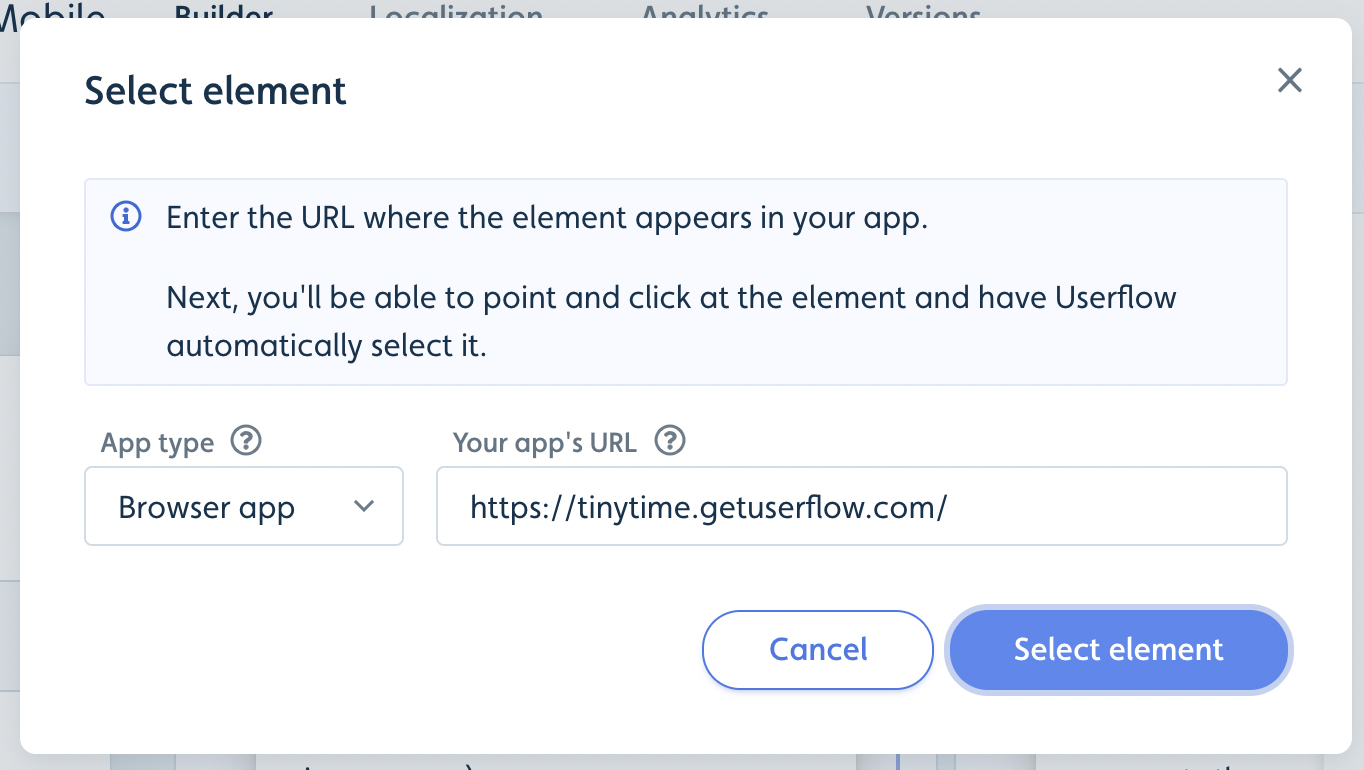
Step 3: When selecting elements for the iframe flows, you need to use the URL of the iframe. This is a separate URL from the top-level document.
Stop content from showing twice. With Userflow.js running in both the top-level document and the iframe, the same flow, checklist, or banner can appear twice, once from each. To prevent this, open the content that should only appear in the top-level document and add a Temporarily hide flow condition using Current page that matches the iframe's URL.
Special Case: Iframe covering entire app
If an iframe covers the entire top-level document, install Userflow.js inside the iframe and use the iframe's URL when you select elements in the flow builder. If Userflow.js also runs in the top-level document, content can show twice. Add a Temporarily hide flow condition using Current page that matches the iframe's URL to the content that should only appear outside the iframe.