Feedback allows you to:
Collect user feedback through multiple channels (website widget, in-app integration, or direct links).
Enable community voting so users can prioritize the most important features.
Manage idea visibility with granular control over what feedback is public or private.
Track feature development with a public roadmap that shows progress stages.
Engage with users through comments and updates on submitted ideas.
Beamer Feedback can be added to your website, in-app experience, or shared via a direct link. When enabled, the Idea Portal will be accessible from the in-app Beamer widget or the standalone page.
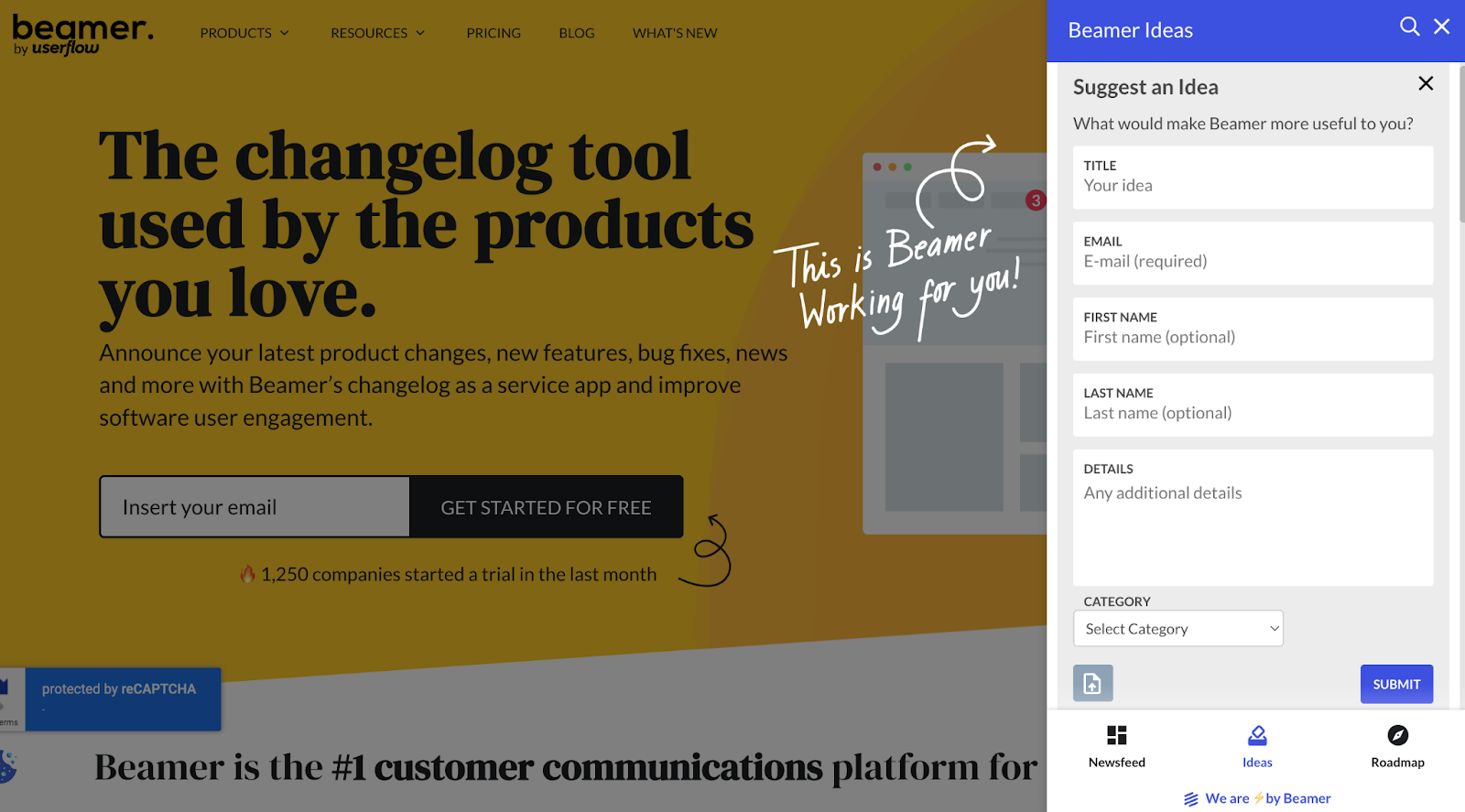
Embedded widget
The Idea Portal widget enables users to submit ideas and vote on submitted ideas, providing insight into the most popular ideas, which can help you prioritize your roadmap.
.png)
While the Idea Portal collects feedback and enables users to vote, the public Roadmap showcases the stage of development of each feature. Admins can control which Ideas and comments are public, learn more about visibility here..png)
Standalone page
You can implement both a widget and a standalone page. Users can click the header of the widget to open the standalone page.
.png)
How to manage the visibility of Feedback (Ideas & Roadmap)
You have full control over the visibility of feedback and the changelog on your widget and standalone page.
Manage Feedback (Ideas & Roadmap)visibility
Select Settings > Beamer Feedback from the sidebar.
Use the toggle switch to enable or disable visibility for ideas and the roadmap for the widget and the standalone page.
.png)
Click Save Settings.
Warning
If you disable ideas and the roadmap, all associated features will no longer be operational.
Manage Changelog
To manage the visibility of the changelog, see Managing the visibility of the changelog.
What users include when submitting an idea
When someone submits an idea through Beamer Feedback, they fill in four blocks:
Title
Details
Category, chosen from a dropdown
File upload (an attachment)
The category a user picks at submission isn’t locked in — your team can change an idea’s category from the back end at any time after it’s submitted.
Managing and reviewing ideas
Once ideas start coming in, you can review them, respond, and organize them from your Feedback dashboard. Ideas you archive are moved out of the active list to keep it focused, and archived ideas can be restored later.
For the full workflows, see Reviewing or responding to Ideas and Comments and Performing bulk actions on Ideas.