Rename, duplicate, or delete a flow
Rename: open the flow and click its name at the top of the builder. Type the new name.
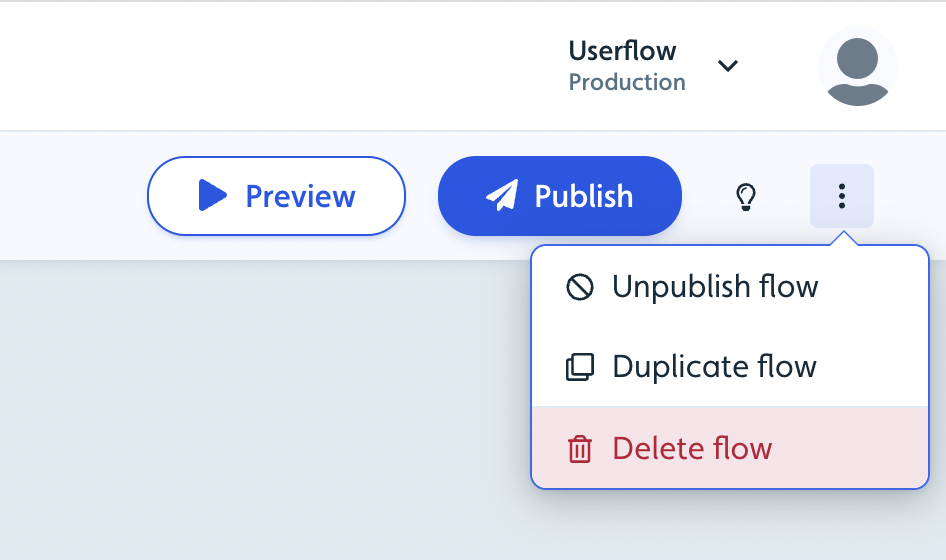
Duplicate: open the flow, click the ⋮ menu in the top right, and choose Duplicate. The copy is created in the same account.
Delete: open the flow, click the ⋮ menu in the top right, and choose Delete. See below if you'd rather unpublish.
The same steps work for checklists, launchers, resource centers, and trackers.
Copying a flow to another Userflow account isn't possible. Duplicates stay in the account they were made in. The Userflow MCP connects to one account at a time, so it can't move a flow between accounts either.
Delete a flow, checklist, launcher, resource center or tracker
If you no longer want Userflow content (flows, launchers, checklists, resource centers) or trackers to be live we recommend to unpublish it from the environment you no longer want it to be live in. Unpublishing will disable the content or tracker, but will allow you to keep the analytics and republish it later if needed. Read more in the Environments and versions guide.
If you want to fully delete Userflow content (flows, launchers, checklists, resource centers) or trackers you can do so by going to the relevant content or tracker, and clicking the 3-dot menu in the top right corner where you will find the delete option.
Delete is greyed out? Your role doesn't have permission to delete content. Ask an admin on your team to delete it for you, or to change your role. See Managing Teams in Userflow.
Duplicate content and trackers
If you want to use your existing Userflow content (flows, launchers, checklists, resource centers) or trackers as a baseline to create new content or trackers, then you can duplicate/copy them by going to the relevant content or tracker, and clicking the 3-dot menu in the top right corner where you will find the duplicate option.