With Launchers, you can embed beacons/icons/buttons in your app outside the context of flows. You can use them to draw users’ attention towards certain parts of your app or add little explanation tooltips here and there.
Creating a Launcher
To create a launcher, sign in to Userflow and
Go to Launchers in the sidebar.
Click Create launcher.
Give it a name and click the Create launcher button.
Launchers are published in the same way as flows and checklists.
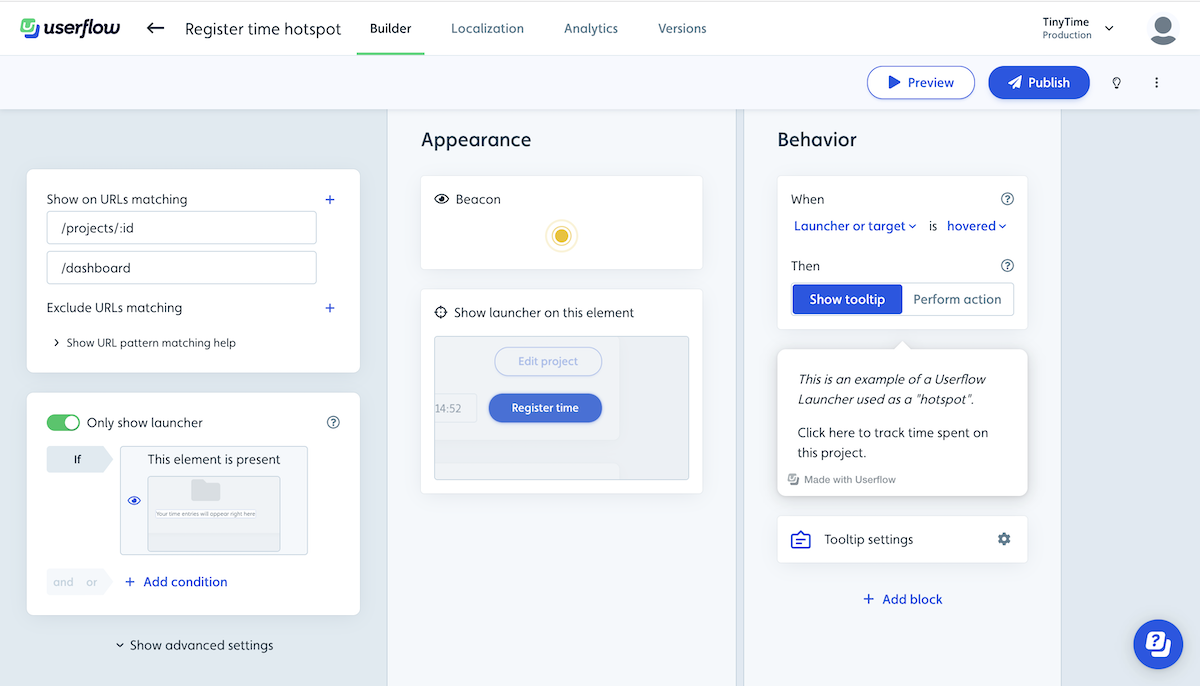
Configure the following when setting up a launcher:
Show on URLs matching - Determines the URLs (=pages) it should show in the application. You can also add Only show if conditions.
Appearance - Should it show as a beacon, button, icon, or be hidden, and which target UI element should it be attached to in the UI?
Behavior
Should it activate when the launcher or target UI element is clicked or hovered?
Should it show a tooltip on activation or should it execute an action (e.g. start a flow, navigate to a page, evaluate js).
Tooltip settings - if the launcher shows a tooltip on activation you can change the tooltip settings including. the position, and whether it should dismiss the launcher after first activation in the tooltip settings.
Use cases for Launchers
Hotspots
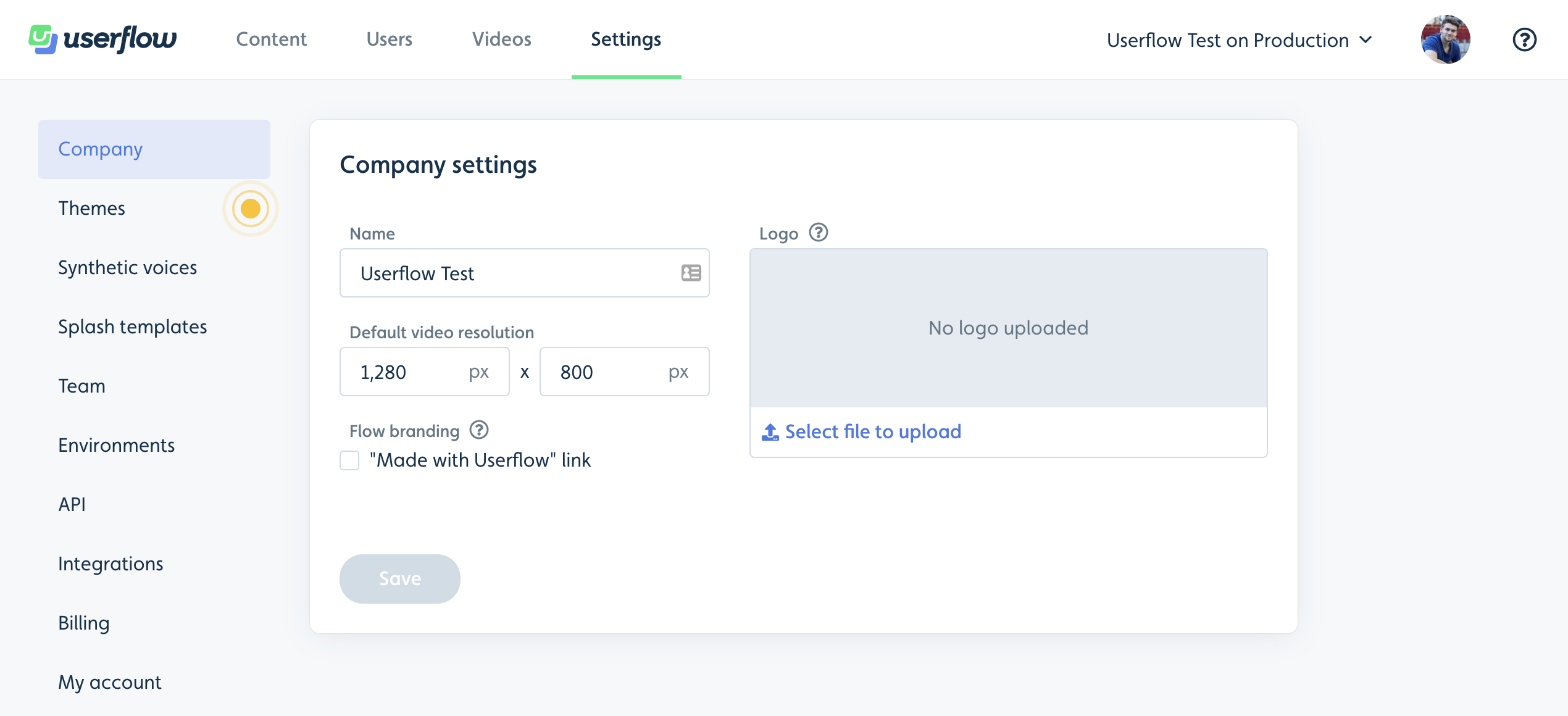
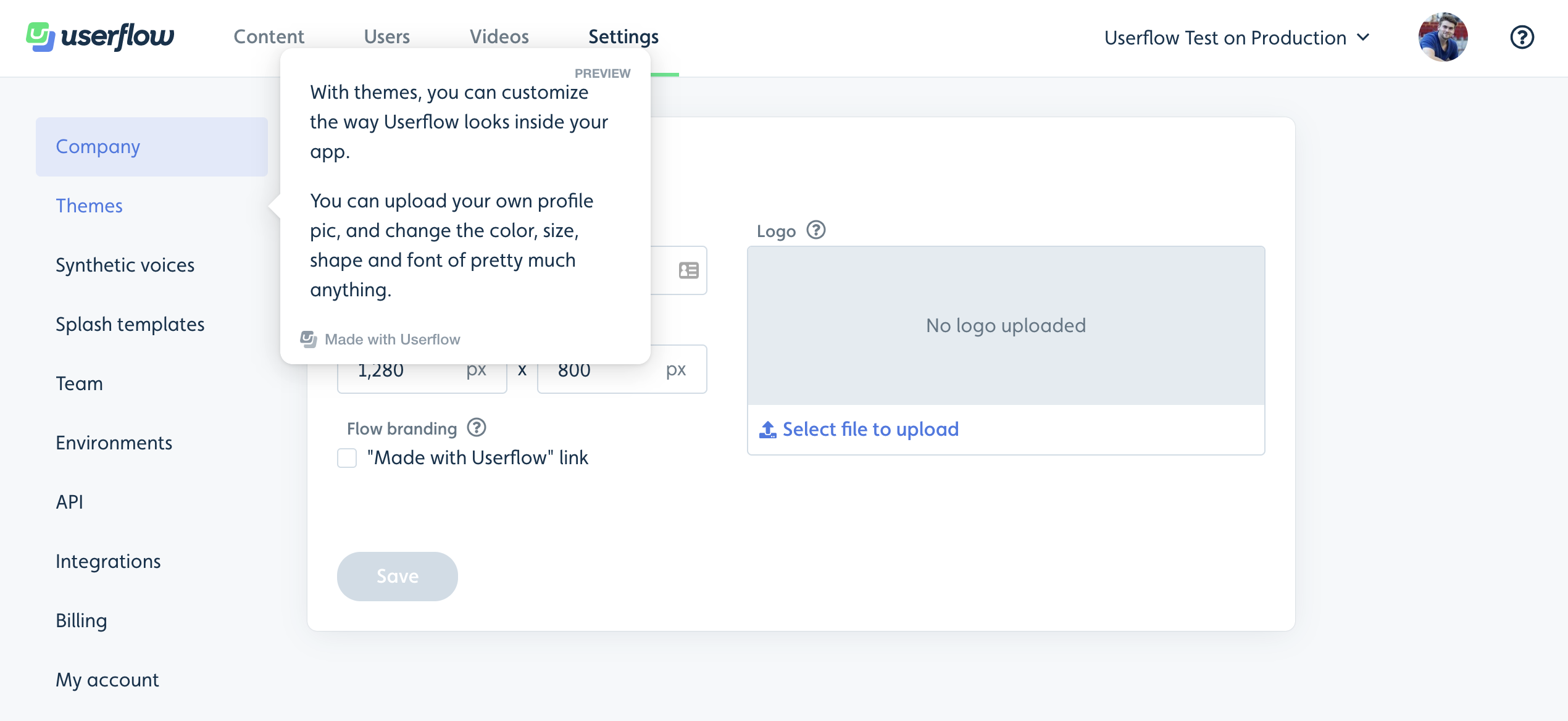
Draw users’ attention to interesting elements in your app. When the user hovers over the hotspot, you can display a tooltip with information about it and possibly a button that initiates a flow.
Explanation tooltips
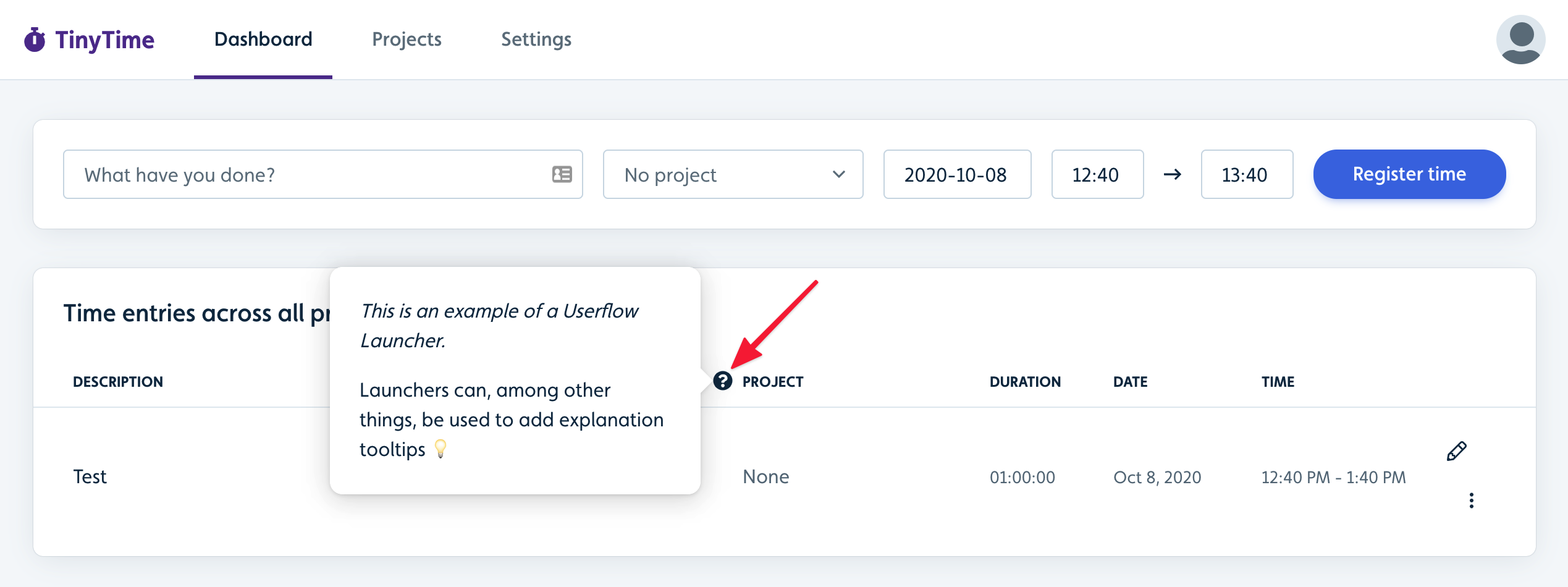
Add icon launchers next to elements in your app that may require additional explanation beyond what your UI currently provides.
Buttons to restart flows
Add a button on a page that lets users (re)start a flow/Checklist they may or may not have already seen.
Customize the look-and-feel of your launchers
You can customize the look of your launcher beacons/icons/buttons under Settings → Themes as usual. See how in our Themes guide.
Which image formats can I use for a launcher icon?
You can upload a file or point to an image URL. The launcher icon uploader accepts PNG, JPG, and SVG, at a minimum of 60x60 pixels.
GIF, WebP, and WebM are not supported here. WebM in particular is a video format and easy to confuse with WebP. Launcher icons are static images.
Note that this is a narrower list than the one for images you embed inside flow content, so don't assume a format that works in a flow will work for a launcher icon.
Beacon or launcher showing on top of a menu (z-index)
If a beacon, icon or button stays on top of a menu, dropdown or sidebar when it opens, lower the launcher's z-index so it sits underneath:
Find the z-index of the menu that should cover it. Your developers can tell you, or you can check in your browser's developer tools.
Open the launcher, click Advanced settings, and set z-index a few points lower than the menu's.
Publish the launcher and check the page again.