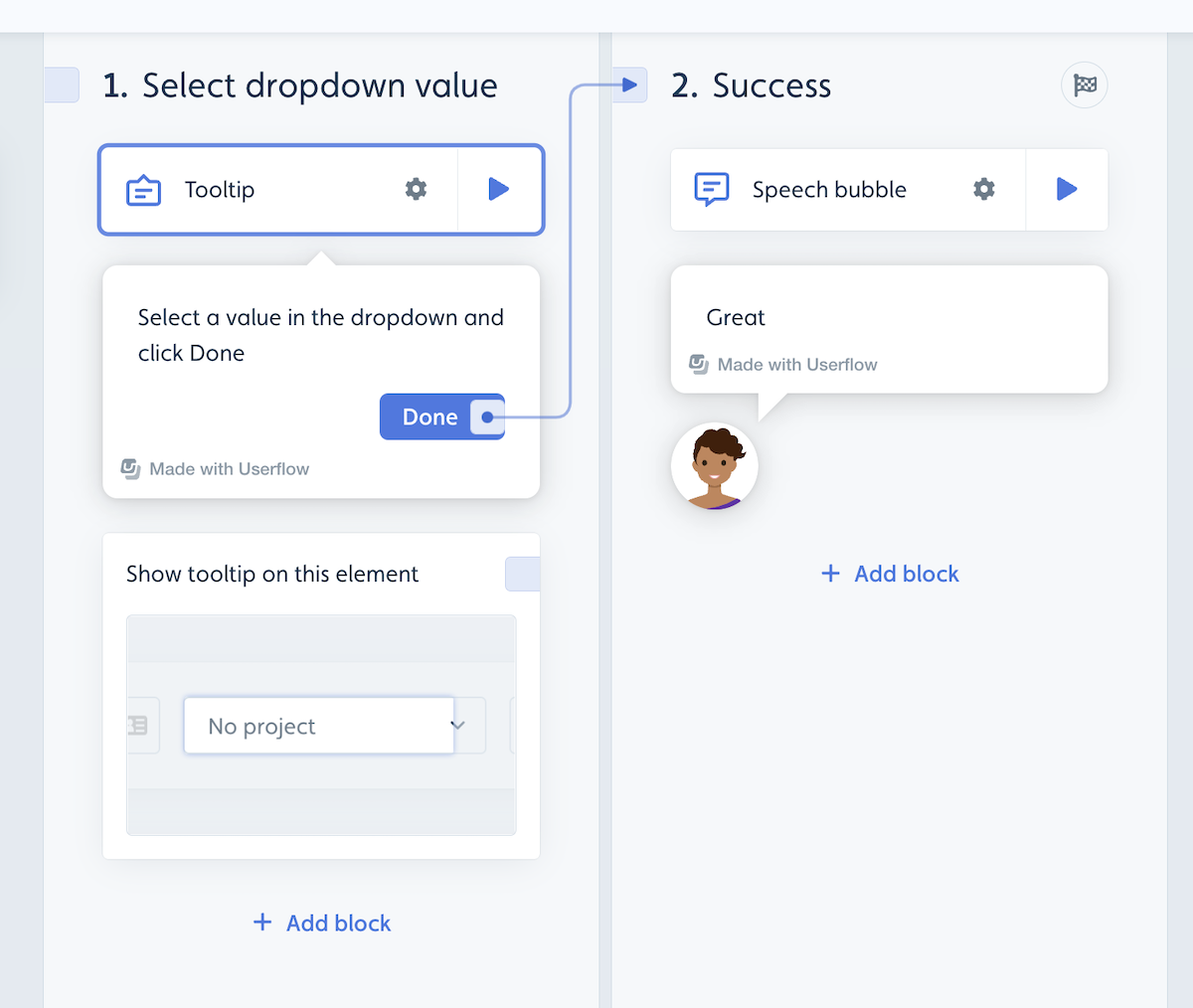
When a flow step asks users to pick something from a dropdown menu in your app, you need a way to move the flow on once they've chosen. This page shows three ways to do it, depending on how the dropdown is built.

Which solution should I use?
The dropdown is a standard HTML
<select>field: use Solution 1.The dropdown is a custom component, not an input field: use Solution 2.
You're not sure, or neither works: use Solution 3, which works with any dropdown.
If you're not sure how your dropdown is built, ask your developers, or check the element with your browser's Inspect tool. See Selecting elements.
Solution 1: Move on when the user fills in the dropdown
If the dropdown is an HTML <select> field, add a step trigger with a User fills in input condition. The flow moves to the next step as soon as the user picks any value.

To move on only when the user picks a specific value, use a Text input value condition instead.
Tip: your developers can teach Userflow.js to treat custom inputs, such as combo boxes or type-ahead fields, like a native select field. See userflow.registerCustomInput().
Solution 2: Move on when an option is clicked
If the dropdown isn't an input field, use an Element is clicked condition instead.
To move on when the user picks any option, target the element that contains all the options.
To move on only for one option, target that option.
You can do this in one step with a trigger, or split it into two steps: one to open the dropdown and one to pick the option.
Turn on Dynamic text for the tooltip's target element, since its text changes as the user picks a value.


Solution 3: Add a button the user clicks after choosing
Add a button to the tooltip, such as Next, that moves the flow on after the user picks a value. This works for any dropdown. Turn on Dynamic text for the tooltip's target element, since its text changes when the user picks a value.