If you use both Beamer Feedback and Userflow, you can add a block to your Userflow Resource Center that opens Beamer's Feedback, Ideas or Roadmap view. The block runs a line of JavaScript that calls the Beamer widget already installed in your app.
How do I add a Beamer block to my Resource Center?
In Userflow, select Resource Center from the sidebar and open your Resource Center (or click Create Resource Center for a new one).
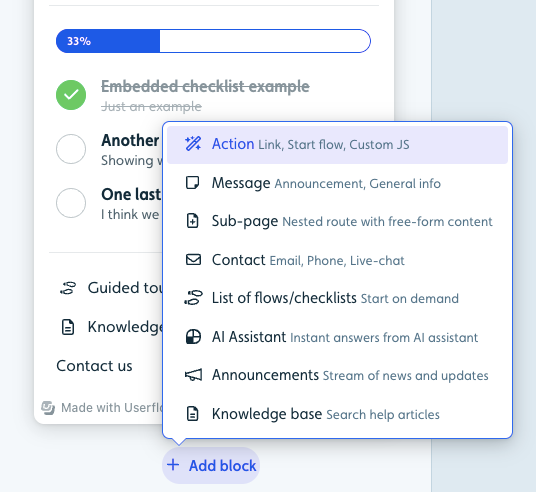
Select Add block > Action.
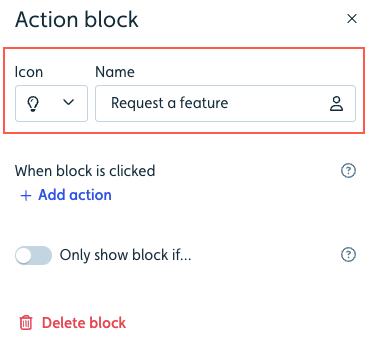
Choose an icon and enter the name users will see in the Resource Center.
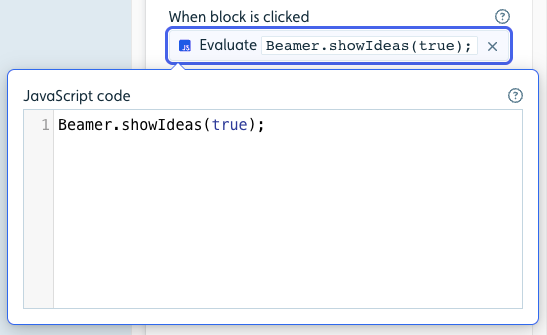
Select Add action > Evaluate JavaScript.
Enter the code for the view you want to open:
Beamer Feedback:
Beamer.show()Ideas, with the submission form open:
Beamer.showIdeas(true);Roadmap, with the submission form open:
Beamer.showRoadmap(true);
Preview the Resource Center, then publish it.
The Beamer widget has to be installed on the same page as Userflow.js for these calls to work. The block types are described in Resource Center, and the Evaluate JavaScript action in Using Evaluate JavaScript.