The disconnected steps error means one or more steps in your flow can't be reached from the first step, so no user would ever see them. The Flow builder won't save the flow until every step is linked. This page shows how to link steps so the error goes away.

Why does Userflow show a disconnected steps error?
Before the Flow builder can auto-save a flow, every step must be reachable from the first one. A step with nothing leading to it is disconnected. This often happens after you add a step, insert one between two others, or delete a step that used to link two others. See Adding and deleting steps in a flow.
How do I link steps?
A step can lead to another step in four ways:
Tooltips: when the tooltip's target element is clicked.
Buttons: when the button is clicked.
Triggers: when the trigger's condition (the "if" in "if this, then that") is true. See Step triggers in Flow builder basics.
Questions: when an answer is submitted.
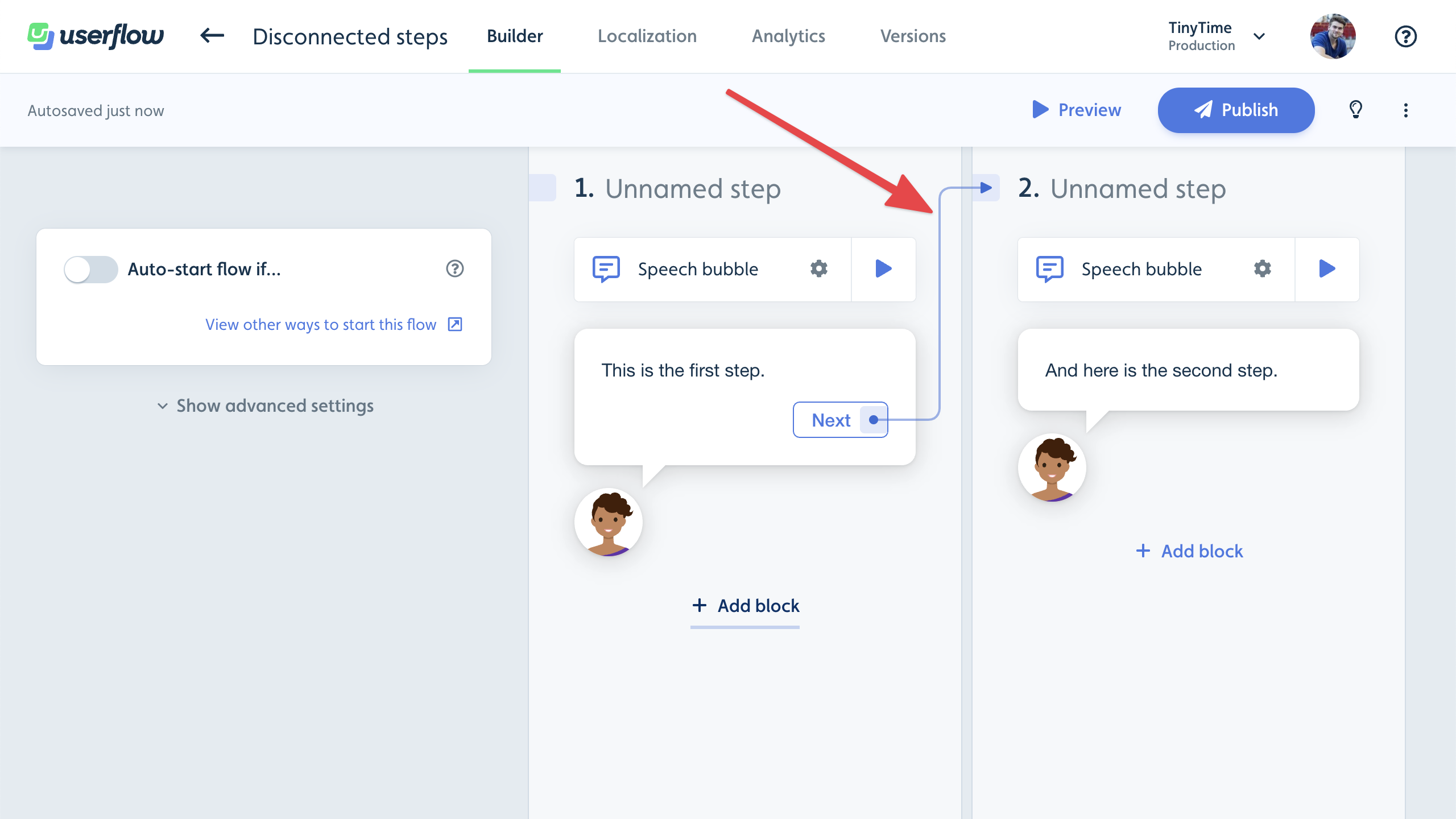
Each of these has a link port in the Flow builder: a small light-blue square with an arrow.

To connect two steps, click a link port, then click anywhere on the step it should lead to. An arrow appears between them.
You can also link with the keyboard: select a button, trigger, or tooltip, press L, use the arrow keys to move to the step, and press Enter. See Keyboard shortcuts and interactions.